• About Us
  • Contact Us
  • Advertise
  • Privacy Policy
  • Guest Post
No Result
View All Result
Digital Phablet
  • Home
  • NewsLatest
  • Technology
    • Education Tech
    • Home Tech
    • Office Tech
    • Fintech
    • Digital Marketing
  • Social Media
  • Gaming
  • Smartphones
  • AI
  • Reviews
  • Interesting
  • How To
  • Home
  • NewsLatest
  • Technology
    • Education Tech
    • Home Tech
    • Office Tech
    • Fintech
    • Digital Marketing
  • Social Media
  • Gaming
  • Smartphones
  • AI
  • Reviews
  • Interesting
  • How To
No Result
View All Result
Digital Phablet
No Result
View All Result

Home » How to Troubleshoot Active Pen Compatibility on HP EliteBook G1a

How to Troubleshoot Active Pen Compatibility on HP EliteBook G1a

Fahad Khan by Fahad Khan
September 20, 2025
in How To
Reading Time: 1 min read
A A
How to Troubleshoot Active Pen Compatibility on HP EliteBook G1a
ADVERTISEMENT

Select Language:

Having trouble getting your active pen to work with your HP Elitebook X G1a? You’re not alone, and there are some simple steps you can follow to resolve the issue.

ADVERTISEMENT

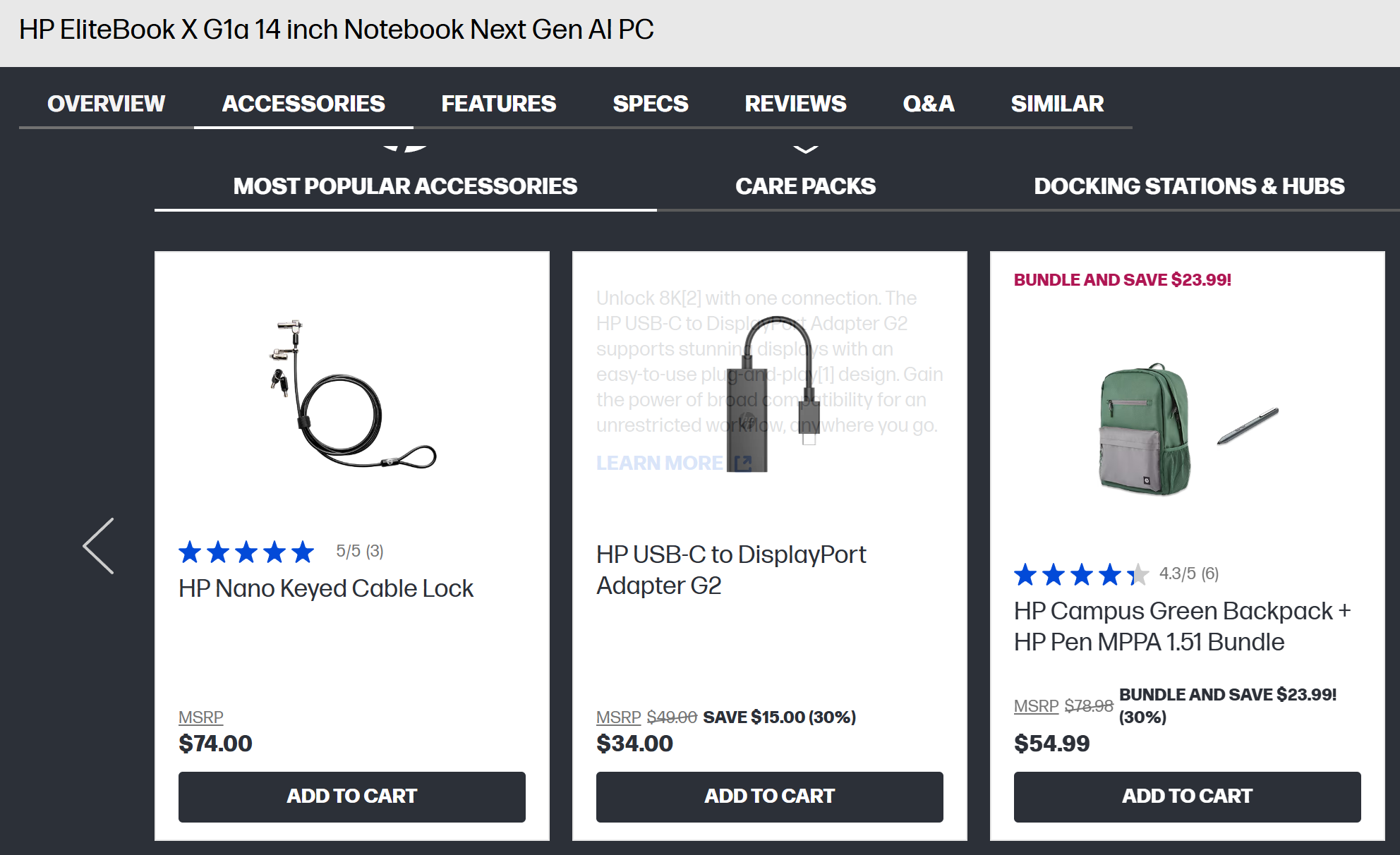
First, it’s important to know that the HP EliteBook X G1a has specific compatibility requirements for active pens. The recommended accessories listed on the product page include the HP Pen MPPA 1.51 Bundle and other models like the HP Pen G3.

If you’ve purchased the HP Active Pen MPPA 1.51 and it’s not working, try replacing the battery that came with it. Sometimes, a fresh battery can make the difference. If it still doesn’t work, make sure the pen is properly paired with your laptop through Bluetooth settings.

For the HP Active Pen G3, pairing is usually straightforward—turn on Bluetooth on your laptop, put the pen into pairing mode, and select it when it appears in your Bluetooth device list. If the pen connects but doesn’t respond, the problem might be with the digitizer or compatibility.

ADVERTISEMENT

It’s worth double-checking if your specific EliteBook model supports active pen use, as sometimes the digitizer may not be compatible with certain pens, especially if the device wasn’t originally designed with active pen features in mind.

If you’ve confirmed the compatibility and the pen is paired but still not working, try updating your laptop’s drivers and firmware. Sometimes, outdated software can cause communication issues between the pen and the laptop.

In case none of these solutions work, reach out to HP support for detailed guidance. They can help verify if your device’s digitizer supports active pen features and offer troubleshooting tailored to your specific situation.

Remember, not all models or digitizers support every active pen type, so checking the specifications and compatibility details before purchasing accessories can save you some hassle down the line.

ChatGPT ChatGPT Perplexity AI Perplexity Gemini AI Logo Gemini AI Grok AI Logo Grok AI
Google Banner
ADVERTISEMENT
Fahad Khan

Fahad Khan

A Deal hunter for Digital Phablet with a 8+ years of Digital Marketing experience.

Related Posts

Chery Auto & Nvidia Team Up for Physical AI Innovation
Business

Chery Auto & Nvidia Team Up for Physical AI Innovation

April 24, 2026
GDP Per Capita Growth of the World’s Top 15 Economies 

 China:
2000: $1.0K
2026
Infotainment

Top 15 Economies with the Fastest GDP Per Capita Growth

April 24, 2026
How to Use GitHub Copilot: A Step-by-Step Guide
How To

How to Use GitHub Copilot: A Step-by-Step Guide

April 24, 2026
AI

Volcano Engine Launches New Car AI Solution, 7 Million Cars Equipped

April 24, 2026
Next Post
How to Complete EXPcalibur in Dying Light: The Beast to Solve Its Secrets

How to Complete EXPcalibur in Dying Light: The Beast to Solve Its Secrets

  • About Us
  • Contact Us
  • Advertise
  • Privacy Policy
  • Guest Post

© 2026 Digital Phablet

No Result
View All Result
  • Home
  • News
  • Technology
    • Education Tech
    • Home Tech
    • Office Tech
    • Fintech
    • Digital Marketing
  • Social Media
  • Gaming
  • Smartphones

© 2026 Digital Phablet