Select Language:
If your Gmail inbox feels cluttered but you’re not ready to delete emails, archiving is often the best solution. It clears messages from your main inbox without deleting them completely, serving as a helpful middle ground between keeping everything visible and sending emails to the trash.
The tricky part is that Gmail doesn’t have a dedicated archive folder like some other email services. Instead, archived emails vanish from your inbox but remain stored in “All Mail,” where they can still be searched, reopened, and moved back into your inbox when needed. Basically, an archived message is never truly gone—just out of sight.
The good news is that returning to those archived messages is straightforward once you know where to look. Whether you’re using Gmail on a computer, an Android device, or an iPhone, accessing archived emails only takes a few taps. And if you decide you want an archived email back in your inbox, Gmail makes that easy to do.
Here’s how to find your archived emails and move them back into your inbox when necessary:
Finding Archived Emails on the Web
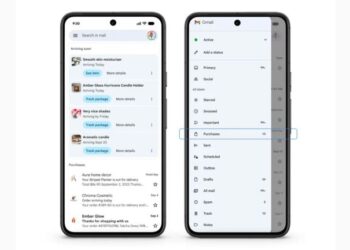
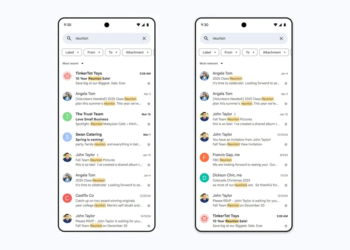
If you’re using Gmail in a browser, retrieving archived emails is simple. You can search directly using the search bar at the top, which will include archived messages in the results. Alternatively, you can access all your mail, including archived emails, beneath the “All Mail” section.
Steps:
- Go to Gmail’s website and log in.
- In the left sidebar, click on More.
- Select All Mail.
- Browse through your emails—archived messages are included here.
Finding Archived Gmails on an Android Phone
For Android users with Gmail, accessing archived messages is just as easy. Use the search bar to find archived emails or view all messages under the “All Mail” folder.
Steps:
- Open the Gmail app.
- Tap the menu icon (three horizontal lines) at the top left.
- Tap All Mail.
- You’ll see all your emails, including archived ones, ready to browse.
Moving an Archived Email Back to Your Inbox
If you decide an archived message should be back in your inbox, you can move it easily.
Using the web:
- Sign in to Gmail online.
- Find and select the email you want to move.
- Click the Move to inbox icon (an inbox tray with a downward arrow).
- The email will move back into your inbox. To archive it again later, select the email and click the Archive button (a small box with a down arrow).
On Android:
- Open Gmail app.
- Find and tap the email.
- Tap More (three dots).
- Choose Move to inbox.
Archiving vs. Muting Emails
While archive and mute functions may seem similar, they differ significantly. Archived emails can return to your inbox if they receive replies, but muted conversations stay hidden even if new replies arrive, keeping your inbox neater.
To mute an email:
- Open Gmail.
- Select the email.
- Tap the More icon (three vertical dots).
- Choose Mute.
To unmute, follow the same steps but select Unmute.
Archiving on iPhones and iOS Devices
On iPhones and other iOS devices, archiving is slightly different:
Steps:
- Find the email in All Mail.
- Tap the sender’s profile icon.
- Tap More (three dots).
- Select either Move to inbox or Move to > Primary.
By mastering these steps, you can keep your Gmail organized without losing any important messages, making your email management more efficient and less stressful.
 ChatGPT
 Perplexity
 Gemini AI
 Grok AI