Select Language:
Crimson Desert received mixed reviews at launch. While many appreciated its detailed systems and vast world, a common complaint was its complicated controls. Unlike most games that have a few straightforward action buttons, Crimson Desert requires players to learn and correctly time several button combinations to stay effective in combat.
Even basic tasks like solving puzzles and moving around can become confusing if you skip tutorials or don’t memorize each ability. Due to the game’s level of complexity, it’s a good idea to keep a list of the most important controls nearby as you get used to playing.
### Full Controller and Keyboard Input List
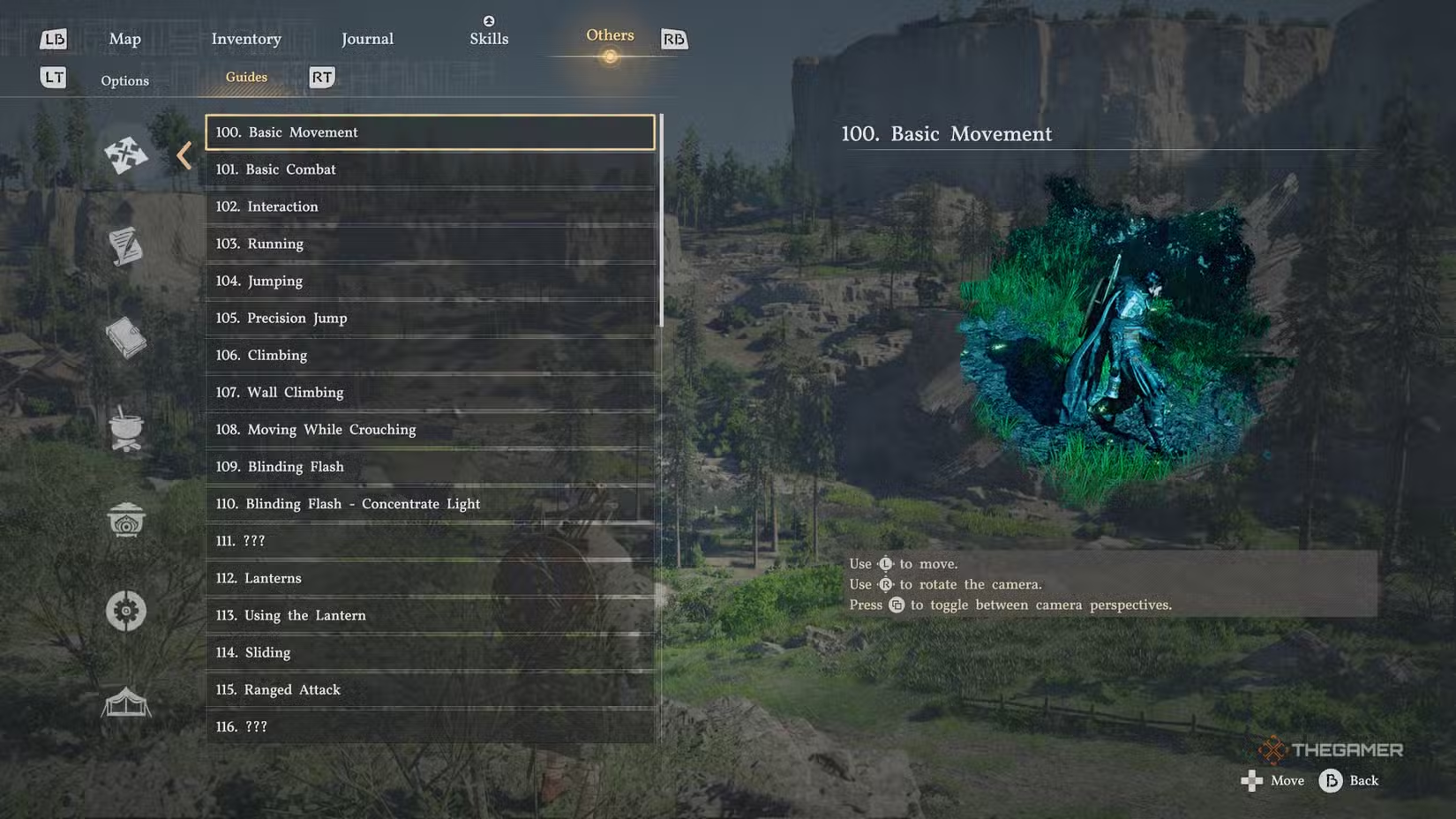
The controls vary depending on the situation, but the game offers specific control guides for each big activity. To see the complete list of controls:
1. Pause the game.
2. Go to the “Others” tab on the far right of the screen.
3. Switch to the “Guides” sub-tab (using RT or R2).
Here, you’ll find detailed instructions for interacting, combat, climbing, and mini-games.
#### Basic Movement Controls:
| Action | Xbox | PlayStation | PC |
|——————-|—————–|—————–|—————-|
| Walk | LS | L | W/A/S/D |
| Move Camera | RS | R | Mouse |
| Basic Attack | RB | R1 | Left Click |
| Power Attack | RT | R2 | Right Click |
| Run | Tap A | Tap X | Shift |
| Jump | X | Square | Space |
| Dodge/Roll | B | Circle | Alt |
| Kick/Unarmed | Y | Triangle | F |
| Summon Horse | D-Pad Up | Arrow Up | H |
| Quick Slot 1 | Hold D-Pad Up | Hold Arrow Up | Hold H |
| Sheathe Weapon | D-Pad Left | Arrow Left | T |
| Quick Slot 2 | Hold D-Pad Left | Hold Arrow Left | Hold T |
| Food | D-Pad Right | Arrow Right | – |
| Camera Lock | D-Pad Down | Arrow Down | CAPS Lock |
| Crouch/Slide | Click LS | L3 | C |
| Axion Force | Hold LS | Hold L3 | Tab |
| Force Palm | Hold RS | Hold R3 | Middle Mouse |
| Aim Ranged | LT | L2 | Q |
| Block/Parry/Aim Lantern | LB | L1 | Ctrl |
| Change Camera | View Button | Select Button | – |
| Map | Hold buttons for pause and map | Hold buttons for pause and map | – |
### Can You Remap Controls?
As of now, you cannot change control mappings on consoles. Pearl Abyss announced that a future update might allow full control customization, but it hasn’t been confirmed yet.
PC players, however, can completely rebind their keys. To do this:
1. Open the pause menu.
2. Select Settings.
3. Go to the “Inputs” submenu.
4. Assign new keys to suit your preference.
Players on Steam using a controller can also remap inputs, though the game will still show default controls in tutorials and menus even if you’ve customized them.
 ChatGPT
 Perplexity
 Gemini AI
 Grok AI