• About Us
  • Contact Us
  • Advertise
  • Privacy Policy
  • Guest Post
No Result
View All Result
Digital Phablet
  • Home
  • NewsLatest
  • Technology
    • Education Tech
    • Home Tech
    • Office Tech
    • Fintech
    • Digital Marketing
  • Social Media
  • Gaming
  • Smartphones
  • AI
  • Reviews
  • Interesting
  • How To
  • Home
  • NewsLatest
  • Technology
    • Education Tech
    • Home Tech
    • Office Tech
    • Fintech
    • Digital Marketing
  • Social Media
  • Gaming
  • Smartphones
  • AI
  • Reviews
  • Interesting
  • How To
No Result
View All Result
Digital Phablet
No Result
View All Result

Home » How To Fix Persistent Mac Apple Intelligence Issues After Reinstall

How To Fix Persistent Mac Apple Intelligence Issues After Reinstall

Rebecca Fraser by Rebecca Fraser
March 4, 2026
in How To
Reading Time: 1 min read
A A
f4d16a11 134b 4c90 8055 8aff40c4eb0e.png
ADVERTISEMENT

Select Language:

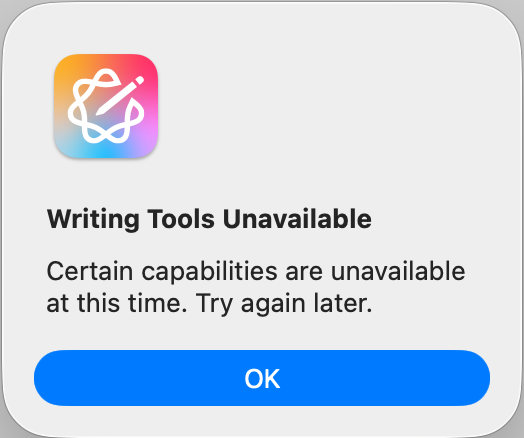
Are you having trouble with Apple Intelligence not working properly on your Mac? If a simple reinstall hasn’t fixed the issue, don’t worry—you can try a few other steps to get things running smoothly again.

ADVERTISEMENT

First, make sure your Mac is up to date. Sometimes, software updates include fixes for common problems. Go to the Apple menu, select “System Preferences,” then click “Software Update.” If an update is available, install it and restart your Mac.

Next, try clearing the cache. Cached data can sometimes cause glitches. To do this, open Finder, click “Go” in the menu bar, then select “Go to Folder.” Type ~/Library/Caches and press Enter. Carefully delete the contents inside this folder. Be sure not to delete the folder itself, just its contents. Restart your Mac after clearing the cache.

If the issue persists, check your internet connection. Apple Intelligence and similar features may need a stable connection to work properly. Restart your router if you suspect connection issues.

ADVERTISEMENT

Another step is to reset the SMC (System Management Controller) and NVRAM (Non-Volatile Random-Access Memory), as these resets can fix deeper system issues. You can find online guides that will walk you through these steps depending on your Mac model.

If none of these solutions work, consider uninstalling and reinstalling the application related to Apple Intelligence. Sometimes a fresh install can do the trick.

Finally, if you’re still facing problems, reaching out to Apple Support might be your best move. They can provide detailed assistance tailored to your specific issue.

ChatGPT ChatGPT Perplexity AI Perplexity Gemini AI Logo Gemini AI Grok AI Logo Grok AI
Google Banner
Tags: Apple Intelligence
ADVERTISEMENT
Rebecca Fraser

Rebecca Fraser

Rebecca covers all aspects of Mac and PC technology, including PC gaming and peripherals, at Digital Phablet. Over the previous ten years, she built multiple desktop PCs for gaming and content production, despite her educational background in prosthetics and model-making. Playing video and tabletop games, occasionally broadcasting to everyone's dismay, she enjoys dabbling in digital art and 3D printing.

Related Posts

shieldmaiden 8672539 960 720.jpg
How To

How To Use Siri: Apple Intelligence Tips and Tricks

April 14, 2026
book 7709416 960 720.jpg
How To

How to Fix Siri with Apple Intelligence After iOS 26 Update & Car Bluetooth

April 13, 2026
lingerie 7505785 960 720.jpg
How To

How to Fix Siri Misunderstanding Weather Queries | Apple Intelligence

April 10, 2026
ai generated 7829184 960 720.jpg
How To

How to Fix iPhone 13 Pro Max Siri & CarPlay Issues | Apple Intelligence

April 8, 2026
Next Post
Sydney Sweeney Steals the Spotlight in Tiny White Bikini and Cami Top

Sydney Sweeney Steals the Spotlight in Tiny White Bikini and Cami Top

  • About Us
  • Contact Us
  • Advertise
  • Privacy Policy
  • Guest Post

© 2026 Digital Phablet

No Result
View All Result
  • Home
  • News
  • Technology
    • Education Tech
    • Home Tech
    • Office Tech
    • Fintech
    • Digital Marketing
  • Social Media
  • Gaming
  • Smartphones

© 2026 Digital Phablet