• About Us
  • Contact Us
  • Advertise
  • Privacy Policy
  • Guest Post
No Result
View All Result
Digital Phablet
  • Home
  • NewsLatest
  • Technology
    • Education Tech
    • Home Tech
    • Office Tech
    • Fintech
    • Digital Marketing
  • Social Media
  • Gaming
  • Smartphones
  • AI
  • Reviews
  • Interesting
  • How To
  • Home
  • NewsLatest
  • Technology
    • Education Tech
    • Home Tech
    • Office Tech
    • Fintech
    • Digital Marketing
  • Social Media
  • Gaming
  • Smartphones
  • AI
  • Reviews
  • Interesting
  • How To
No Result
View All Result
Digital Phablet
No Result
View All Result

Home » Activating Battery Saver Mode on Nintendo Switch 2

Activating Battery Saver Mode on Nintendo Switch 2

Emily Smith by Emily Smith
December 9, 2025
in Gaming
Reading Time: 1 min read
A A
Activating Battery Saver Mode on Nintendo Switch 2
ADVERTISEMENT

Select Language:

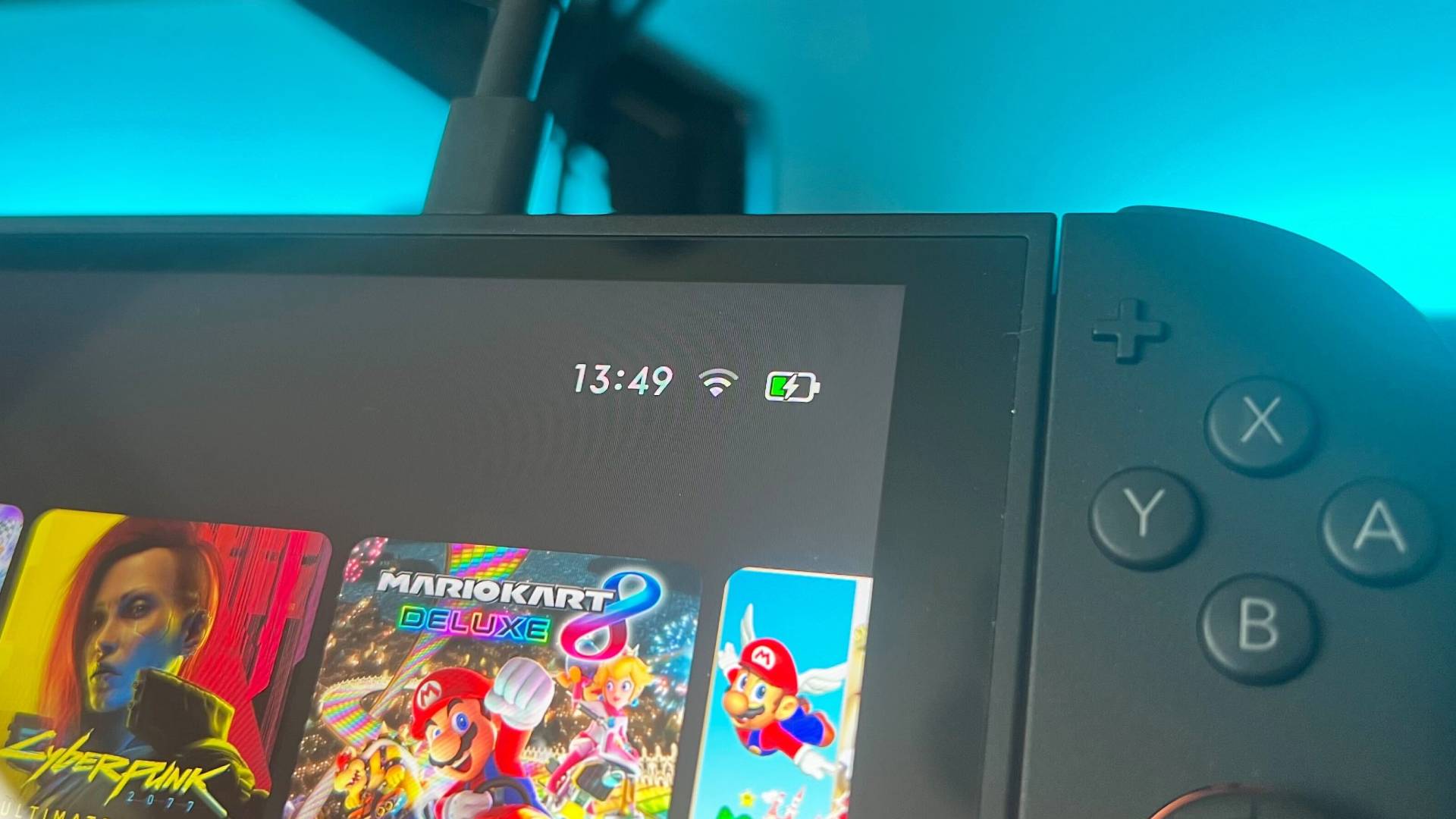
If you’re using the Nintendo Switch 2, activating Battery Preservation Mode should become a top priority. But just to be clear, this isn’t about saving battery life like when your phone drops below 20% and disables some features to stretch out the battery. Instead, this mode is specifically designed to protect the long-term health of the device’s lithium battery. Over time, many handheld gadgets’ batteries lose their maximum capacity, making them less effective. Battery Preservation Mode adjusts certain functions on the Switch 2 to slow down that battery wear and tear.

ADVERTISEMENT

Here’s how to turn on Battery Preservation Mode on your Nintendo Switch 2: go to the System Settings menu, select “System,” and then turn on “Stop Charging Around 90%.” This feature does exactly what it says—stops charging the battery once it nears full. While this might reduce gaming time slightly, it can significantly extend the overall lifespan of your console by reducing battery stress and wear.

Just enable this setting, and you’ll be ready for more hours of playing games like Cyberpunk 2077, Mario Kart Grand Prix, or whatever you love. It’s a simple, effective way to keep your device running smoothly longer. Oddly enough, given how useful this feature is, it’s not set to turn on automatically. Perhaps some players already follow good charging habits, but it’s worth activating for everyone else.

For more details about the Nintendo Switch 2, check out the list of the best controllers, upcoming games, or this console’s backwards compatibility.

ChatGPT ChatGPT Perplexity AI Perplexity Gemini AI Logo Gemini AI Grok AI Logo Grok AI
Google Banner
Tags: Nintendo
ADVERTISEMENT
Emily Smith

Emily Smith

Emily is a digital marketer in Austin, Texas. She enjoys gaming, playing guitar, and dreams of traveling to Japan with her golden retriever, Max.

Related Posts

Nintendo Faces Backlash Over Censorship of Dispatch on Switch 2
Entertainment

Nintendo Faces Backlash Over Censorship of Dispatch on Switch 2

January 29, 2026
New Nintendo Switch 2? Complete Setup Guide Inside
Gaming

New Nintendo Switch 2? Complete Setup Guide Inside

December 23, 2025
How to Share Virtual Game Cards on Nintendo Switch 2
Gaming

How to Share Virtual Game Cards on Nintendo Switch 2

December 19, 2025
How to Move Games from Switch 1 to Switch 2
Gaming

How to Move Games from Switch 1 to Switch 2

December 15, 2025
Next Post
How to Use GitHub for Effective Collaboration

How to Use GitHub for Effective Collaboration

  • About Us
  • Contact Us
  • Advertise
  • Privacy Policy
  • Guest Post

© 2026 Digital Phablet

No Result
View All Result
  • Home
  • News
  • Technology
    • Education Tech
    • Home Tech
    • Office Tech
    • Fintech
    • Digital Marketing
  • Social Media
  • Gaming
  • Smartphones

© 2026 Digital Phablet