
Select Language:
If you’ve recently reinstalled Windows 10 on your old HP laptop and want to get the Beats Audio drivers working again, don’t worry—you can do it by following a few simple steps. Since the HP Support Assistant didn’t have the drivers for you, and there’s no direct download available, here’s a way to manually find and install the right drivers for your system.
First, try to identify the specific driver name. Some common options include “Realtek High Definition Audio” or “IDT Audio Driver.” If you’re unsure, check your device manager—right-click on the Start menu, select “Device Manager,” and then look under the “Sound, video, and game controllers” section. That will give you the exact name of your audio device.
Next, visit the official website of your computer’s manufacturer (HP). Sometimes, you’ll find driver downloads on the support page for your specific laptop model. Enter your model number, and look for the audio or sound drivers section, which might offer Windows 10-compatible drivers.
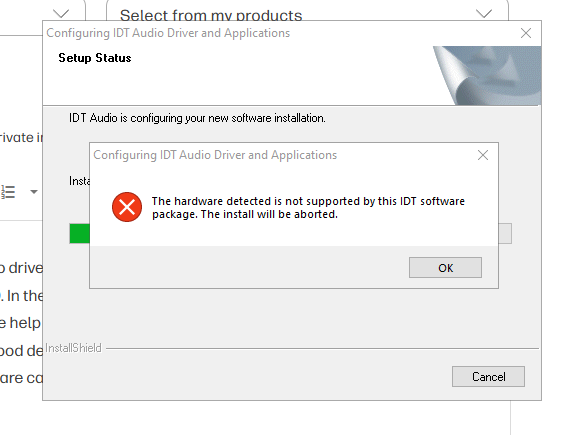
If you can’t find the correct drivers on HP’s site, visit the driver download pages for Realtek or IDT. Search by the driver name you determined earlier. For example, look for “Realtek High Definition Audio Driver” compatible with Windows 10.
In some cases, the older driver for Windows 8.1 might be more compatible with your laptop’s hardware than the Windows 10 version. If you find the Windows 8.1 IDT driver, you can try installing it in compatibility mode. To do this, right-click the setup file, select “Properties,” go to the “Compatibility” tab, check “Run this program in compatibility mode for,” and choose Windows 8.1. Then, run the installer.
Remember, if your laptop used to have Beats Audio embedded and you see the logo but no sound quality, installing the correct drivers should restore your audio experience. Keep in mind, older laptops sometimes face compatibility issues with newer drivers, so trying the Windows 8.1 driver version might be the best solution if Windows 10 drivers don’t work well.
With a little patience and these steps, you should be able to enjoy your favorite music again. Your HP device was built to last, and getting the sound working is a step toward making the most of it.
 ChatGPT
 Perplexity
 Gemini AI
 Grok AI