Select Language:
If you’re trying to update the BIOS on your HP OMEN 16 16-ap0001nc running Fedora 43, and you’ve already prepared your USB drive with the update files, here’s a simple guide to help you complete the process.
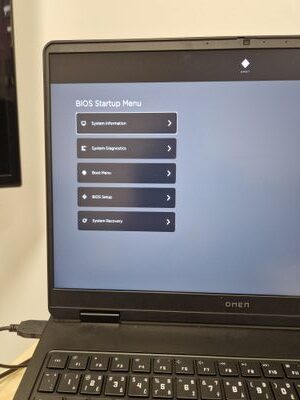
Start by turning off your computer completely. When you power it back on, press the Escape key repeatedly until the Startup Menu appears. From there, press the F9 key to open the Boot Device Options menu. Insert your prepared USB drive into the port, then choose your USB drive from the list to boot from it.
Once your computer starts from the USB, you should see the BIOS update utility or a menu that allows you to proceed with updating the firmware. If the update process doesn’t start automatically, look for prompts or options to manually initiate the BIOS update.
If you don’t see an option to update the BIOS after booting from the USB, don’t worry. It’s possible that the boot menu is only showing the drives and not the update utility. In that case, reboot and enter the BIOS setup by pressing the F10 key during startup. Make sure your USB drive is connected, and navigate to the ‘Boot’ section. Ensure that your USB drive is listed as a boot option and enabled.
Sometimes, the BIOS will automatically detect the update files on the USB drive once booted from it. However, if it doesn’t, you might need to look for an option within the BIOS named something like “Update BIOS” or “Firmware Update.” If you see such an option, select it and follow the on-screen instructions to complete the update. Make sure not to turn off the device during this process to avoid any potential issues.
Remember, updating BIOS can be risky if not done correctly. If you’re unsure at any step, refer to the official HP support documentation or contact HP support for guidance specific to your device.
In summary:
– Restart your laptop and open the boot menu (ESC + F9).
– Boot from the USB drive with the update files.
– Follow the prompts to complete the BIOS update.
– If no option appears, check BIOS settings during startup and look for an update utility option.
Good luck, and make sure to keep your laptop powered through the process to avoid any problems!
 ChatGPT
 Perplexity
 Gemini AI
 Grok AI