Select Language:
If you’re dealing with an older HP computer and wondering how to create a recovery option or upgrade to Windows 11, here’s a simple guide to help you through the process.
Many HP systems over five years old are losing access to cloud recovery options because HP is removing this feature after the warranty period ends. To avoid any issues later, it’s a good idea to try and save a copy of your cloud recovery now while it’s still available. This recovery provides all the necessary HP drivers customized for your device.
First, go to the recovery site at this link and enter your product ID, including the three characters after the # symbol. Once you have your recovery image, you can create a recovery drive on a 32GB flash drive. Keep in mind, creating the recovery USB might take an hour or more. If you prefer, you can also download the recovery software directly from the Microsoft Windows Store here, following the instructions provided here.
To upgrade your system to Windows 11, ensure your system meets the required specifications. For Windows 11, you need Windows 10 Home or Pro installed. Make sure Secure Boot is enabled in your BIOS, and that BIOS settings match the defaults as shown here.
Next, download and install Windows 11 version 25H2—select the correct edition based on your license, either Home or Pro. For a clean install, it’s best to create a new partition to replace the old one, especially if you’re starting fresh. You can follow this helpful guide here for creating a UEFI bootable USB drive.
Downloading Windows 11 is straightforward from Microsoft’s official site. You’ll want a USB flash drive of at least 8GB. Remember, Windows 11 doesn’t expire and keeps asking for activation; you can continue to use it with the free upgrade or use your Windows 10 license if you have one.
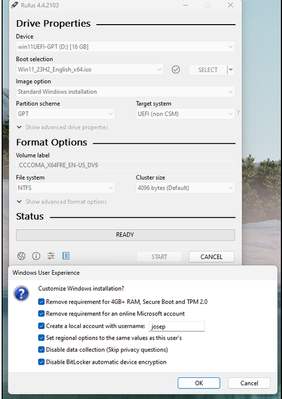
Use a tool like Rufus to prepare your USB install drive. Set it to boot UEFI mode and choose options to create a local user account during setup—this avoids needing to log in with a Microsoft email. When creating your USB, uncheck ‘Set regional options’ if your system language differs. For licensing, don’t install the Pro version if your license is for Windows 10 Home unless you upgrade to Pro separately.
Once your USB is ready, boot your computer from it to start a fresh Windows 11 installation. Follow the prompts to format and set up your system. If you’re upgrading (not doing a clean install), you might not need to hunt down drivers from HP because Windows 11 usually finds most drivers automatically. However, with a clean install, your product ID will help you find missing drivers if needed.
Lastly, make sure to back up your data before starting any major upgrades or clean installations. Run diagnostics by pressing ESC after powering on and then F2. This helps identify hardware issues that could interfere with installing or running Windows 11 smoothly.
If your PC is newer with UEFI BIOS and GPT but doesn’t fully meet all of Windows 11’s requirements, the Rufus trick can help you get Windows 11 running. There are many video guides available online that walk you through these steps, like this one here.
Please feel free to share your experience or ask further questions—this process is manageable with patience, and the results can make your older system feel new again.
 ChatGPT
 Perplexity
 Gemini AI
 Grok AI