
Select Language:
Top Basic Excel Formulas You Need to Master in 2025
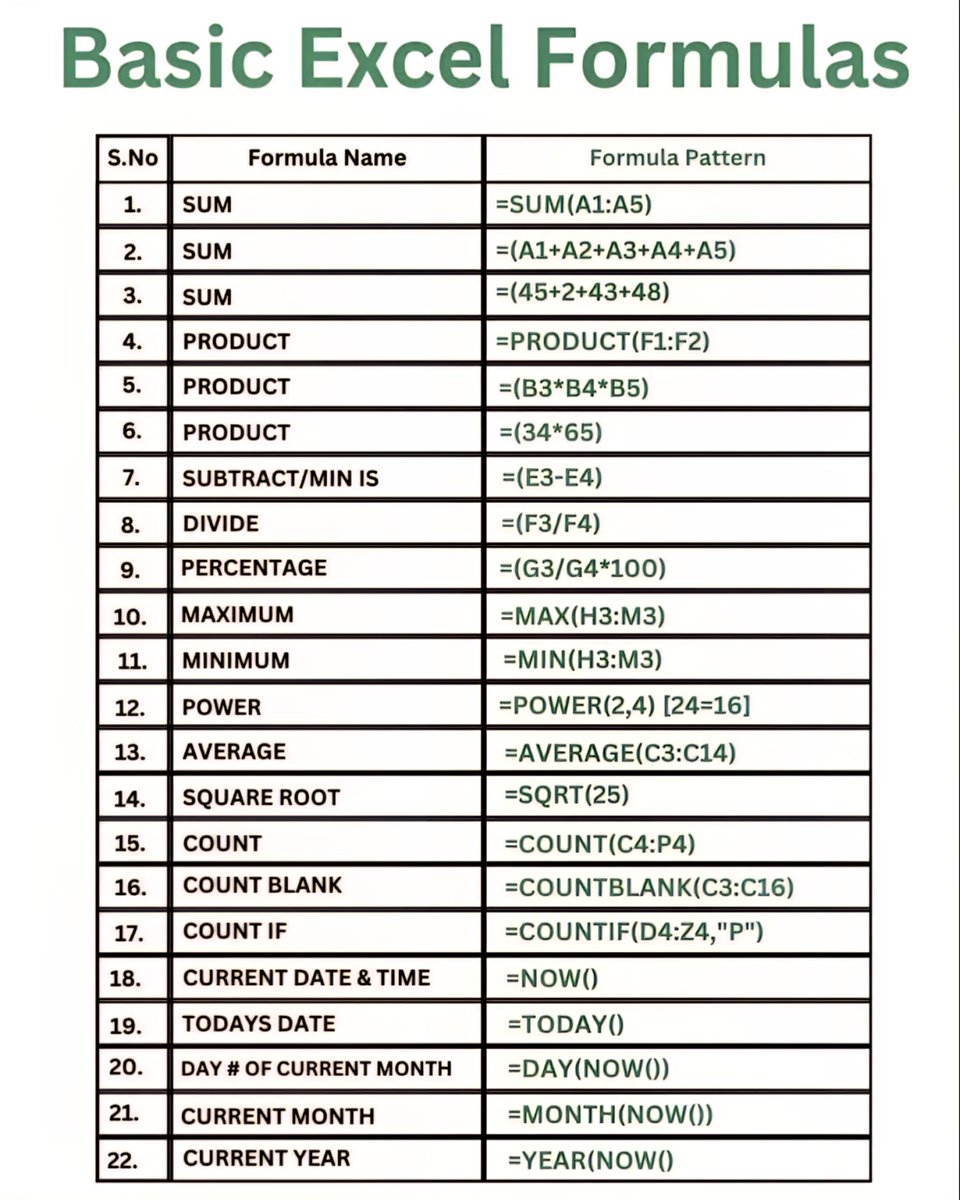
Excel remains a fundamental tool for data analysis, budgeting, project management, and much more. As software updates continue to enhance its features, knowing the core formulas can boost your productivity and accuracy. Here are essential basic Excel formulas every user should master in 2025 to stay ahead of the curve.
1. SUM: The Foundation of Addition
The SUM formula remains one of the most fundamental and widely used in Excel. It allows you to add a range of numbers quickly, whether it’s a small set or a large dataset.
Example: =SUM(B2:B10)
This formula adds all values from cells B2 through B10. It’s perfect for calculating totals in budgets and invoices.
Tip: Use this formula often to streamline summing multiple entries instead of manually adding each number.
2. AVERAGE: Find the Mean Quickly
The AVERAGE function computes the mean of selected numbers efficiently.
Example: =AVERAGE(C2:C15)
If you want the average score in a student gradesheet or weekly sales, this formula provides instant results.
Bonus: Combine with other formulas to analyze data trends over time.
3. COUNT & COUNTA: Count Numeric & Non-Empty Cells
Understanding how to count cells is critical when analyzing data. COUNT() counts only numeric values, while COUNTA() counts all non-empty cells, including text.
Example:
=COUNT(D2:D20)– Counts numeric entries=COUNTA(E2:E20)– Counts all filled cells
This helps in data validation or checking data completeness.
4. MIN & MAX: Identify Extremes
When analyzing datasets, finding the smallest or largest number is essential. MIN() and MAX() formulas simplify this.
Example:
=MIN(F2:F50)– Finds the lowest value=MAX(F2:F50)– Finds the highest value
Useful in sales data to identify top performers or low performers.
5. IF Statements: Conditional Logic Made Easy
The IF function introduces decision-making capabilities into your worksheets.
Example: =IF(G2>1000, "High", "Low")
This evaluates whether the value in G2 exceeds 1000 and labels it accordingly. Use it for status updates, pass/fail checks, or categorization.
Tip: Nested IFs enable more complex conditional rules.
6. CONCATENATE & TEXTJOIN: Combine Data Seamlessly
Combining text from different cells is common when creating labels or reports.
Example:
=CONCATENATE(A2, " ", B2)(Now replaced with=TEXTJOIN(" ", TRUE, A2, B2)in newer versions)
This merges first and last names, dates with events, or addresses for comprehensive data views.
7. VLOOKUP & HLOOKUP: Search and Retrieve Information
Quickly find data within large tables with lookup functions.
Example:
=VLOOKUP("Product X", A2:D100, 3, FALSE)
This searches for “Product X” in the first column and retrieves the third column’s data, streamlining data retrieval tasks.
Note: Newer Excel versions favor XLOOKUP for enhanced flexibility.
8. ROUND, ROUNDUP & ROUNDDOWN: Formatting Numbers Accurately
Numeric precision is crucial in financial sheets.
Examples:
=ROUND(E2, 2)– Rounds to two decimal places=ROUNDUP(E2, 2)– Rounds up regardless of decimal value=ROUNDDOWN(E2, 2)– Always rounds down
Use these to prepare reports or financial statements with consistent decimal places.
9. TODAY & NOW: Keep Data Current
Date and time are essential in dynamic reports. These functions update automatically.
Examples:
=TODAY()– Inserts current date=NOW()– Inserts current date and time
Useful in tracking deadlines, updating logs, or timestamps.
10. LEN & TRIM: Cleanse Your Data
Before analyzing data, ensure it’s clean and standardized.
=LEN(A2)– Counts characters in a cell=TRIM(A2)– Removes extra spaces from text
This process improves accuracy, especially when importing data from external sources.
Staying proficient with these core Excel formulas will empower users to handle a range of tasks more efficiently in 2025. Whether you’re managing finances, organizing data, or building reports, these functions lay the groundwork for advanced spreadsheet skills and data insights.
Image Credit: Twitter
 ChatGPT
 Perplexity
 Gemini AI
 Grok AI