

Select Language:
If you’re looking to upgrade your old HP Pavilion g4-1190br to boost your internet speed, you’re not alone. Many users want to enhance their Wi-Fi performance without replacing their trusty devices. Let’s walk through a simple solution that can help you find a compatible Wi-Fi adapter that supports 5G networks.
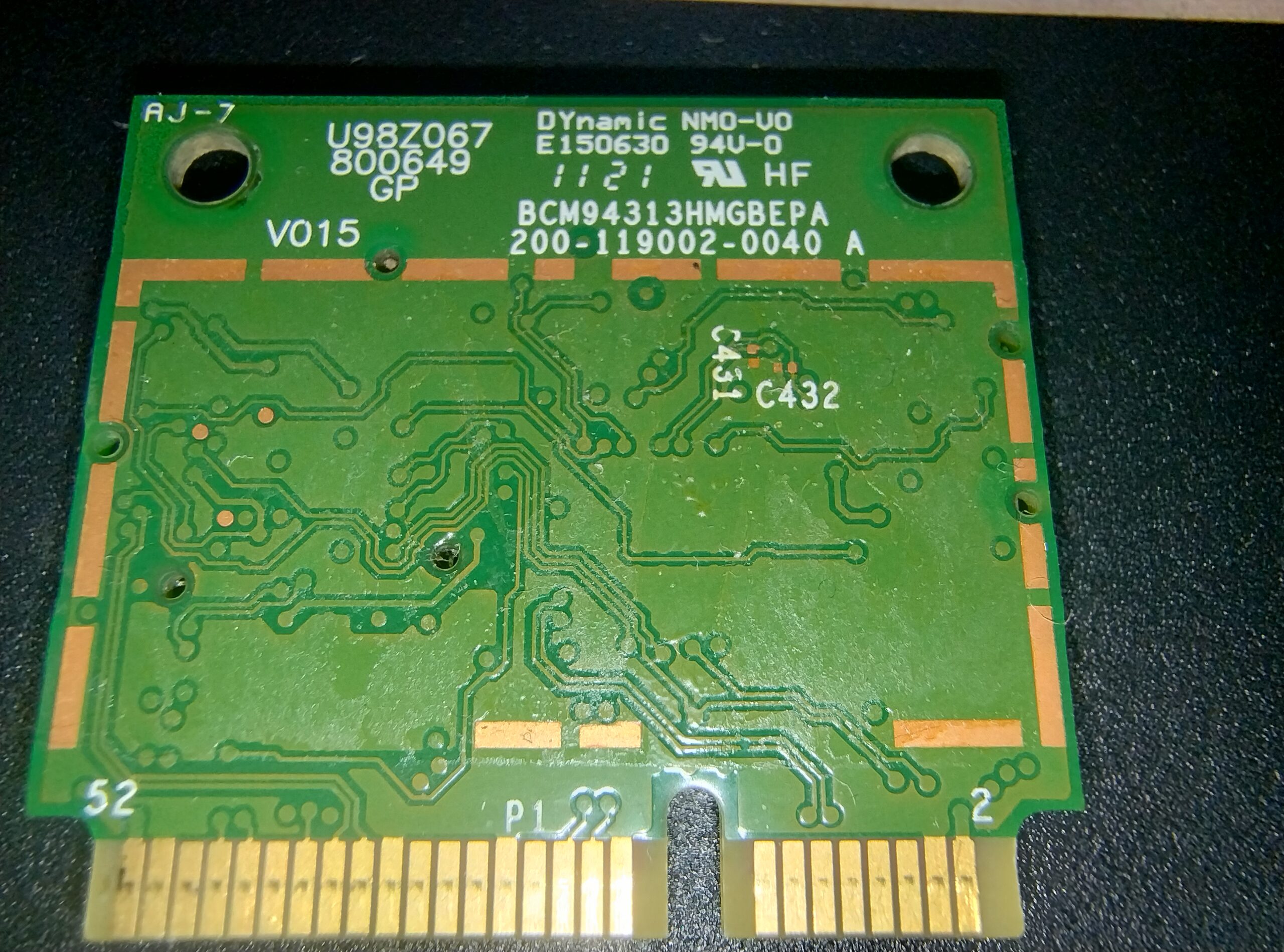
First, it’s essential to know your current setup. The HP Pavilion g4-1190br has some limitations due to its age, but you can still improve its Wi-Fi connectivity. You’ll need to replace the existing Broadcom Wi-Fi adapter with one that supports dual-band capabilities, which will allow you to access both 2.4 GHz and 5 GHz networks.
Here are the steps to find a suitable Wi-Fi adapter:
-
Research Compatible Adapters: Start by searching for Wi-Fi adapters that are compatible with HP laptops. Look for USB Wi-Fi adapters that explicitly mention support for 5G, as this is often a more straightforward option.
-
Check System Requirements: Verify the specifications of any adapter you consider. Ensure it supports your laptop’s processor and operating system. The HP Pavilion g4-1190br has an Intel Core i3 and a 64-bit operating system.
-
Read Reviews: Go through customer reviews to find real-world experiences. Look for feedback specifically related to connection stability and speed improvement. This will help you gauge which adapters are more reliable.
-
Purchase the Adapter: Once you’ve found a compatible adapter, proceed with the purchase. Make sure you buy from a reputable retailer, so you have an option to return it if it doesn’t work.
-
Install the Adapter: After receiving your new adapter, plug it into a USB port on your laptop. Most adapters come with installation steps. Follow the instructions provided to install any necessary drivers.
-
Reconnect to Wi-Fi: Once the adapter is installed, go to your network settings and connect to your Wi-Fi network. You should now see both 2.4 GHz and 5 GHz networks available, allowing you to select the faster option.
- Test Your Speed: To ensure everything is working correctly, conduct an internet speed test using a website such as Speedtest.net. Compare the results with your previous speeds to see the improvement.
By following these steps, you can successfully equip your HP Pavilion g4-1190br with a 5G-capable Wi-Fi adapter. Not only will this enhance your browsing experience, but it can also revive your device by giving it a performance boost. Enjoy faster downloads and smoother streaming with your upgraded setup!
 ChatGPT
 Perplexity
 Gemini AI
 Grok AI


