Select Language:
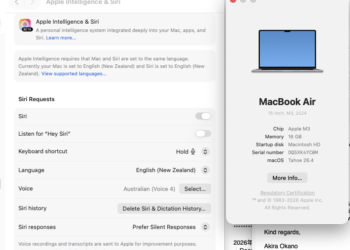
If you’re using a MacBook Pro with an M5 chip running macOS 26.3 (25D125) and notice that Apple Intelligence isn’t appearing in the Settings under Apple Intelligence & Siri, you’re not alone. Additionally, you might find that writing tools are missing in apps like Pages and Mail. Here’s a simple way to fix these issues:
First, check if your macOS is up to date. Sometimes, features don’t work properly if your system needs an update. Go to the Apple menu, select “System Settings,” then click “Software Update.” If an update is available, install it and restart your Mac.
Next, make sure that Siri and Apple Intelligence are enabled. Open System Settings, then select “Siri & Spotlight.” Turn on Siri if it’s off, and ensure any related options for Apple Intelligence are active. Sometimes, these features are hidden or disabled unintentionally.
If the writing tools aren’t showing in apps like Pages or Mail, try restarting the apps. Close them completely and reopen. If that doesn’t work, restart your Mac. A simple reboot can often resolve minor glitches.
Also, check the permissions for these apps. Go to System Settings > Privacy & Security, and ensure these apps have the necessary permissions, especially for Accessibility and Full Disk Access.
If none of these steps fix the problem, consider resetting your Siri or Apple Intelligence settings. You can do this by turning off Siri, then turning it back on after a few minutes.
Finally, if the issues remain unresolved, visit Apple’s support website or contact Apple Support directly. They can help troubleshoot further or provide specific solutions tailored to your device and software version.
These steps should help you get Apple Intelligence and writing tools working properly again on your MacBook Pro.
 ChatGPT
 Perplexity
 Gemini AI
 Grok AI