• About Us
  • Contact Us
  • Advertise
  • Privacy Policy
  • Guest Post
No Result
View All Result
Digital Phablet
  • Home
  • NewsLatest
  • Technology
    • Education Tech
    • Home Tech
    • Office Tech
    • Fintech
    • Digital Marketing
  • Social Media
  • Gaming
  • Smartphones
  • AI
  • Reviews
  • Interesting
  • How To
  • Home
  • NewsLatest
  • Technology
    • Education Tech
    • Home Tech
    • Office Tech
    • Fintech
    • Digital Marketing
  • Social Media
  • Gaming
  • Smartphones
  • AI
  • Reviews
  • Interesting
  • How To
No Result
View All Result
Digital Phablet
No Result
View All Result

Home » How To Turn On The Steam FPS Counter: A Step-by-Step Guide

How To Turn On The Steam FPS Counter: A Step-by-Step Guide

Rebecca Fraser by Rebecca Fraser
January 12, 2025
in How To
Reading Time: 2 mins read
A A
How To Turn On The Steam FPS Counter: A Step-by-Step Guide
ADVERTISEMENT

Select Language:

The frames per second (FPS) that your computer or laptop can achieve can significantly impact the gaming experience, even for top-tier games. If the FPS is too low, gameplay can become frustratingly choppy. While some gamers can easily detect changes in FPS, it’s often challenging to assess during fast-paced multiplayer sessions or while playing across different platforms. Fortunately, Steam offers a convenient built-in feature that allows you to monitor the performance of your system while gaming, enabling you to adjust settings if necessary, particularly with demanding upcoming titles. Here’s a simple guide to activate Steam’s FPS counter efficiently.

How to Enable the FPS Counter on Steam

This functionality is integrated into the Steam launcher, meaning it works with any game launched through the platform. It only takes a moment to enable or disable, but you’ll need to do this prior to starting a game.

Step 1: Open Steam and click on Steam located in the upper left corner.

Valve

Step 2: Select Settings.

Step 3: Click on In-game and scroll down to locate the In-game FPS counter dropdown menu.
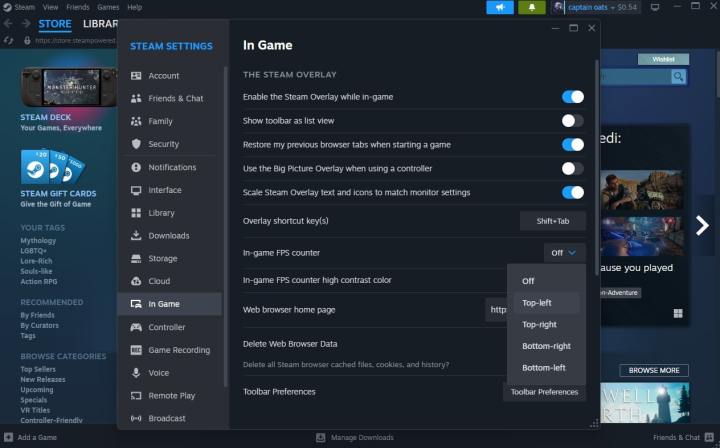
The steam in-game settings.
Valve

Step 4: Choose your preferred location for the FPS counter display: top left, top right, bottom left, or bottom right of your screen.

Step 5: If you prefer, you can also enable the High contrast color option for a more visible red display instead of gray.

Once you launch your next game, you’ll see the FPS displayed in your chosen location until you return to the settings menu to disable it.

ChatGPT ChatGPT Perplexity AI Perplexity Gemini AI Logo Gemini AI Grok AI Logo Grok AI
Google Banner
Tags: counterFPSGamingSteamTutorial
ADVERTISEMENT
Rebecca Fraser

Rebecca Fraser

Rebecca covers all aspects of Mac and PC technology, including PC gaming and peripherals, at Digital Phablet. Over the previous ten years, she built multiple desktop PCs for gaming and content production, despite her educational background in prosthetics and model-making. Playing video and tabletop games, occasionally broadcasting to everyone's dismay, she enjoys dabbling in digital art and 3D printing.

Related Posts

How to solve the Astra Malorum Easter Egg in CoD: Black Ops 7
Gaming

How to solve the Astra Malorum Easter Egg in CoD: Black Ops 7

December 5, 2025
How to Use Divinecraft in Where Winds Meet for Completing and Solving
Gaming

How to Use Divinecraft in Where Winds Meet for Completing and Solving

December 5, 2025
How Long Does It Take to Complete Metroid Prime 4: Beyond?
Gaming

How Long Does It Take to Complete Metroid Prime 4: Beyond?

December 4, 2025
Top Weapons for PvP Completing in Arc Raiders
Gaming

Top Weapons for PvP Completing in Arc Raiders

December 4, 2025
Next Post
honey bees 6491172 960 720.jpg

Top 60 Chinese AI Tech Companies of 2024 (No Particular Order)

  • About Us
  • Contact Us
  • Advertise
  • Privacy Policy
  • Guest Post

© 2025 Digital Phablet

No Result
View All Result
  • Home
  • News
  • Technology
    • Education Tech
    • Home Tech
    • Office Tech
    • Fintech
    • Digital Marketing
  • Social Media
  • Gaming
  • Smartphones

© 2025 Digital Phablet