Select Language:
If you’ve been experiencing issues with your NVMe drive disconnecting or not being recognized, especially after adding new RAM, here’s a simple way to troubleshoot and hopefully resolve the problem.
First, it might be related to a firmware or BIOS issue. You mentioned adding 8GB of RAM, and although you tested the RAM with Prime95 and it passed, disconnecting issues might still persist. Sometimes, hardware changes can cause BIOS to act unpredictably.
Since removing and reseating the NVMe isn’t an option right now because you don’t have the right screwdriver, try the following steps:
-
Power Off and Wait: Turn off your laptop completely. Remove the battery if possible, and let the device sit unplugged for about 12 hours. This can help reset the hardware and clear any temporary glitches. After that period, power it back on and see if the problem persists. Be aware that sometimes, this fix may only work temporarily, lasting a few days before the issue returns.
ADVERTISEMENT -
Update BIOS and Firmware: Check your laptop manufacturer’s website for BIOS updates. Since you’re using HP, you can download their auto-detect software to see if a new BIOS version is available. Sometimes, updating the BIOS resolves compatibility issues with NVMe drives. Make sure to follow the instructions carefully when updating BIOS to avoid any complications.
-
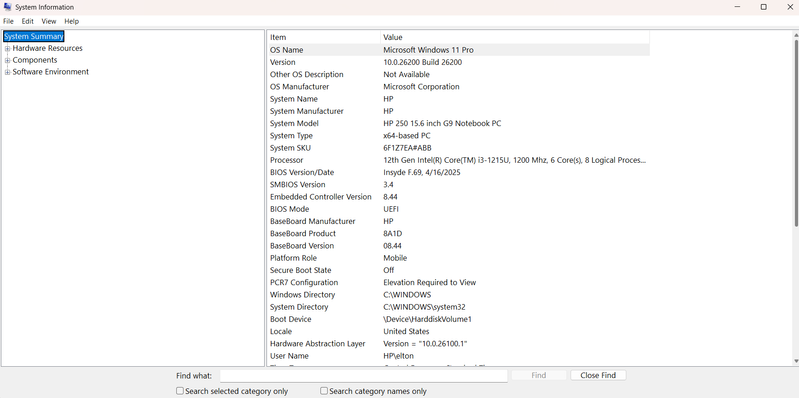
Verify the Correct Firmware: If the update tool suggests a BIOS update but doesn’t show any available updates, it may mean your current BIOS is already the latest, or the update isn’t supported for your specific firmware version. You can also manually cross-reference your BIOS version with the latest version listed on HP’s support site.
-
Check Drive Compatibility: Since you installed new RAM, confirm that your NVMe drive is compatible with your system. Incompatibility can sometimes cause these kinds of issues.
-
Monitor after the Fix: After completing BIOS updates and waiting period, monitor your system’s behavior. If problems continue, consider reseating the NVMe drive when you have the correct tools, as a loose connection can also cause disconnects.
Remember, hardware issues can sometimes be tricky, but keeping your BIOS updated and giving your system time to reset can often fix temporary problems. If these steps don’t work, consulting a professional for reseating or further diagnostics might be necessary.
Good luck!
 ChatGPT
 Perplexity
 Gemini AI
 Grok AI