

Select Language:
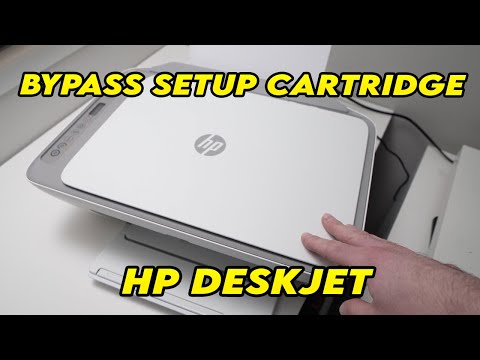
If you’re seeing the setup cartridge message on your HP DeskJet 2700 or 2600 series printer, don’t worry—it’s a common issue and easy to fix. This message usually pops up when the printer detects that the cartridge isn’t properly installed or recognized. Here’s a simple step-by-step guide to bypass this message and get your printer working again.
First, turn off your printer and unplug it from the power source. Open the printer’s cover to access the cartridges. Remove the cartridges carefully and inspect them for any protective tape or packaging that might still be attached. If you see any, remove it completely as it can prevent proper recognition.
Next, reinstall the cartridges firmly into their slots. Make sure they click into place properly. Sometimes, simply reseating the cartridges solves the problem. After that, close the cover and plug the printer back in. Turn it on and check if the message still appears.
If the message persists, try the following trick: press and hold the Cancel button and the Power button simultaneously for about 5 seconds. Release the buttons and see if the printer starts working without the message. This works because it bypasses the setup process that causes the message.
Keep in mind that using an original, genuine HP cartridge is recommended for the best results. You can find compatible cartridges on Amazon or at your local store. If you still have trouble, resetting the printer by unplugging it for a few minutes and then turning it back on can sometimes help.
This method has been helpful for many users with models like 2710, 2720, 2723, and other similar series. It’s a simple fix that can save you time and trouble without needing technical help. Give it a try, and your printer should be back to normal in no time!
 ChatGPT
 Perplexity
 Gemini AI
 Grok AI

