Select Language:
Are you tired of Siri popping up on your devices and want to turn it off completely and permanently? If you own multiple Apple devices like iPhones, Apple Watch, MacBooks, Apple TV, HomePods, and AirPods, and you’re fed up with Siri causing distractions or slowing you down, this guide is for you.
Here’s a simple step-by-step solution to disconnect Siri from all your devices once and for all, no matter what models or software versions you’re using.
First, start with your iPhone. Go to Settings, then tap on Siri & Search. Toggle off options like “Listen for ‘Hey Siri’,” “Press Side Button for Siri,” and “Allow Siri When Locked.” Confirm any prompts to disable Siri completely. Repeat this process on any other iPhones or iPads you own.
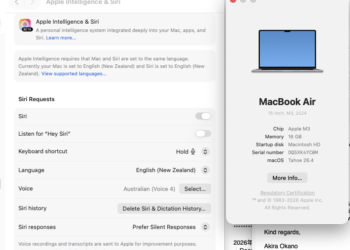
Next, turn off Siri on your Mac. Open System Preferences, then click on Siri. Deselect the box next to “Enable Ask Siri” to deactivate it.
For the Apple Watch, open the Watch app on your paired iPhone, go to the My Watch tab, then tap on Siri. Turn off “Listen for ‘Hey Siri’” and “Raise to Speak.”
On Apple TV, go to Settings, then General, and select Siri. Turn off the toggle.
For your HomePods, open the Home app on your iPhone, tap on your HomePod, and then scroll down to Siri settings. Switch off Siri.
Lastly, for AirPods, particularly the AirPods Pro or other newer models with Siri support, open Settings on your iPhone, tap Bluetooth, then find your AirPods in the list. Tap the info icon, then toggle off “Announce Calls” and any Siri-related options.
Be aware that turning off Siri individually on each device stops it from listening or responding. However, to ensure Siri is entirely disabled on all devices permanently, check that any updates or settings don’t re-enable it after updates or resets.
By following this straightforward process, you should remove Siri from every device and eliminate any triggers or functions associated with it. This way, you can enjoy a clutter-free device experience, free from the annoyances of unwanted voice assistants.
 ChatGPT
 Perplexity
 Gemini AI
 Grok AI