
Select Language:
It finally happened. My trusty Kindle Paperwhite from 2021, which I’ve relied on for countless nightly reads, began to show signs of aging. It started to lag during boot-up and was slow to respond to my touches. Luckily, I managed to breathe new life into my Kindle by applying a few straightforward troubleshooting methods.
If you’re a passionate reader like I am and your e-reader is struggling to keep pace, don’t worry—I’ve got you covered. I’ll provide you with a detailed guide to optimize your Kindle Paperwhite, including step-by-step instructions for the latest version.
Optimize Your Storage
I admit, my 11th-generation Kindle Paperwhite harbors an embarrassingly extensive digital library. My quest for captivating yet unusual stories has led me to gather a mishmash of books and short tales over the years. The first step I took to improve my Kindle’s performance was to clear out any books I wasn’t reading at the moment.
For those with an 11th-generation or the 2024 Kindle Paperwhite, you can easily remove unwanted titles. Head to your personal library, press and hold the cover of the book you’d like to delete, and select “Remove from Device.” If you want to delete several books at once, go to Settings (tap the three vertical dots in the top-right corner) > Device Options > Storage Management > Manual Removal > Books. You can then select multiple books to remove and hit the “Remove” button at the bottom.
My main issue was that I tended to download every book I purchased, which is not the best practice since it consumes a lot of storage space, negatively impacting performance. I usually read only one or two books at a time, so there’s really no need to keep everything downloaded. If you wish to remove all downloaded books in one go, performing a factory reset is the most efficient method.
IDG / Ashley Biancuzzo
Restoring Factory Settings
If you’re currently without a specific book you’re committed to reading, consider resetting your Kindle to its factory settings, which will automatically delete all downloaded content. I did this with my own device, and it greatly improved both boot-up speed and touch responsiveness. Just keep in mind that this also resets your brightness and color temperature preferences. Although I prefer the warm mode, the performance boost was worth the minor inconvenience of reconfiguring my settings.
To restore your 11th-generation Kindle Paperwhite to factory settings, go to Settings > Device Options > Factory Reset. Confirm the reset, and let your Kindle handle the rest. If you have a different model, don’t worry—I’ve got the factory reset guide for the 2024 Kindle Paperwhite below.
For the 2024 Kindle Paperwhite:
- Wake up your Kindle
- Swipe down to access the Quick Actions panel
- Select the All Settings icon
- Go to Device Options
- Choose Reset
- Confirm the action
Restart Your Device
No matter whether it’s a smartphone or a computer, sometimes a restart is all it takes to resolve issues. The same holds true for your Kindle. For the 11th-generation or 2024 Kindle Paperwhite, press and hold the power button for 30 to 40 seconds until the power menu appears. This will prompt you to choose between restarting your Kindle or simply turning off the display. Select “Restart” and let your device do its thing.
Update Software
IDG / Ashley Biancuzzo
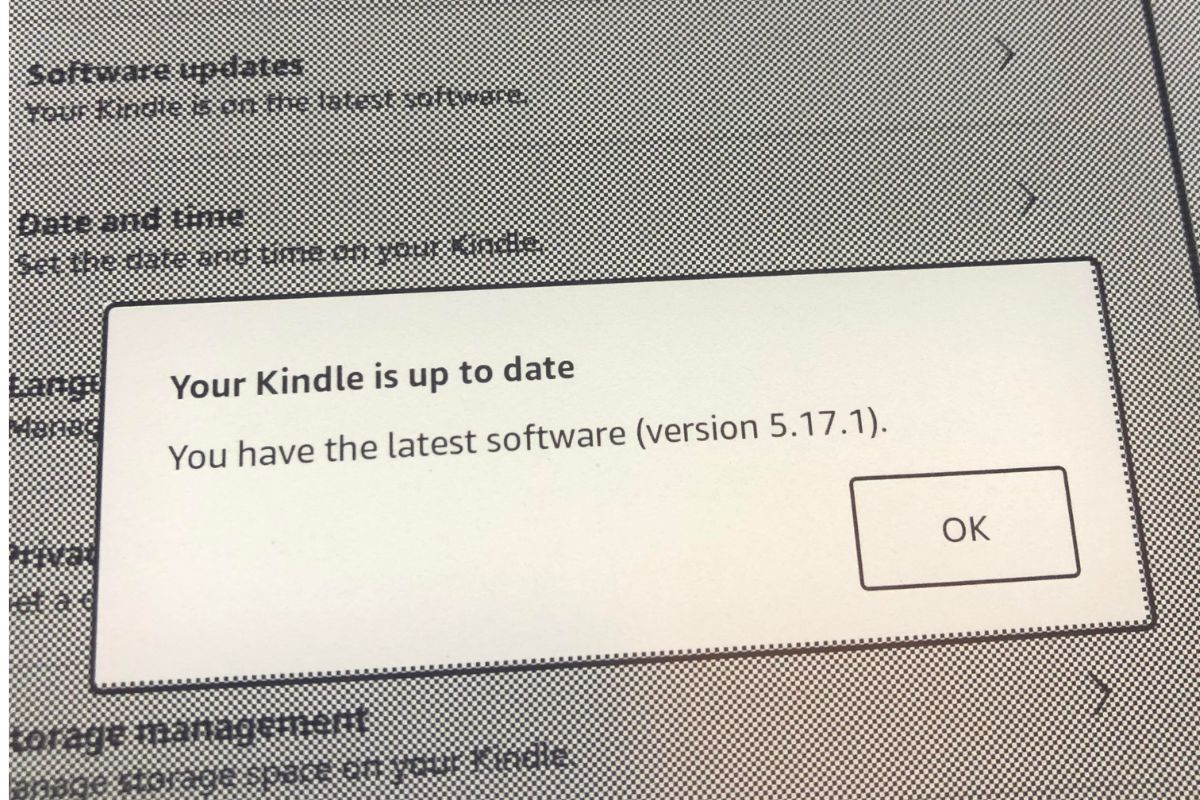
Keeping your Kindle up-to-date can enhance its performance by incorporating new features and fixing existing bugs. Updates usually occur automatically when your device connects to Wi-Fi, but you can also check manually. For the 11th-generation Kindle Paperwhite, head to Settings > Device Options > Software Updates. If an update is available, you’ll see an option to “Update Your Kindle.”
For the 2024 Kindle Paperwhite:
- Go to the Home screen
- Tap on All Settings
- Select Device Options
- Choose Software Updates
- The current software version will be displayed at the bottom
 ChatGPT
 Perplexity
 Gemini AI
 Grok AI