Select Language:
Having trouble getting Siri to work smoothly on your Mac? You’re not alone. Many people turn on the “Listen for Hey Siri” feature but find that Siri doesn’t activate when they try to call her, or she doesn’t respond properly when opened manually. Here’s a simple guide to fix these common issues and get Siri up and running easily on your Mac.
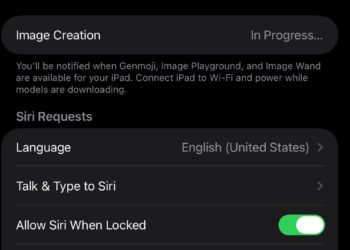
First, make sure your Mac supports Siri and that it’s turned on correctly. Go to the Apple menu, then open “System Preferences,” and click on “Siri.” Check that the box next to “Enable Ask Siri” is selected. Also, ensure that “Listen for Hey Siri” is turned on if you want to activate Siri with your voice.
Next, check your microphone settings. Sometimes, Siri can’t hear you properly if your microphone isn’t working right. Still in “System Preferences,” click on “Sound,” then go to the “Input” tab. Select the microphone you’re using, and speak into it. Watch the input level bar — if it doesn’t move when you talk, you might need to try a different microphone or fix your current one.
If Siri still doesn’t respond to “Hey Siri,” it might be due to a system update. Apple often releases updates that help improve features like Siri. To check for updates, go to the Apple menu, click “System Preferences,” then “Software Update,” and install any available updates.
Another thing to check is internet connection. Siri needs a good internet connection to work properly. Make sure your Mac is connected to Wi-Fi and that your internet connection is stable.
Finally, if Siri opens but only shows links or doesn’t speak back, try restarting your Mac. Sometimes, a simple restart can clear up minor glitches.
By following these steps, you should be able to get Siri working correctly on your Mac. If you still experience issues, contacting Apple Support might be your next best step. They can help troubleshoot any specific problems with your device.
 ChatGPT
 Perplexity
 Gemini AI
 Grok AI