Select Language:
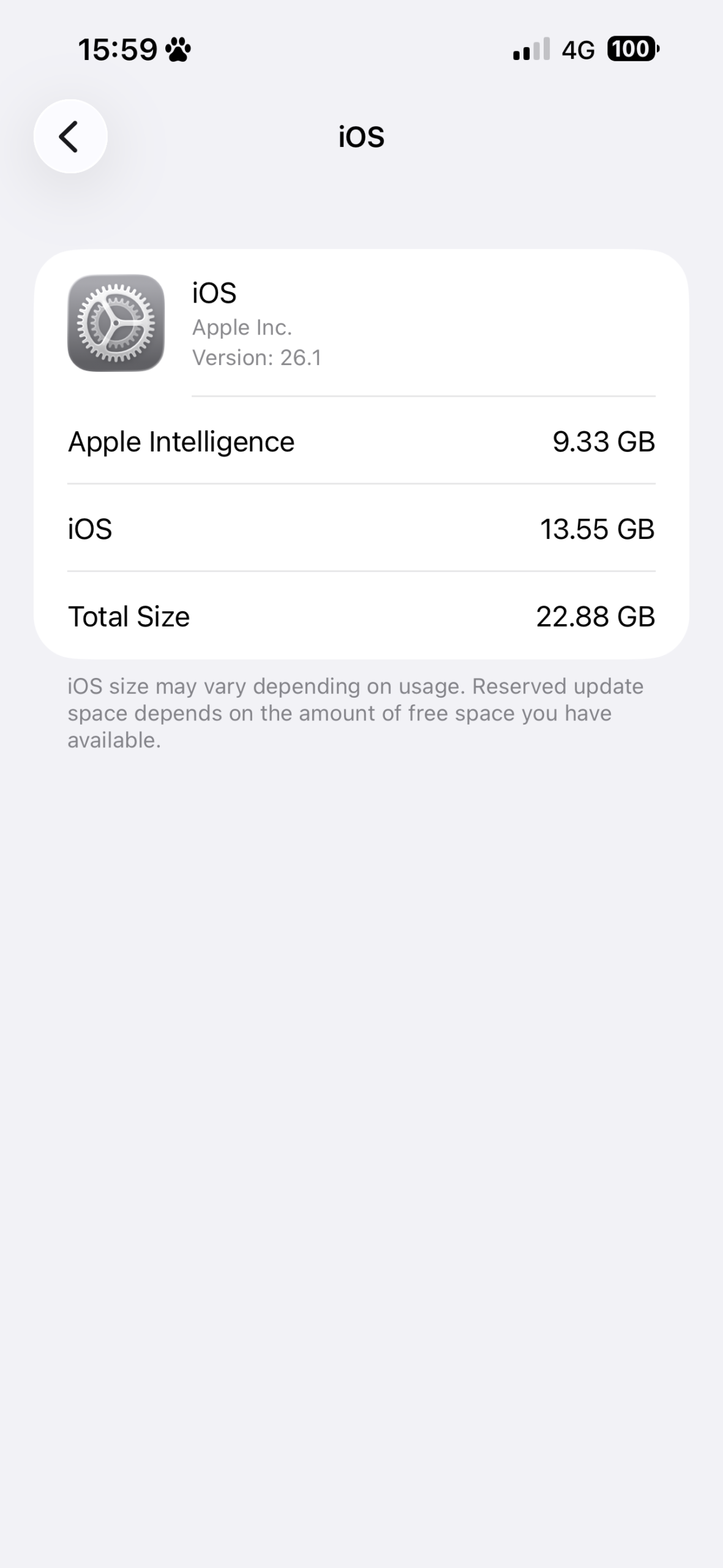
If you’re seeing that your iPhone 16 Plus has 9.33 GB of “Apple Intelligence” storage and it’s stuck on “downloading Apple Intelligence,” don’t worry. This is a common issue, and there are simple steps you can take to fix it.
First, try to restart your iPhone. Sometimes, a quick restart can resolve temporary glitches. To restart, press and hold the side button along with the volume button until the power off slider appears. Slide to turn off, then press and hold the side button again to turn it back on.
If restarting doesn’t work, make sure your iPhone has a stable internet connection. Since it’s downloading data, the process can be slow or stalled if Wi-Fi or cellular data isn’t working well. Connect to a reliable Wi-Fi network if you’re using cellular data.
Next, check for any iOS updates. Apple often releases updates to fix bugs and improve performance. To do this, go to Settings > General > Software Update. If an update is available, download and install it.
Sometimes, the download gets stuck because of storage issues. Check your storage space by going to Settings > General > iPhone Storage. Make sure there’s enough free space. If storage is low, delete some apps or files you don’t need.
If none of these steps work, try signing out of your Apple ID and then signing back in. Go to Settings, tap your name at the top, scroll down, and tap Sign Out. Afterward, sign back in and see if the download resumes.
Finally, if your iPhone still shows “downloading Apple Intelligence” and nothing is happening, it might be best to contact Apple Support or visit an Apple Store. They can help diagnose the issue further and provide a solution.
By following these steps, you should be able to resolve the problem and get your Apple Intelligence download working smoothly.
 ChatGPT
 Perplexity
 Gemini AI
 Grok AI