Select Language:
If you’re trying to find drivers for your HP Z420 workstation to fix the yellow warning icons on the PCI Serial Port and SAS Controller when running Windows 11, here’s a simple guide to help you out.
First, know your workstation details so you can find the right drivers. Your HP Z420 has the serial number CZC41619FX and product reference WM639ET#ABF. This info can help you when searching on HP’s website or other driver sources.
Since Windows 11 is newer and the device drivers for your workstation might not be available directly from HP, you’ll need to try a few different methods:
-
Visit HP Support Website: Go to HP’s official support page and enter your workstation’s product number or serial number. Look for driver downloads. Sometimes older drivers work for newer Windows versions even if they aren’t explicitly listed for Windows 11.
ADVERTISEMENT -
Use Windows Update: Open your settings, go to Update & Security, then Windows Update. Check for updates. Windows may automatically find compatible drivers for some devices, including PCI serial ports and SAS controllers.
-
Install Drivers in Compatibility Mode: If you find drivers for an earlier Windows version (like Windows 10 or Windows 7), try installing them in compatibility mode. Right-click the driver setup file, select Properties, go to Compatibility tab, then choose the appropriate Windows version, and run the setup.
-
Look for Generic Drivers: For serial ports, sometimes the drivers come with Windows or can be found through driver update utilities. For SAS controllers, identify the specific hardware model (sometimes visible in device manager details), then search for generic drivers compatible with that hardware.
-
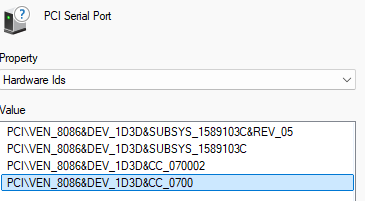
Use Hardware ID: If you’re unsure what hardware you have, open Device Manager, right-click on the device with the yellow warning, select Properties, then go to the Details tab and pick Hardware Ids from the dropdown. Search these IDs online; this can tell you exactly what device it is, making driver searches more precise.
-
Update Drivers Manually: Once you have the correct driver files, right-click the device in Device Manager, select “Update Driver,” then choose “Browse my computer for drivers” and navigate to where you saved the downloaded driver.
If these steps seem complicated, don’t worry. Take your time, and make sure to create a restore point before installing new drivers, just in case something doesn’t go as planned.
This approach should help you find and install the right drivers so the warning icons in Device Manager disappear and your workstation runs smoothly on Windows 11.
 ChatGPT
 Perplexity
 Gemini AI
 Grok AI