

Select Language:
If you recently purchased an HP DeskJet 2800e and are having trouble printing in color from your computer, you’re not alone. Many users find that their printer is only preset to black and white, even though they want to print in color.
Here’s a simple way to fix this issue:
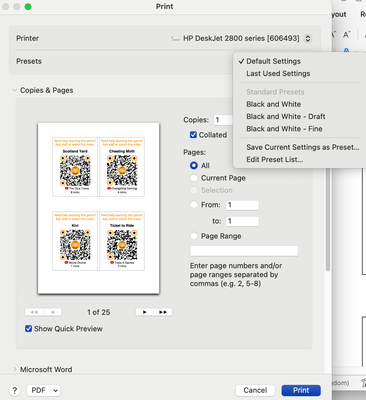
First, check the print settings on your computer. Sometimes, the default setup only allows black and white printing. To change this, open your print dialog box from your computer. Look for options like “Print Settings” or “Preferences.”
In the preferences window, see if there’s a section labeled “Color” or “Color Options.” Make sure you select “Color” as your preferred printing mode. If it’s set to “Black & White” or “Grayscale,” change it to “Color.”
If you don’t see these options, try updating or reinstalling your printer driver. Visit HP’s official website, find your printer model, and download the latest driver compatible with your macOS 15.0 Sequoia. Installing the latest driver can often resolve compatibility issues and unlock full printing options.
Another thing to try is accessing the printer settings through the “Printers & Scanners” menu on your iMac. Select your printer, then click “Options & Supplies,” and look for any settings related to color management.
Since you mentioned you can print in color from your phone using the HP app, it’s a good sign that the issue is isolated to your computer’s print settings. Once you have adjusted the preferences and updated the driver, try printing a test page to confirm that color printing works.
If issues persist, resetting the printing system on your Mac can help. To do this, go to “Printers & Scanners,” right-click (or control-click) on your printer, and select “Reset printing system.” After restarting your Mac, re-add your printer and try again.
Following these steps should help you enable color printing from your computer. If you’re still having trouble, reaching out to HP support can provide further assistance.
 ChatGPT
 Perplexity
 Gemini AI
 Grok AI
