

• About Us
  • Contact Us
  • Advertise
  • Privacy Policy
  • Guest Post
No Result
View All Result
Digital Phablet
  • Home
  • NewsLatest
  • Technology
    • Education Tech
    • Home Tech
    • Office Tech
    • Fintech
    • Digital Marketing
  • Social Media
  • Gaming
  • Smartphones
  • AI
  • Reviews
  • Interesting
  • How To
  • Home
  • NewsLatest
  • Technology
    • Education Tech
    • Home Tech
    • Office Tech
    • Fintech
    • Digital Marketing
  • Social Media
  • Gaming
  • Smartphones
  • AI
  • Reviews
  • Interesting
  • How To
No Result
View All Result
Digital Phablet
No Result
View All Result

Home » How to Disable Spotlight Web Search on Mac | Apple Intelligence

How to Disable Spotlight Web Search on Mac | Apple Intelligence

Rebecca Fraser by Rebecca Fraser
January 18, 2026
in How To
Reading Time: 2 mins read
A A
d3c128b1 386c 490c a408 1341690197dc.png
ADVERTISEMENT

Select Language:

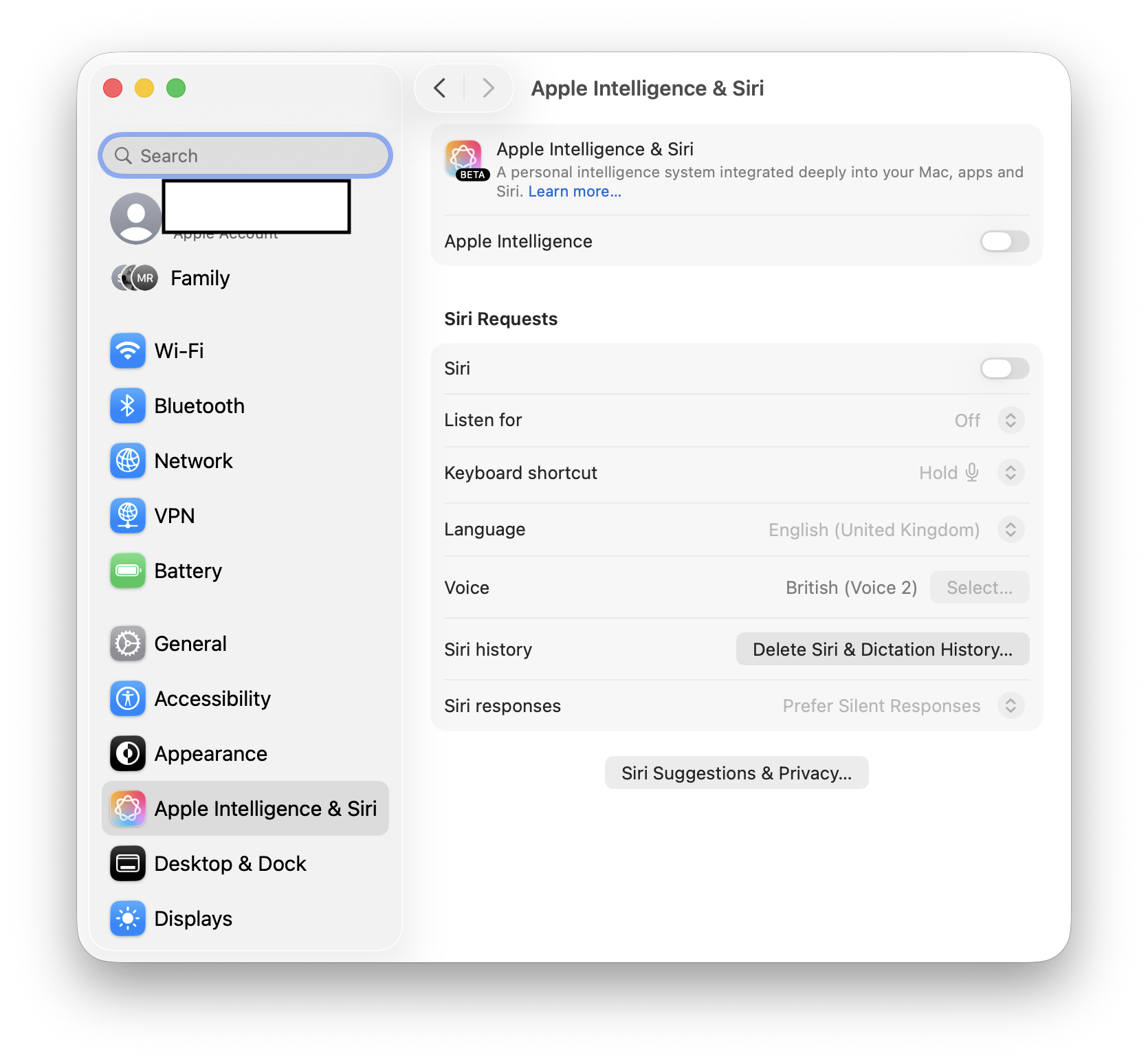
If you’re looking to keep Spotlight on your Mac from Searching the internet and only do local searches, here’s a simple way to fix that. Many users want Spotlight to just find files and apps on their computer, not pull in search results from the web. Here’s how you can do that effectively.

ADVERTISEMENT

First, it’s good to know that Spotlight’s web searching features can be turned off through Siri Suggestions. To do this, go to your Mac’s System Preferences, then select “Siri & Spotlight.” Inside, you will see options related to Siri Suggestions. Simply uncheck the box that allows suggestions from the internet.

Even after doing this, some users find that Spotlight still searches the web. If that’s happening, you can try turning off specific search suggestions for Spotlight by following these steps:

1. Open System Preferences.
2. Click on “Siri & Spotlight.”
3. Look for the box labeled ‘Siri Suggestions’ and uncheck it.
4. Also, go back to the main Spotlight preferences and toggle off “Allow Spotlight Suggestions” and/or “Allow Frequently Visited Sites.”

ADVERTISEMENT

If you’ve already done all these steps and Spotlight still searches the internet, it might help to reset Spotlight’s indexing. To do this:

– Open System Preferences > Spotlight.
– Go to the “Privacy” tab.
– Drag your entire hard drive into this list or click the “+” button and add your drive.
– Wait a few minutes, then remove your drive from the list. This forces Spotlight to reindex without including internet suggestions.

Lastly, keep in mind that Spotlight sometimes still brings up web results from its caches or suggestions. The key is to disable all web search options in these menus.

By following these steps, your Spotlight should stick to searching only your local files, apps, and documents — and no longer pull in web results. If you continue having issues, resetting Spotlight’s index or updating your macOS might help.

Remember, your goal is to make Spotlight behave exactly as you want—focused on what’s stored on your Mac. These simple tweaks should keep it local-only.

ChatGPT ChatGPT Perplexity AI Perplexity Gemini AI Logo Gemini AI Grok AI Logo Grok AI
Google Banner
Tags: Apple Intelligence
ADVERTISEMENT
Rebecca Fraser

Rebecca Fraser

Rebecca covers all aspects of Mac and PC technology, including PC gaming and peripherals, at Digital Phablet. Over the previous ten years, she built multiple desktop PCs for gaming and content production, despite her educational background in prosthetics and model-making. Playing video and tabletop games, occasionally broadcasting to everyone's dismay, she enjoys dabbling in digital art and 3D printing.

Related Posts

How To

How to Fix Siri Not Responding on WhatsApp | Apple Intelligence

January 13, 2026
maine coon 8237572 960 720.jpg
How To

How to Simplify Apple AI with Apple Intelligence: A How-To Guide

January 12, 2026
How To

How to Fix AI Nag Messages on Apple Devices – Apple Intelligence Guide

January 12, 2026
How To

Apple Intelligence Beginner Guide: How To Master AI with Apple Products

January 11, 2026
Next Post
645809 2850997 updates.jpg

NASA Moves Giant SLS Rocket to Launchpad for Artemis II Mission

  • About Us
  • Contact Us
  • Advertise
  • Privacy Policy
  • Guest Post

© 2026 Digital Phablet

No Result
View All Result
  • Home
  • News
  • Technology
    • Education Tech
    • Home Tech
    • Office Tech
    • Fintech
    • Digital Marketing
  • Social Media
  • Gaming
  • Smartphones

© 2026 Digital Phablet

