

Select Language:
Do you recall when Windows 11 was released and Microsoft offered a complimentary upgrade to all users? While this may have seemed like a generous offer on the surface, it was actually a clever strategy to transition us away from Windows 10.
It’s important to remember that when a company provides something for free, it often comes with strings attached. In this instance, that meant a surge in ads appearing in Windows 11, surpassing anything we encountered in past versions. Luckily, we still have the option to disable these ads—for now, at least.
If you’re tired of continuous ads and unwanted suggestions in Windows 11, there are various methods to fight back. Here are the settings you can adjust to remove the most bothersome advertisements.
Disable Start Menu Ads
The Start menu has long been a prime spot for Microsoft’s “Recommended” apps, a trend that persists in Windows 11. Fortunately, disabling them is quite simple.
Just head to Settings > Personalization > Start and find the setting labeled “Show recommendations for tips, shortcuts, new apps, and more.” Switch it Off to eliminate these suggestions.
Remove Notification Ads
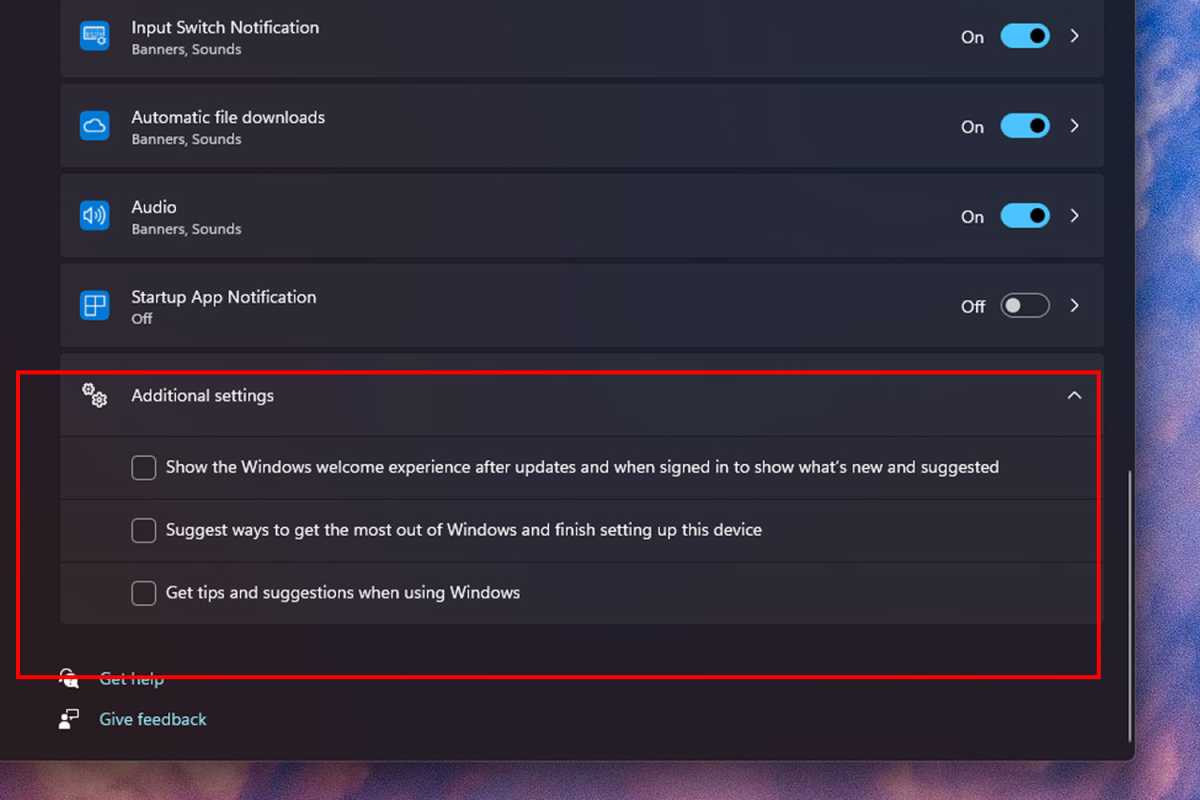
Notifications can be distracting enough without the added annoyance of ads disguised as important alerts. Let’s change that.
To minimize distractions, navigate to Settings > System > Notifications. Scroll down and expand Additional settings. Uncheck boxes for options like “Get tips and suggestions,” “Suggest ways to maximize your Windows experience,” and “Show the welcome experience after updates.”
Turn Off Suggested Ads in Settings
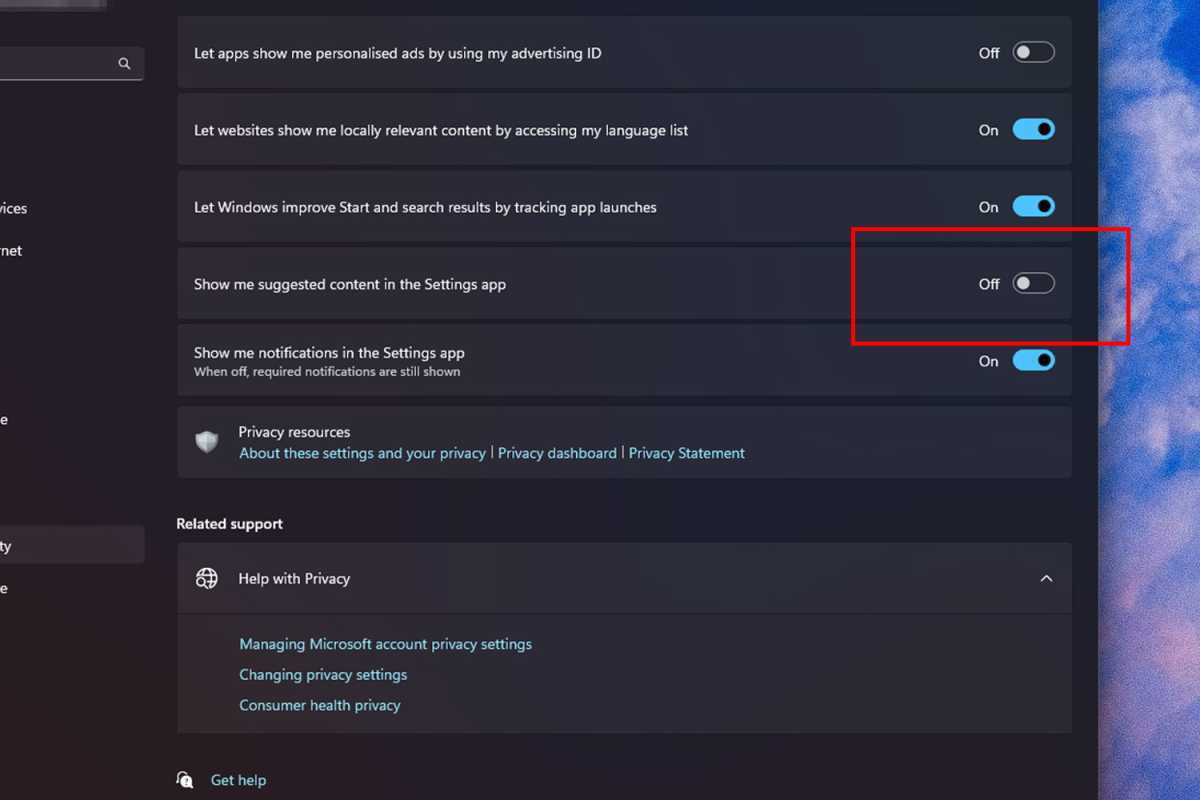
Tired of Microsoft’s constant nudges for features like Copilot in the Settings app? You can easily switch these off.
Go to Settings > Privacy and Security > General and turn off the option that says “Show me suggested content in the Settings app.”
Disable File Explorer Ads
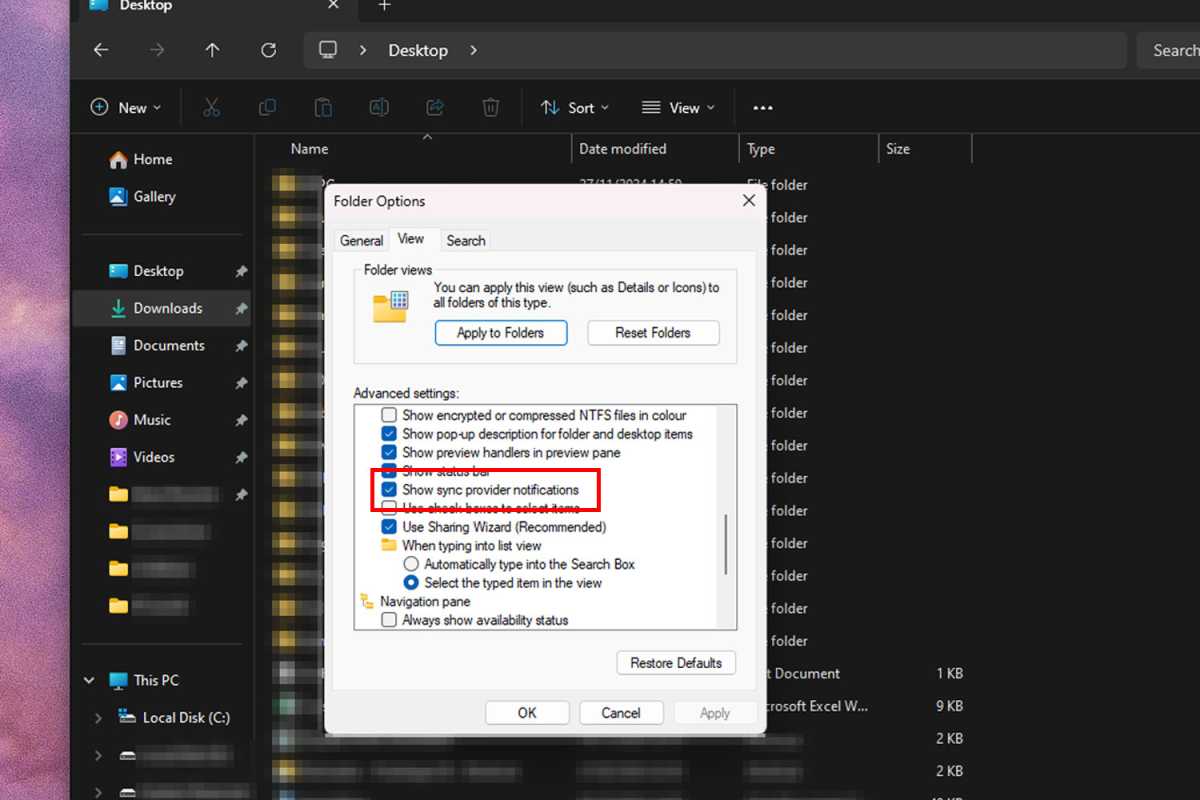
OneDrive is a decent cloud backup solution, but constant ads for it in File Explorer can be annoying. Here’s how to turn them off.
In File Explorer, click the three-dot menu on the actions toolbar, select Options, then navigate to the View tab. Look for “Show sync provider notifications” and ensure it’s unchecked; then click OK.
Disable Widget Feed Ads
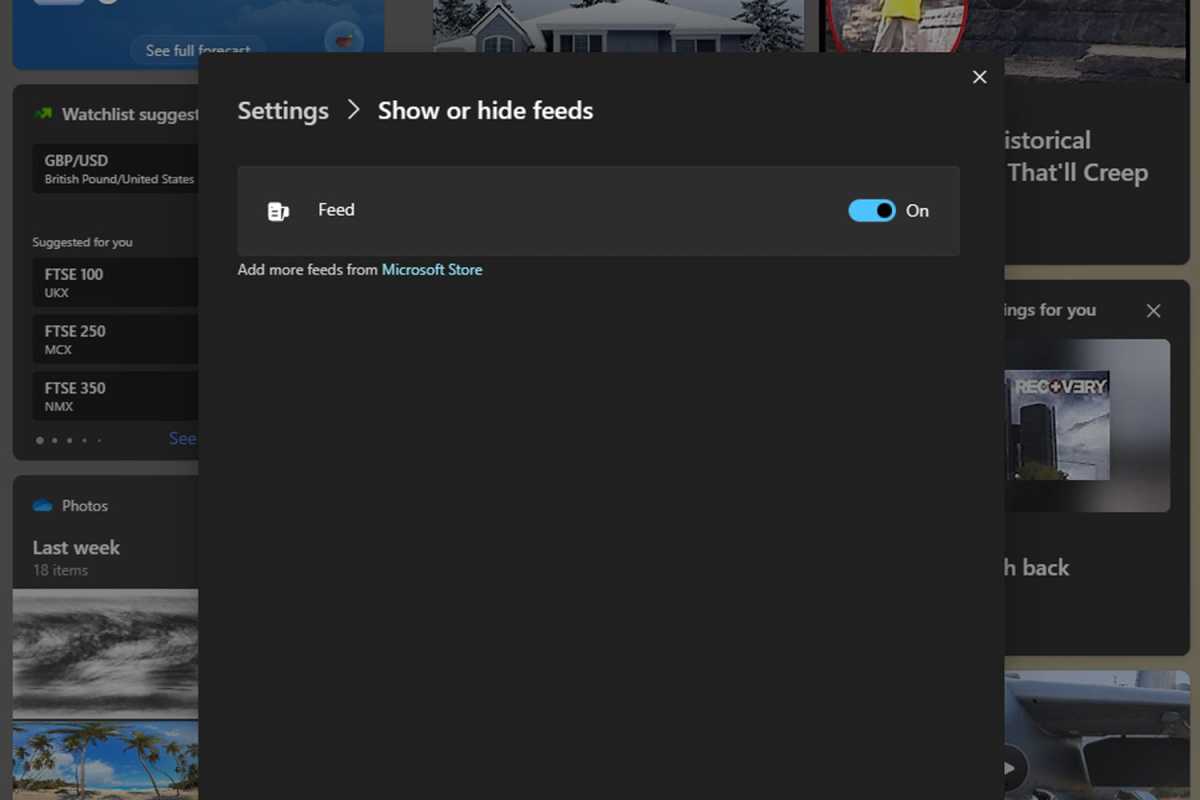
If you find Windows widgets cluttered with irrelevant news and updates, you can easily disable them.
To adjust individual widget feeds, click the widget icon on your taskbar, select the gear icon in the widget panel, then toggle the feeds you want to hide. Alternatively, right-click the taskbar, go to Taskbar settings, and turn off “Widgets” completely.
Shut Down Bloatware Ads
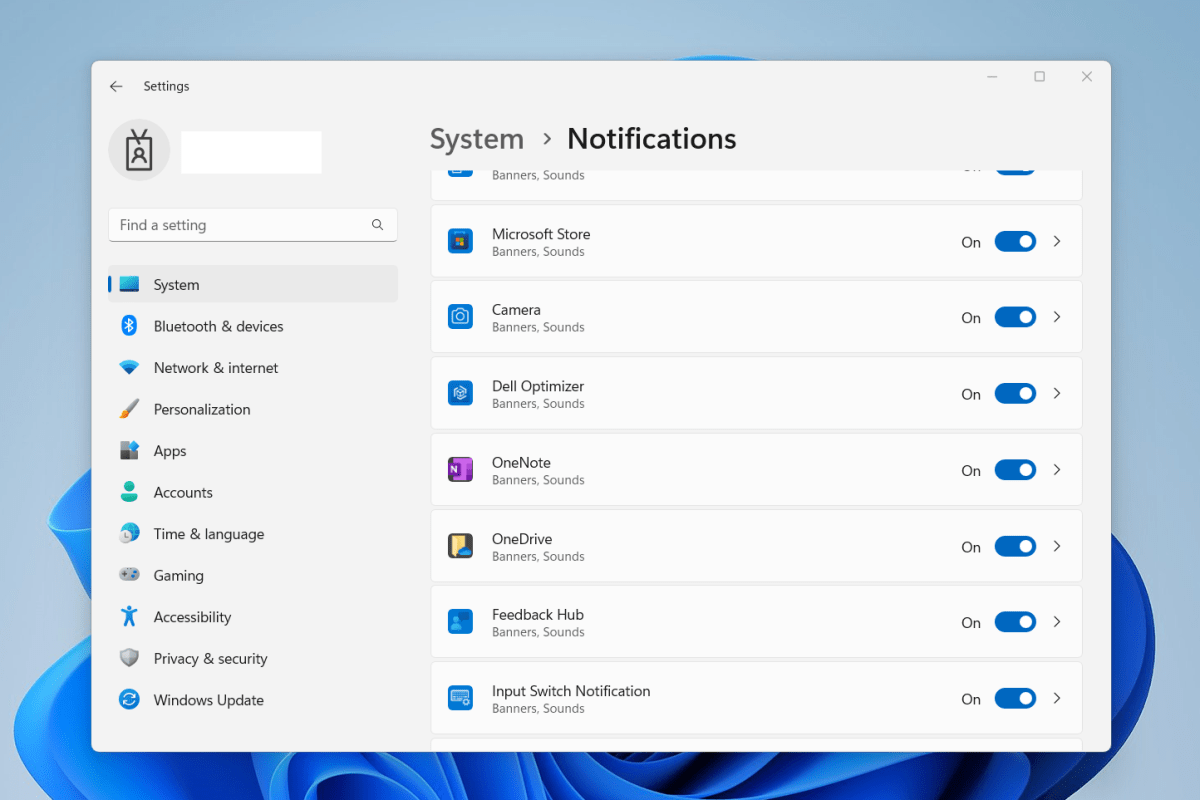
If your device was pre-loaded with unwanted software from its manufacturer, you can limit their annoying notifications.
Navigate to Settings > System > Notifications and look for apps associated with your device brand, disabling notifications from those by switching them to Off.
Stop Lock Screen and Background Ads
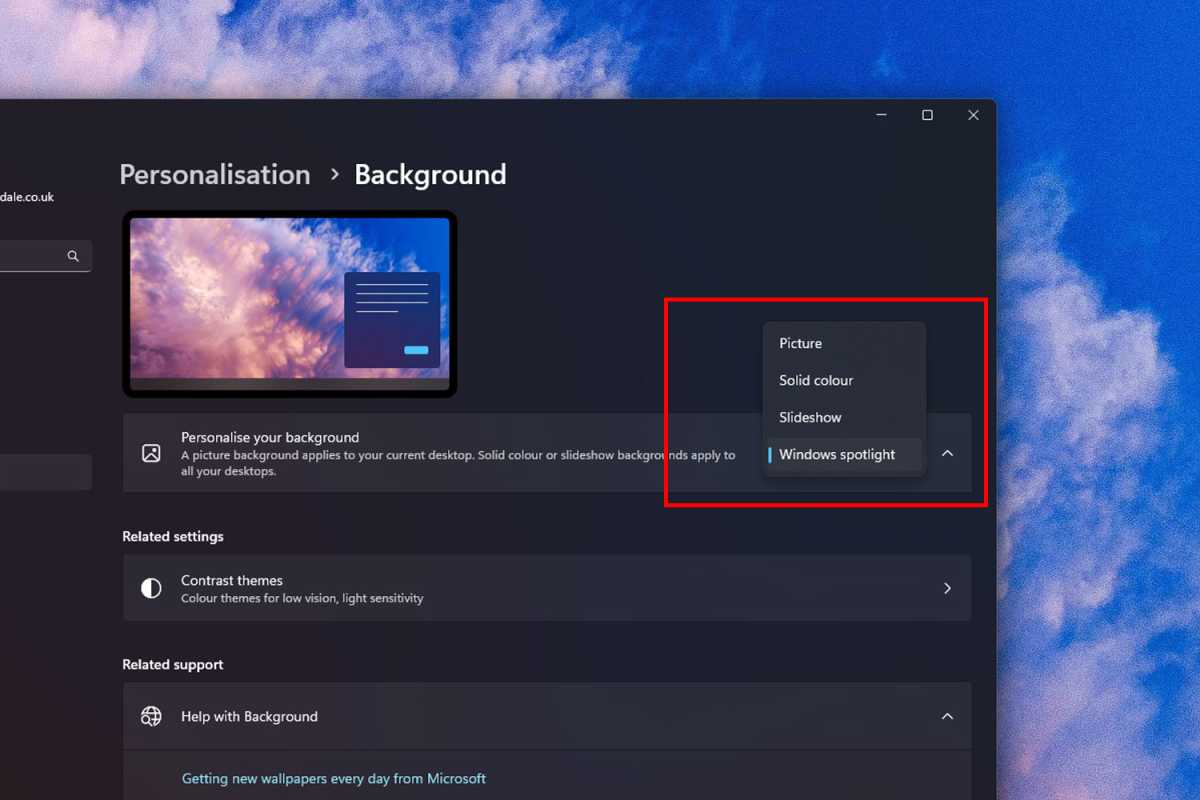
Sometimes, the Windows Spotlight feature can hijack your lock screen with ads for various apps and updates.
To avoid this, navigate to Settings > Personalization > Background and select any option other than Windows Spotlight. Similarly, go to Settings > Personalization > Lock Screen and choose an alternative background setting.
Eliminate Search Highlight Ads
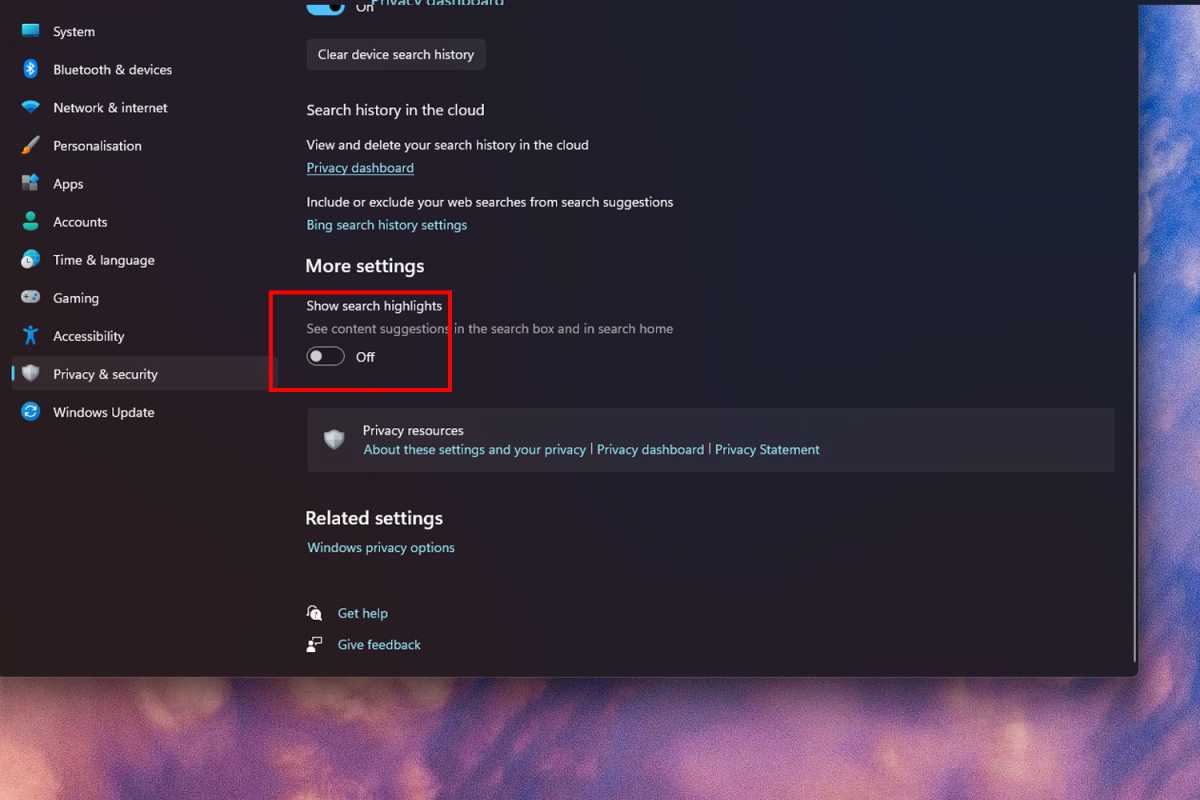
Windows search is useful, but the interference of shopping ads can spoil the experience.
To disable these, head to Settings > Privacy and security > Search permissions. Look for the “Show search highlights” option and toggle it Off.
Stop Personalized Ads
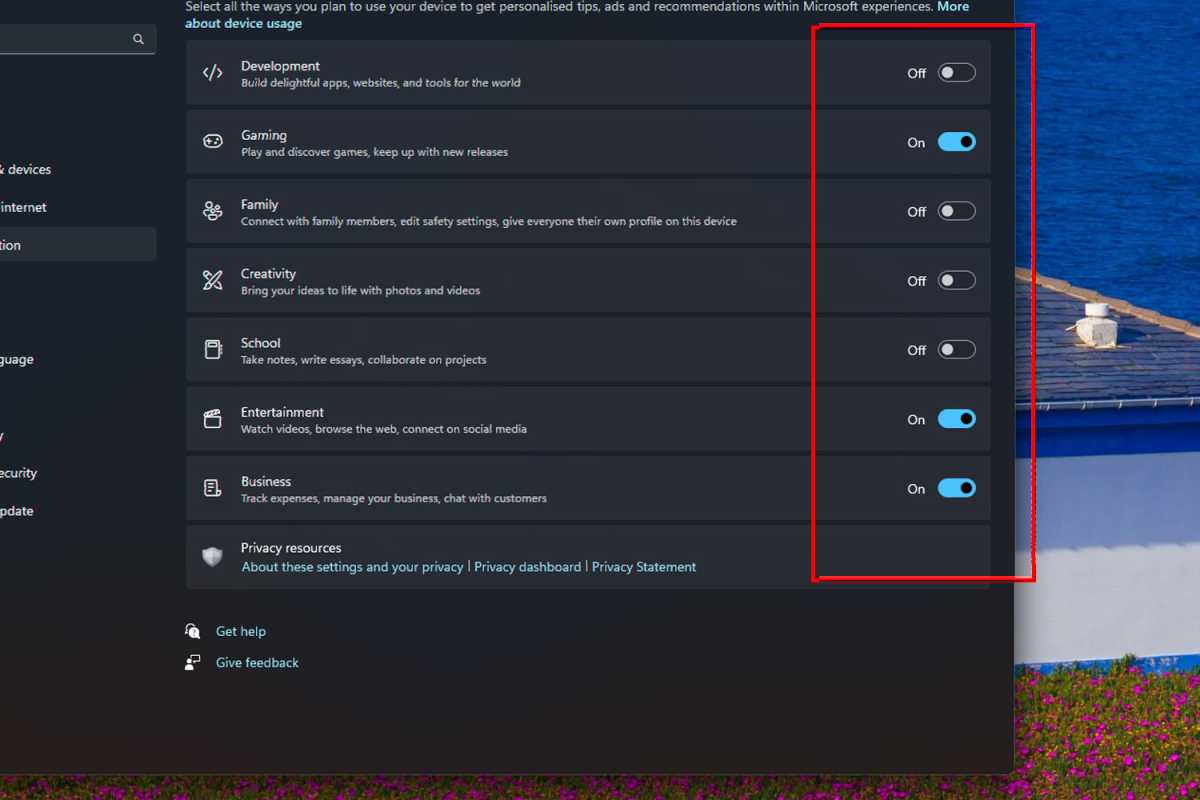
While adjusting settings reduces ad exposure, it won’t prevent Windows from tracking data to serve future personalized ads.
To halt this data collection, go to Settings > Personalization > Device Usage and toggle all options to Off. Additionally, for diagnostic data collection, check Settings > Privacy and security > General and turn off those options as well.
This revised content maintains the core information while providing a unique and original take, ensuring it aligns with a human-like writing style.
 ChatGPT
 Perplexity
 Gemini AI
 Grok AI