

Select Language:
USB flash drives, often referred to as thumb drives, have become ubiquitous in our digital lives. They serve as efficient tools for transferring files between computers and for moving data between smartphones and desktops, especially when cloud solutions aren’t ideal.
Given their small size, USB drives are frequently used as promotional items or impulsive purchases at electronics retailers. However, issues may arise if the chosen drive turns out to be subpar. It’s crucial to understand a few key things about USB drives since we often rely on them to store important personal and business files.
Low-cost USB drives may conceal the fact that they only support the older USB 2.0 speed standard.
IDG
The USB interface allows for a wide variety of uses, featuring two main connector styles: Type A and Type C. Understanding the various flash memory types and their capabilities is important, especially regarding storage capacity and transfer speeds.
The ability to differentiate between more expensive USB drives and cheaper alternatives is crucial in making informed purchasing decisions.
Pro Tip: You might be using your USB flash drive incorrectly—consider following the right procedures instead.
Understanding Flash Drive Variations
Both USB SSDs and conventional USB drives rely on flash memory, but the distinction lies in the quality of the flash components. While they may originate from the same factories and equipment, their quality can vary significantly.
Top-tier flash chips are typically reserved for SSD production, while a mid-tier quality is used for memory cards, such as SD or MicroSD. Lastly, USB drives usually consist of lower-quality flash memory. This doesn’t mean every USB drive is of poor quality, but it does suggest they are not ideal for long-term storage needs. Many cheaper USB drives utilize outdated USB 2.0 speeds.
Recently, a report by CBL Datenrettung revealed an alarming trend: a growing number of USB drives with substandard memory chips were coming into their laboratories, lacking identifiable manufacturer logos and often misrepresenting their actual capacity.
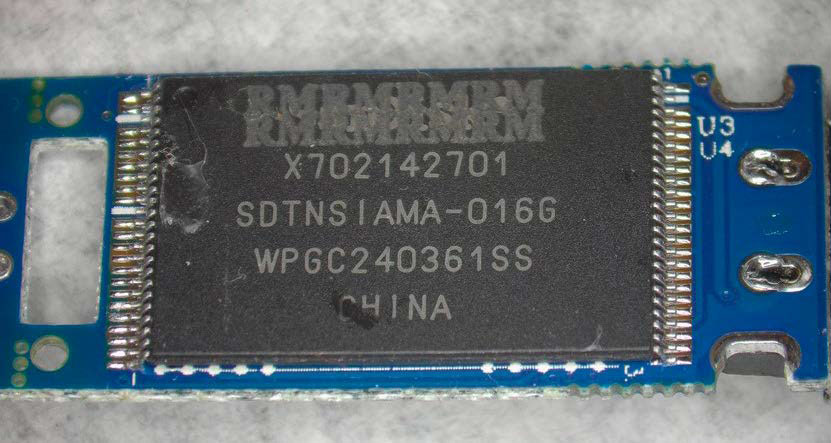
A USB stick with an obscured manufacturer’s name indicates it may be comprised of discarded flash memory.
IDG
The drives examined included both promotional giveaways and branded products, prompting the company to conclude that an increasing number of inferior memory chips are hitting the market, many of which should have been retired. This reinforces that USB drives may not be suitable for storing sensitive information. For optimal performance and longevity, refer to our handling tips below.
USB Flash Drive Capacities
When searching for USB drives on price comparison sites, you can usually select the desired storage size, which typically ranges from 64GB to 1TB. Be cautious if you’re offered significantly larger drives, as they are likely counterfeit.
One red flag is the price—any USB drive priced unusually low (like a 2TB for under $10) should raise suspicions, particularly if the seller is based in the Far East.
A cautious approach is advisable when purchasing USB drives to avoid surprises later on. Often, you’ll receive a drive with actual capacities of only 32GB or 64GB.
Interestingly, the line between USB drives and USB SSDs can become blurred at higher capacities. For instance, the Adata SC610 2TB model is often referred to as a USB stick, yet the manufacturer markets it as an external solid-state drive, commanding a price around $145.
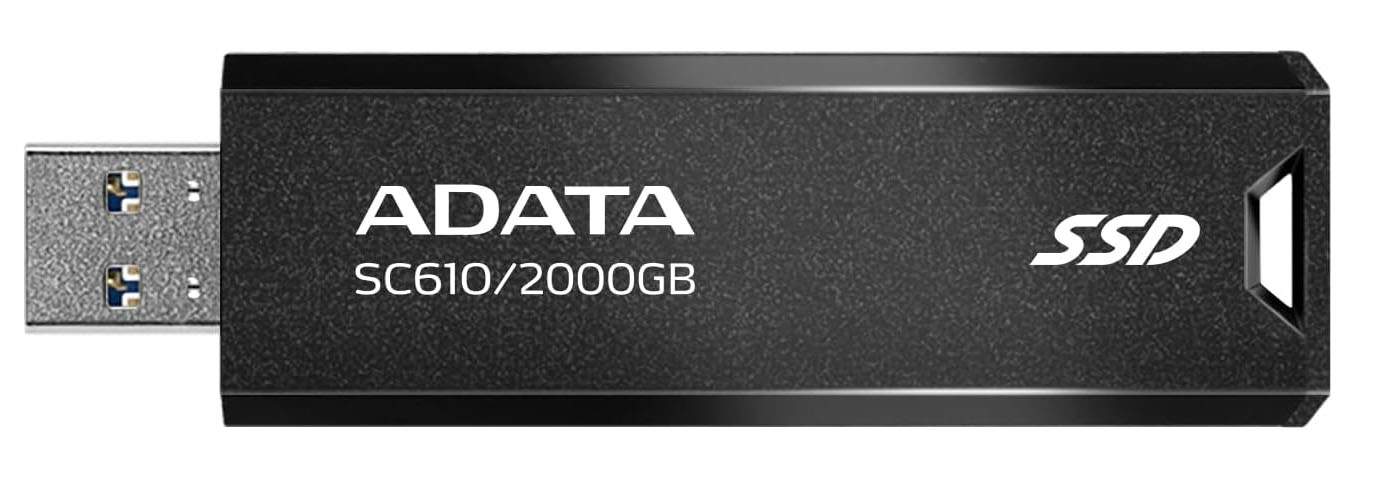
The capacity of the Adata SC610 2TB drive raises questions about its classification as either a USB stick or an SSD, as it’s marketed differently.
IDG
However, most reputable USB drives typically come in 64GB, 128GB, 256GB, and 512GB sizes. The price for a 64GB model hovers around $10, while a 512GB drive usually costs between $40 and $50.
Reading Suggestion: Check out the best USB-C cables for 2025 to ensure quality charging and data transfer.
Creating a Bootable Windows USB Drive
Users often encounter difficulties with Windows bootable USB drives. They may not be recognized by the system, or users may encounter challenges creating them. Typically, issues are not related to capacity; Microsoft recommends a minimum of 8GB, with 64GB being a safer option.
Several points to keep in mind include using a new and unused USB drive for the best results, avoiding slower USB 2.0 models, and selecting drives from reputable manufacturers like Sandisk (Western Digital), Samsung, Kingston, Kioxia, and others.
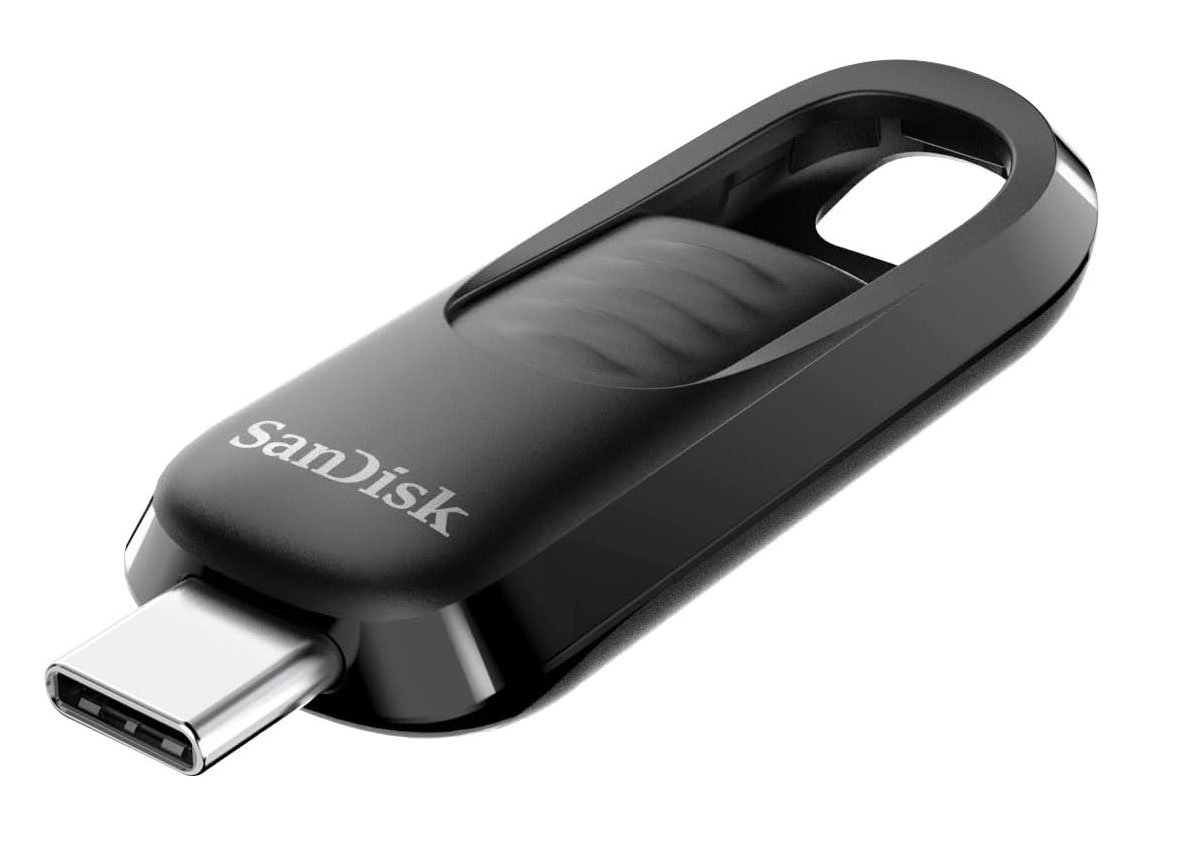
When creating a Windows boot medium, select a stick from a reputable brand. You can expect to pay around $10 for a 64GB capacity stick, like the Sandisk Ultra Slider with a USB 3.2 Gen1 interface.
IDG
In the event of a defect, complaints are often futile. You might be fortunate to get a refund, but stopping the sale of defective products is unlikely.
Speed Enhancements via USB Standards
Not all new USB drives guarantee a boost in speed. The most significant improvements often arise when upgrading to a faster USB interface, assuming your device supports it.
USB 2.0: The slow USB 2.0 standard is still prevalent, especially among lower-cost options, with maximum transfer speeds of around 45MB/s for read operations and as low as 10MB/s for writes.
USB 3.2 Gen1: This is also commonly marketed under the older USB 3.0 label, with potential read speeds peaking at 450MB/s; however, write speeds can drop significantly, sometimes even below 200MB/s.
USB 3.2 Gen2: Previously known as USB 3.1, this standard is now widely adopted, available in both Type-A and Type-C connectors. Many external USB SSDs that use NVMe technology rely on this standard, offering a bandwidth of 10Gb/s and theoretically reaching data rates of around 1000MB/s under optimal conditions.
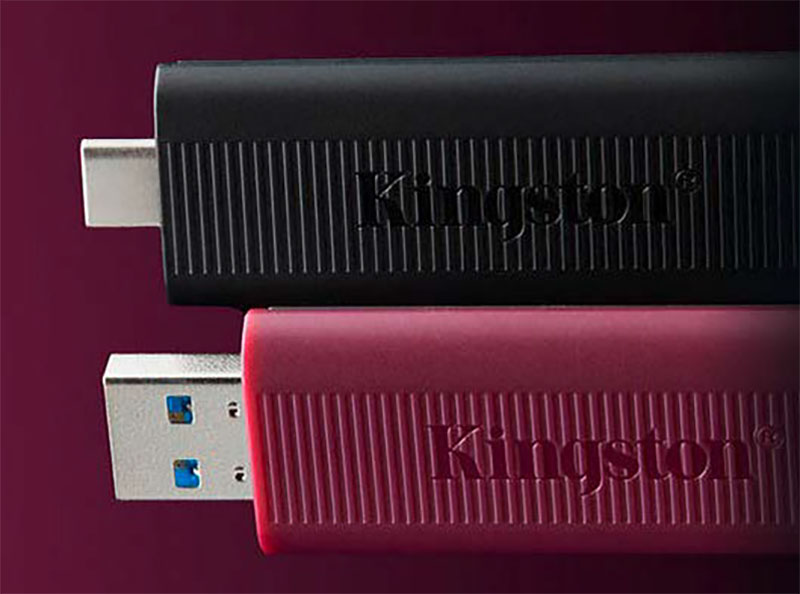
USB 3.2 Gen2 is the fastest USB standard available for drives today, offering both Type A and C options.
IDG
USB drives with this interface are becoming increasingly common, although they currently come with a higher price tag. Theoretically, the maximum data rates can reach around 1000MB/s, but this is typically only achievable with read operations.
It is important to note that just because a USB stick features a Type C connector doesn’t necessarily mean it supports the highest speeds advertised.
For example, during our evaluation of the Verbatim Dual Quickstick, which has a 256GB capacity and offers both Type A and Type C connections, we discovered that it only achieves the intended USB 3.2 Gen1 performance through the Type A connection, while relying on USB 2.0 speeds via Type C.
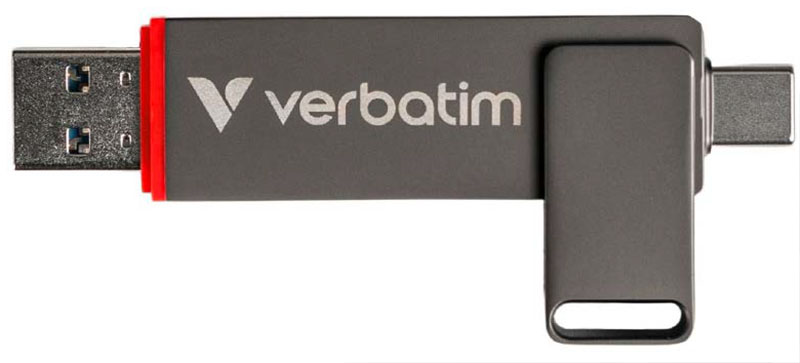
The Verbatim Dual Quickstick features two types of connections but only achieves USB 3.2 Gen1 speeds via Type A, reverting to USB 2.0 speeds when using Type C.
IDG
Tests applying benchmark tools like CrystalDiskMark reveal that the USB drive only reaches over 450MB/s read and write speeds when connected through Type A. However, via Type C, transfer rates plummet to approximately 40MB/s, indicating that only slower USB 2.0 speeds are accessible through this type of connection.
Higher Capacity = Potentially Higher Speed
The transfer speeds claimed by manufacturers are often optimal figures for sequential data transfers. While achievable in ideal conditions, these speeds aren’t frequently realized in practical scenarios. The efficiency of data transfer relies heavily on the controllers used; those capable of distributing data across multiple memory modules can perform tasks more rapidly. Greater capacities often come with more flash modules, potentially improving speed.
However, not all sticks incorporate such advanced controllers. Particularly low-cost options may use slower chips that lack the ability to share data processing tasks, resulting in sequential rather than parallel operations. This can slow down the transfer speed significantly, even if the drive has a large capacity.
File Systems on USB Drives
USB sticks can come pre-formatted in various file systems. FAT32 (File Allocation Table) remains popular, but it has a significant limitation—it cannot manage files larger than 4GB. For users transferring videos, this can be a critical drawback.
An alternative is exFAT (Extensible File Allocation Table), which is ideal for flash storage. It boasts compatibility across different platforms—including Windows, Mac OS, Android, and iOS—making file sharing between devices straightforward.
However, caution is needed when connecting the USB drive to smart TVs, as many cannot recognize exFAT and may opt exclusively for FAT32.
Occasionally, you might find the NTFS (New Technology File System) format on USB drives, which is optimal when used solely with Windows systems and is compatible with Chrome OS as well.
Best Practices for Using USB Drives
USB drives are ubiquitous and typically used for years. To prevent data loss and ensure reliable recognition by your computer, keep these tips in mind:
1. Rotate USB Drives: If you frequently write and delete data, utilize multiple drives. Flash memory has a limited number of write/erase cycles, and alternating drives can prolong their lifespan.
2. Beware of Tiny Drives: Smaller USB drives can pose risks due toheat dissipation issues and fragility. They are more susceptible to damage when connected or during transport.
3. Store in Cool Conditions: To maximize longevity, keep your USB drives in cool environments. Exposed to high temperatures, the flash quality may decline, leading to data loss.
4. Consistent Use: USB drives should not be neglected for extended periods. Regular usage—ideally every six months—can help mitigate issues and trigger internal error correction mechanisms.
5. Avoid Full Capacity: Writing directly to the maximum capacity can accelerate wear on flash memory. To extend life, avoid filling the drive completely, allowing internal control mechanisms to manage data distribution effectively.
 ChatGPT
 Perplexity
 Gemini AI
 Grok AI