• About Us
  • Contact Us
  • Advertise
  • Privacy Policy
  • Guest Post
No Result
View All Result
Digital Phablet
  • Home
  • NewsLatest
  • Technology
    • Education Tech
    • Home Tech
    • Office Tech
    • Fintech
    • Digital Marketing
  • Social Media
  • Gaming
  • Smartphones
  • AI
  • Reviews
  • Interesting
  • How To
  • Home
  • NewsLatest
  • Technology
    • Education Tech
    • Home Tech
    • Office Tech
    • Fintech
    • Digital Marketing
  • Social Media
  • Gaming
  • Smartphones
  • AI
  • Reviews
  • Interesting
  • How To
No Result
View All Result
Digital Phablet
No Result
View All Result

Home » How to Create a Custom Footer on iMessage Using Text Shortcut on Apple Devices

How to Create a Custom Footer on iMessage Using Text Shortcut on Apple Devices

Rebecca Fraser by Rebecca Fraser
March 17, 2026
in How To
Reading Time: 2 mins read
A A
iphone 12 5755366 960 720.jpg
ADVERTISEMENT

Select Language:

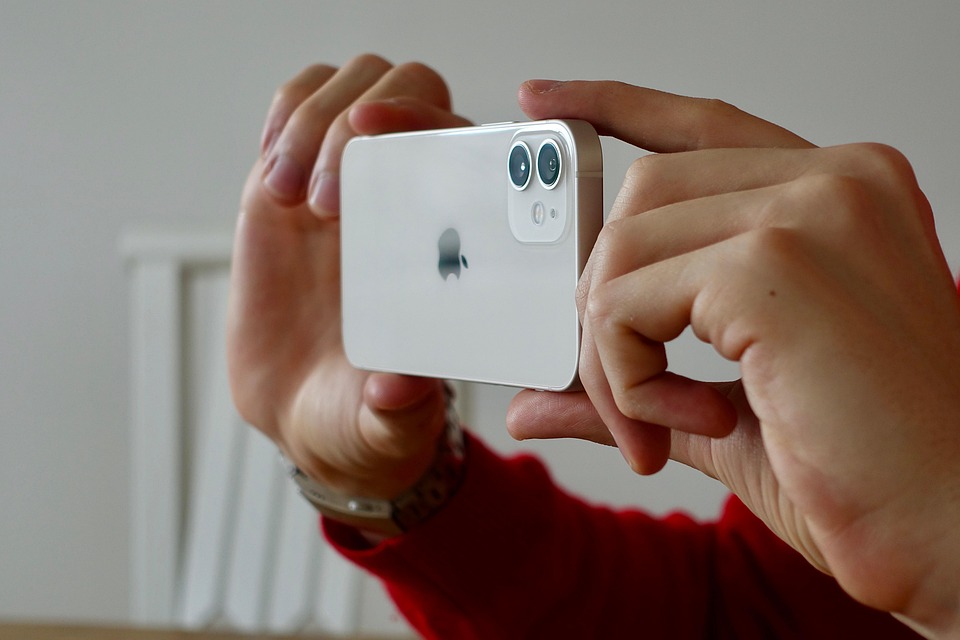
If you want to add a custom footer or signature to your messages in iMessage, you can do it easily by setting up a Text Replacement. Since iMessage doesn’t offer a built-in feature to add a footer to every message automatically, this trick helps you quickly insert your info whenever needed.

ADVERTISEMENT

Here’s how you can set up a quick way to include your contact details at the end of your messages:

First, decide what information you want to include in your footer. Usually, it’s good to add your name, job title, company, address, phone number, and email. To keep things simple, you can also create a shortcut that replaces a short word or abbreviation with your full contact info.

Let’s walk through creating a Text Replacement for your email address, but you can do the same for all the other details:

ADVERTISEMENT
  1. Open your phone’s Settings.
  2. Tap General.
  3. Scroll down and select Keyboard.
  4. Tap Text Replacement.
  5. Tap the + button at the top right corner to add a new shortcut.
  6. In the Phrase box, type your email address.
  7. Tap Return.
  8. In the Shortcut field, type a shortcut like “eml.” Make sure to include the period so it’s easy to trigger.
  9. Tap your suggested shortcut that appears above the keyboard to select it.
  10. Tap Save at the top right corner.

Now, whenever you type “eml.” in a message, your email address will appear automatically. You can set up similar replacements for your name, phone number, or any other info.

Here’s how to use it in a message:

  1. Open the message and type your main content.
  2. When you want to add your email (or other info), just type the shortcut (like “eml.”).
  3. Tap the suggestion box that pops up above the keyboard.
  4. Continue typing your message and hit send when ready.

Using Text Replacement saves you time and makes it easy to share your contact info with just a few keystrokes. You can set up multiple shortcuts for quick insertion of all your details, creating a neat, repeatable signature or footer whenever needed.

ChatGPT ChatGPT Perplexity AI Perplexity Gemini AI Logo Gemini AI Grok AI Logo Grok AI
Google Banner
Tags: Applications and ServicesMessages
ADVERTISEMENT
Rebecca Fraser

Rebecca Fraser

Rebecca covers all aspects of Mac and PC technology, including PC gaming and peripherals, at Digital Phablet. Over the previous ten years, she built multiple desktop PCs for gaming and content production, despite her educational background in prosthetics and model-making. Playing video and tabletop games, occasionally broadcasting to everyone's dismay, she enjoys dabbling in digital art and 3D printing.

Related Posts

cup 2599356 960 720.jpg
How To

Apple Photos 101: Basic Concepts & Terms Explained

March 12, 2026
Search for MH370 ends without answers to 12-year mystery
News

Search for MH370 ends without answers to 12-year mystery

March 8, 2026
smartphone 4900773 960 720.jpg
How To

How to Save Face Names in Apple for Genealogy Research

December 28, 2025
iphone 2854322 960 720.png
How To

How to Choose Favorites with Keywords on Your Apple Mac

December 2, 2025
Next Post
Meet The New Peloton Bikes Coming To Your Gym.webp

Meet The New Peloton Bikes Coming To Your Gym

  • About Us
  • Contact Us
  • Advertise
  • Privacy Policy
  • Guest Post

© 2026 Digital Phablet

No Result
View All Result
  • Home
  • News
  • Technology
    • Education Tech
    • Home Tech
    • Office Tech
    • Fintech
    • Digital Marketing
  • Social Media
  • Gaming
  • Smartphones

© 2026 Digital Phablet