Select Language:
It’s almost impossible to find a good TV these days that isn’t also a smart TV. Honestly, most top-tier models come with built-in smart features—whether they run on Google TV, Amazon Fire, Tizen, Roku, or WebOS, major brands typically ship their sets with a smart operating system pre-installed.
However, there are still people who prefer the idea of a “dumb” TV—one without all the smart functionalities.
So, what exactly is a dumb TV? It’s essentially a television stripped of any smart features: no automatic internet connection, no automatic login to apps, no software updates, and no ads. It’s just the TV’s home screen, plain and simple.
You might wonder why this is appealing. Some folks prefer not to have their viewing habits or personal information tracked through their TV—though, in reality, much of that data is already being collected on your smartphone and other devices. That’s a whole other discussion, though.
Today, let’s walk through the steps to set up a basic, non-smart TV.
Applicable Models
For this guide, we’re using the TCL QM6K, which comes with native Google TV. But the setup process is quite similar for other TVs that run on Google’s operating system, such as many Sony, Hisense, and other TCL models.
How to Set Up a Basic TV Mode on Google TV
Step 1: Power on your TV
Turn on your device and begin the initial setup process. [Insert image illustrating this step.]
Step 2: Choose your language
Select your preferred language from the on-screen options.
Step 3: Select your country
Pick your country or region to proceed.
Step 4: Choose your setup path
You’ll be presented with two options:
- Set Up Google TV (which enables streaming apps, recommendations, and Google Assistant)
- Set Up Basic TV (which offers only live TV and external devices, without internet functions)
For a dumb TV setup, choose Set Up Basic TV.
Step 5: Skip Wi-Fi connection
The device will prompt you to connect to Wi-Fi. Scroll to the bottom and select Skip to avoid connecting to the internet.
Step 6: Pair your remote
Follow the on-screen instructions to pair your remote. Keep in mind that voice search features won’t be available in Basic TV mode.
Step 7: Explore the home screen
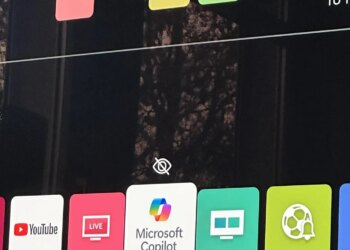
You’ll see a simplified home screen showing just your TV, input sources, and a few pre-installed apps that won’t work without Wi-Fi.
Factory Reset for Existing TVs
If your TV is already a smart device but you want to convert it into a dumb TV, perform a factory reset:
- Open the Settings menu.
- Navigate to System.
- Select About.
- Choose Reset > Factory Reset.
- Confirm your choice when prompted to erase all data and start fresh.
Switching Back to Smart Features
If you decide later that you want your smart TV functionalities, you can reconnect to Wi-Fi, sign into your Google account, and enable all the smart features again.
Additional Notes
A device set up as a dumb TV simply relies on external devices like gaming consoles, Blu-ray players, or streaming sticks for content. For example, you can connect your PlayStation 5 or Apple TV 4K without sharing personal information with the TV itself.
This approach is particularly useful in rental properties, public spaces, or places with multiple users, where you don’t want the TV tracking your habits. At home, though, most people prefer the convenience—and enhanced experience—that come with a smart TV operating system. Plus, for high-quality content, external devices like dedicated Blu-ray players can sometimes outperform streaming apps in picture quality.
In the end, you paid for the TV’s hardware and processing power—so, let it do what it does best and enjoy the simplicity of a basic, no-frills television experience.
 ChatGPT
 Perplexity
 Gemini AI
 Grok AI