Select Language:
Music has always played a significant role in the world of The Sims, from the iconic soundtrack to Simlish covers of popular songs by artists like Japanese Breakfast and Carly Rae Jepsen. The Sims 4 continues this tradition, especially with the introduction of the Dancing skill in the Get Together expansion.
If you aren’t playing on a console, you can personalize your Sims’ listening experience by adding your own tracks to the in-game radio stations. For The Sims 4, you just need to have the right audio file format and place them in the correct folder.
How to Add Your Own Music to Radio Stations
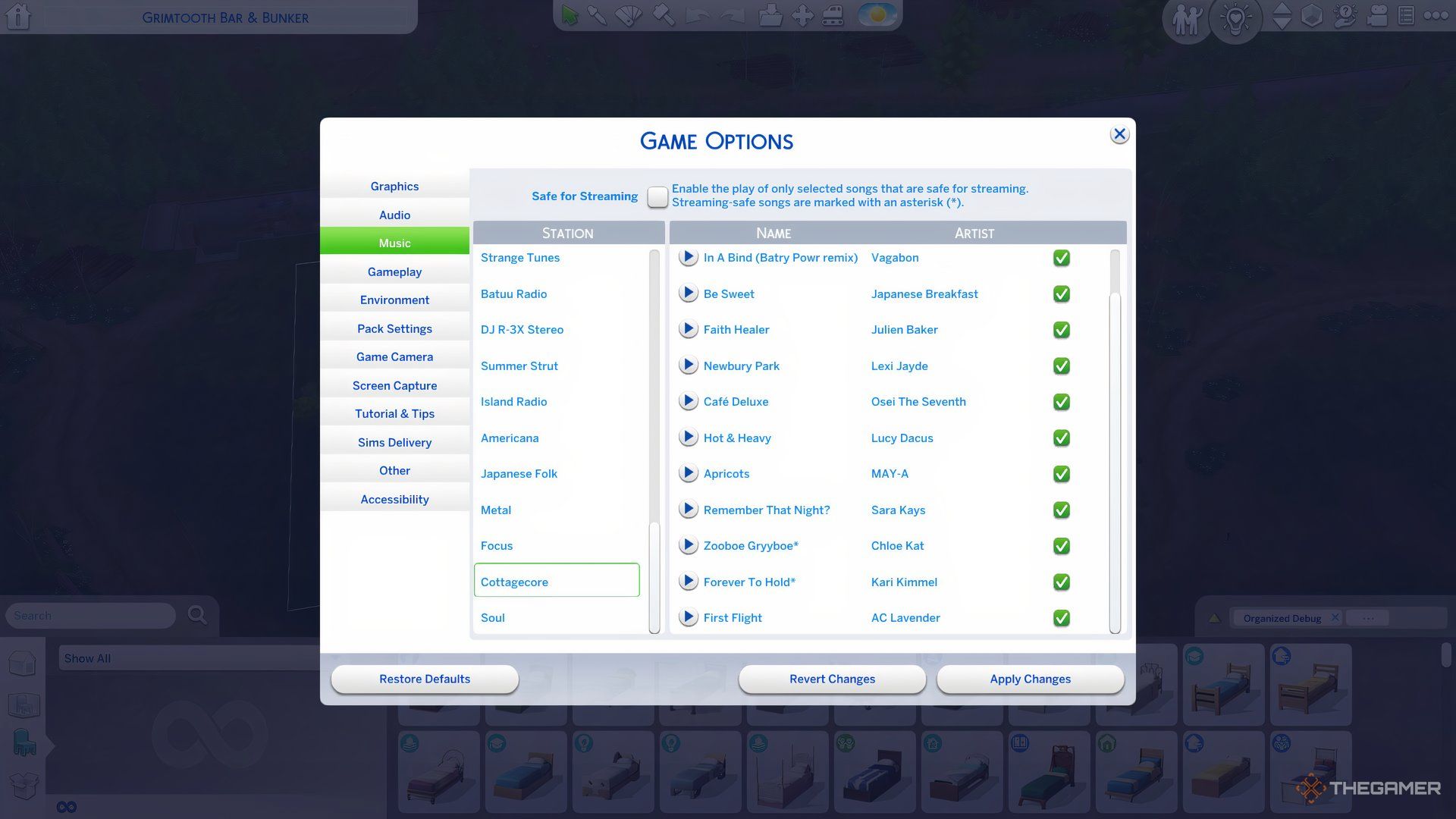
If you’re getting tired of the Simlish renditions of songs, The Sims 4 allows you to customize your radio stations with your own music tracks. When you add songs, they will play on radios, earbuds, and speakers when you choose the appropriate station.
In earlier versions of The Sims, music was often placed into a custom folder. In The Sims 4, however, you’ll directly add songs to the specific radio station of your choice. For example, if you place a track in the Pop music folder, it will show up on the Pop station, and it will also be considered a Sim’s favorite if they enjoy that station.
File Requirements for Custom Music
To successfully incorporate your music files into the game, they need to comply with specific requirements:
- Files must be in MP3 format.
- They should have a bit rate of 320kbps or lower.
If your audio files don’t meet these conditions, you can easily convert or compress them using software.
The titles of your audio files will be how they appear in the game, so make sure to name them in a way that makes sense to you.
By editing the metadata of your files, you can also include the artist’s name. While this is optional, it helps keep your collection organized within the game.
How to Add Custom Music on Windows PC
Begin by copying your music files and then navigate to the following directory:
C:\Users\[Your Username]\Documents\Electronic Arts\The Sims 4\Custom Music
Once you’re in the Custom Music folder, you should see a list of the radio stations available in The Sims 4.
Paste your audio files into the appropriate station folder. When you launch the game next time, your songs should be playable on that station.
The stations you can access will depend on the DLCs you have. Some stations, like the Prom Night station or those tied to specific festivals or DJ booths, won’t allow adding songs.
If you can’t locate the Custom Music folder, it might be due to different file setups on your computer.
Try copying the file path above and replacing the [Your Username] portion with your actual Windows account name. Then paste it into the top bar of File Explorer. Alternatively, you can search for the Custom Music folder in your files.
Your Windows username might not match what’s listed on your taskbar. It generally corresponds to the initial characters of the email you used to create your Windows account.
How to Add Custom Music on Apple Mac
The process for adding songs to The Sims 4 on Mac is pretty similar to that on a PC. Locate the audio files you want to include and go to the following path:
Documents > Electronic Arts > The Sims 4 > Custom Music > [Radio Station Name]
Select the station you’d like to contribute your music to, open that folder, and then paste or drag your music files in. The next time you start the game, your tracks should be accessible.
To verify if your songs have been successfully imported, you can check the Music section in the Game Options menu. Further details on how to do this are provided below.
How to Turn Songs On or Off
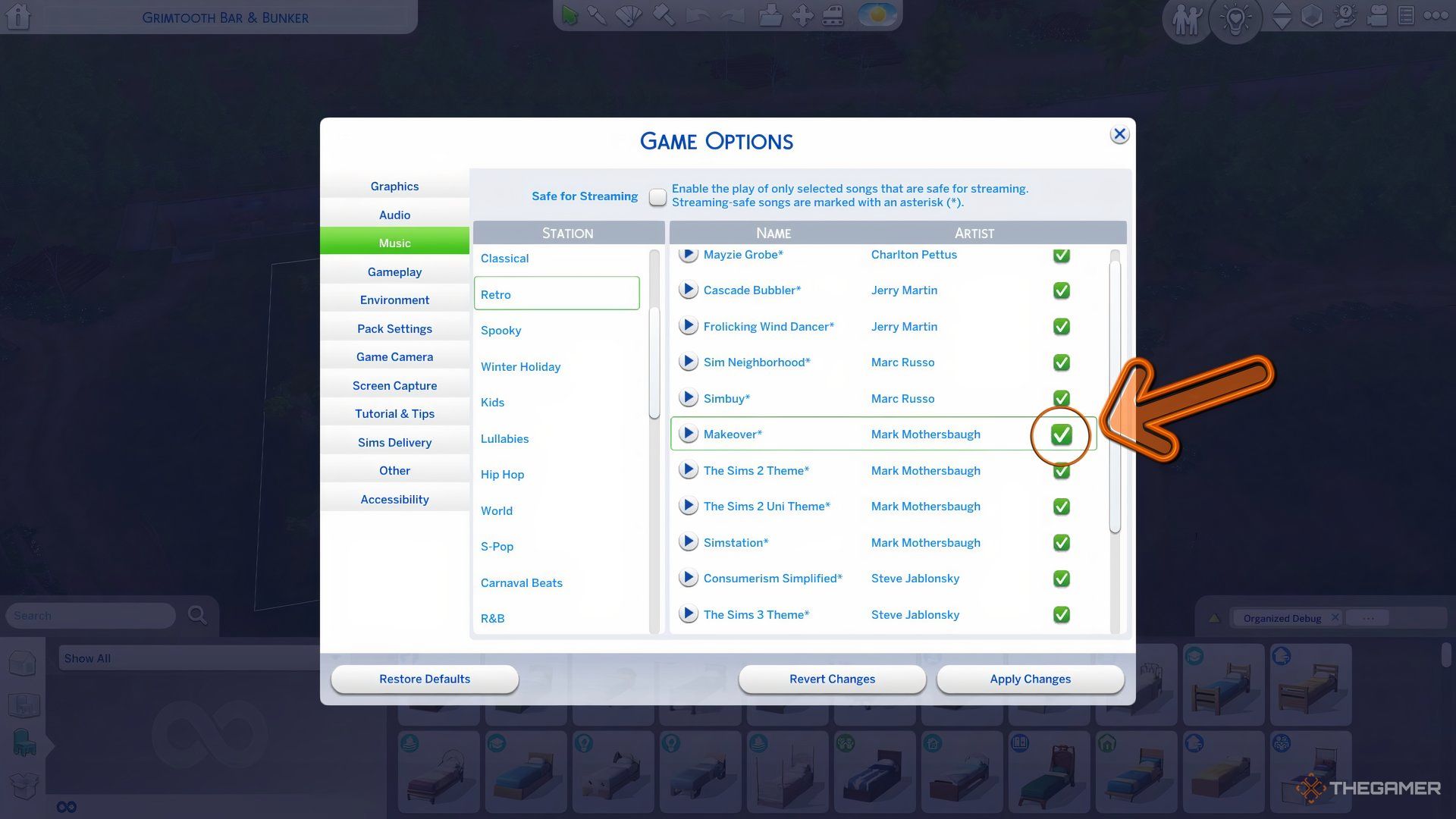
If you’re tired of hearing the same songs because your Sim keeps tuning into the same station, you can disable individual songs through the game settings.
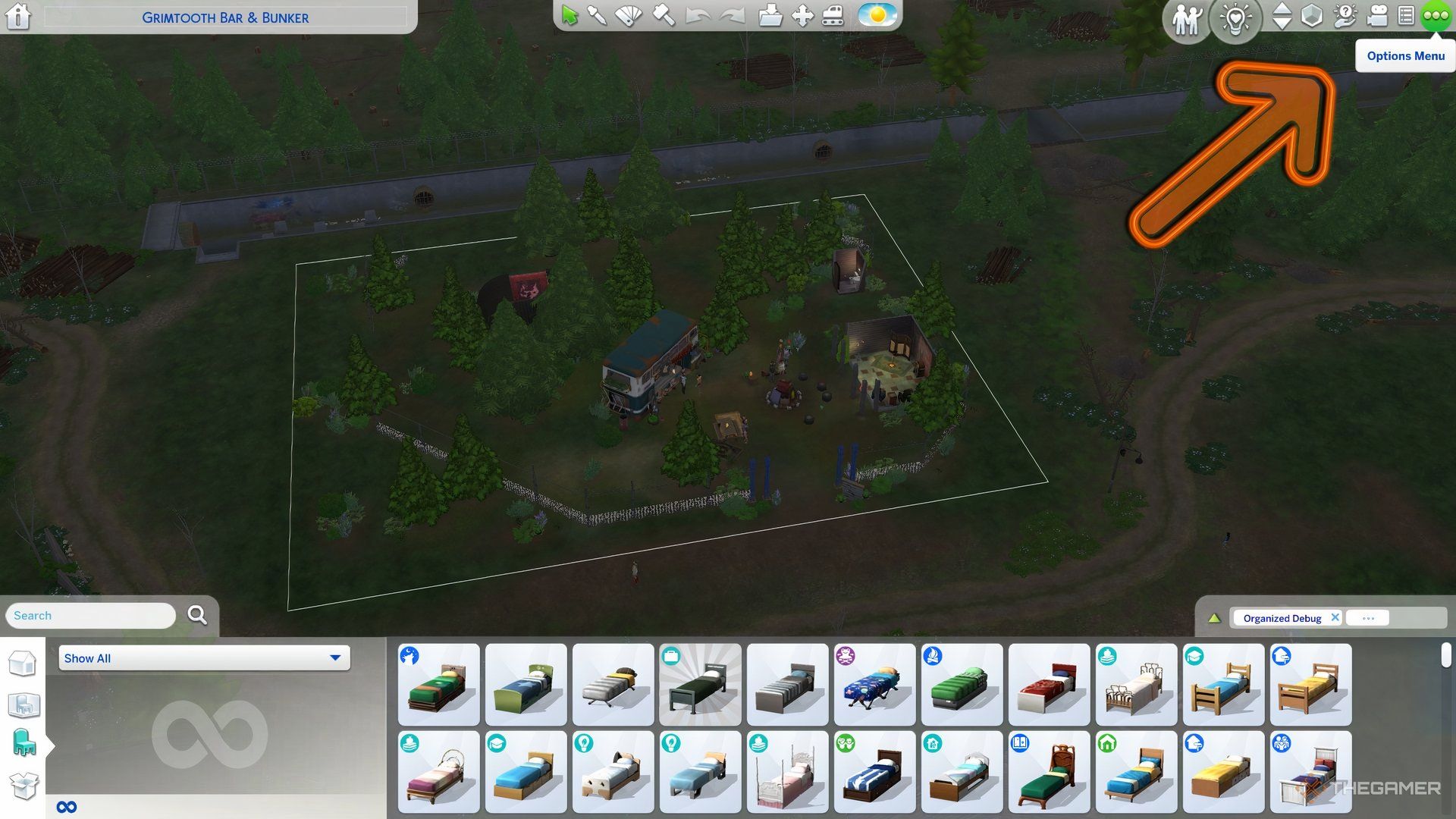
To do this, open the Options menu from the main screen or during gameplay, and select Game Options. Click on Music from the menu on the left.
A list of radio stations will appear on the left side, while on the right, you’ll see the songs associated with each station.
Scroll through the available songs and check the boxes to turn them on or off. Once turned off, they will no longer play in your game until you enable them again.
Feel free to create a completely custom station by adding your songs to a station and toggling off all the pre-existing tracks. Choose a station you usually skip, and say goodbye to songs that have overstayed their welcome.
How to Activate Safe for Streaming Mode
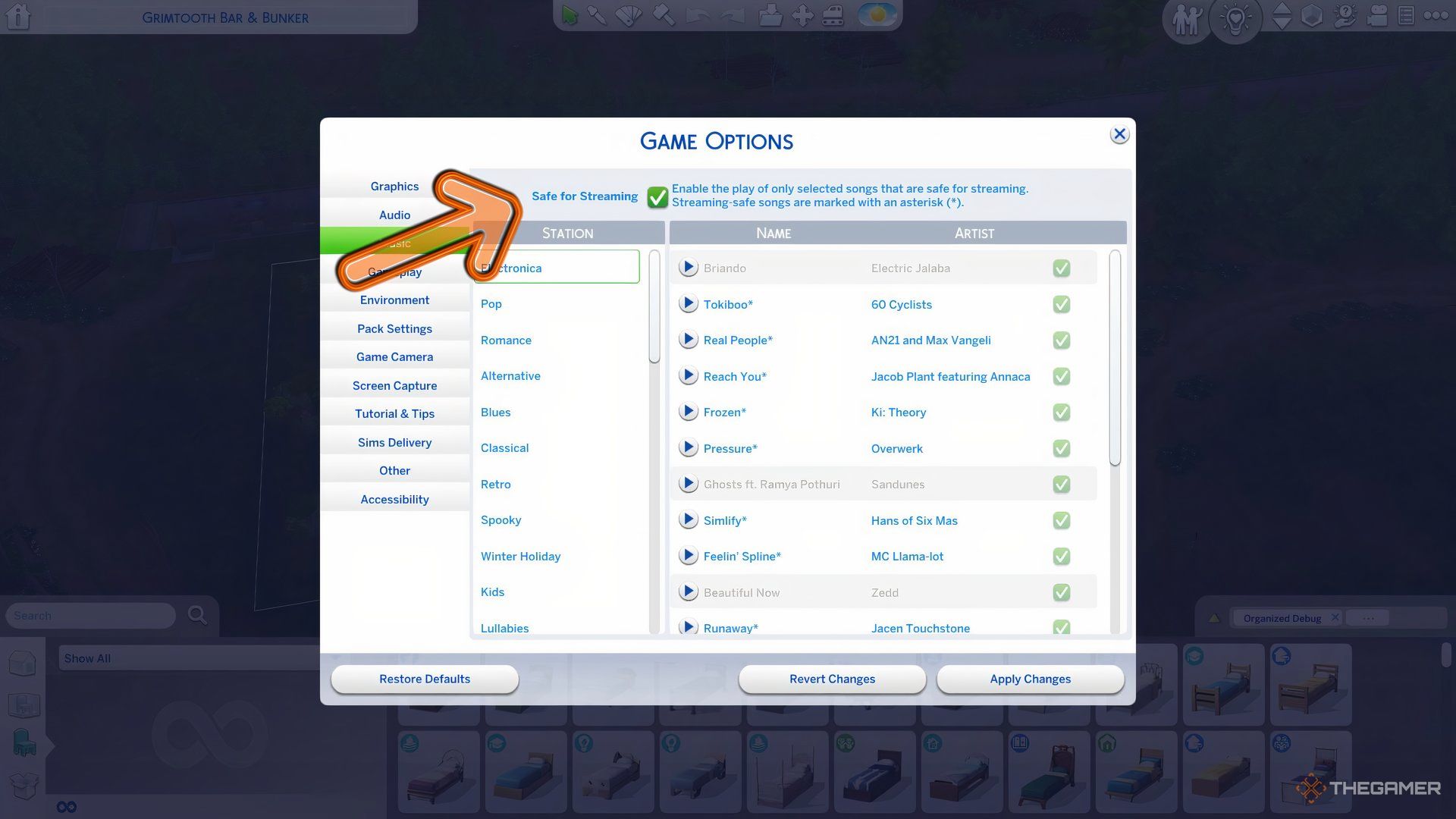
Since a lot of the music in The Sims 4 is protected by copyright, some tracks may not be allowed during streaming on platforms like Twitch. To steer clear of any issues, it’s recommended to switch your game to Safe for Streaming Mode before you go live.
To enable Safe for Streaming Mode, open the Options menu, then choose Game Options. After that, select Music. At the top of the radio station list, you’ll see a checkbox indicating some songs are not safe for streaming. You can toggle off any songs that aren’t safe by ticking this box.
Songs marked safe for streaming will have an asterisk next to their titles.
 ChatGPT
 Perplexity
 Gemini AI
 Grok AI