Select Language:
In *Suicide Squad: Kill the Justice League*, crossplay allows you to team up with friends across different platforms, and setting up these multiplayer sessions is quite straightforward—just search for their usernames! While playing together is easy, it’s important to note that there are some limitations regarding storyline progress, which we’ll cover as well. Here’s how to enable crossplay in *Suicide Squad: Kill the Justice League* and invite your friends to join you.
Inviting Friends in *Suicide Squad: Kill the Justice League*
Finding and inviting friends is straightforward if they’re already on the same platform as you. If they’re online, their names will show up under the Friends tab in the Social section of the main menu. You can have multiple characters from *Suicide Squad: Kill the Justice League* in a session. In some of my matches, I’ve encountered duplicates, although one of them was controlled by the AI, so it’s unclear how the game manages squad mix-ups.

Once your friends are online and in the game, simply select their names to send an invitation to join your squad.
Using Crossplay in *Suicide Squad: Kill the Justice League*

To invite a friend on a different platform, follow these steps to activate crossplay in *Suicide Squad: Kill the Justice League*:
- Go to the Social section in the menu and select Friends.
- Choose the Invite option at the bottom of the display.
- Enter your friend’s username according to the platform they’re using.
- If they’re in-game on another platform, they’ll show up in the list with a shield icon by their name.
- Select their name, and you can add them as a friend and invite them to your squad.
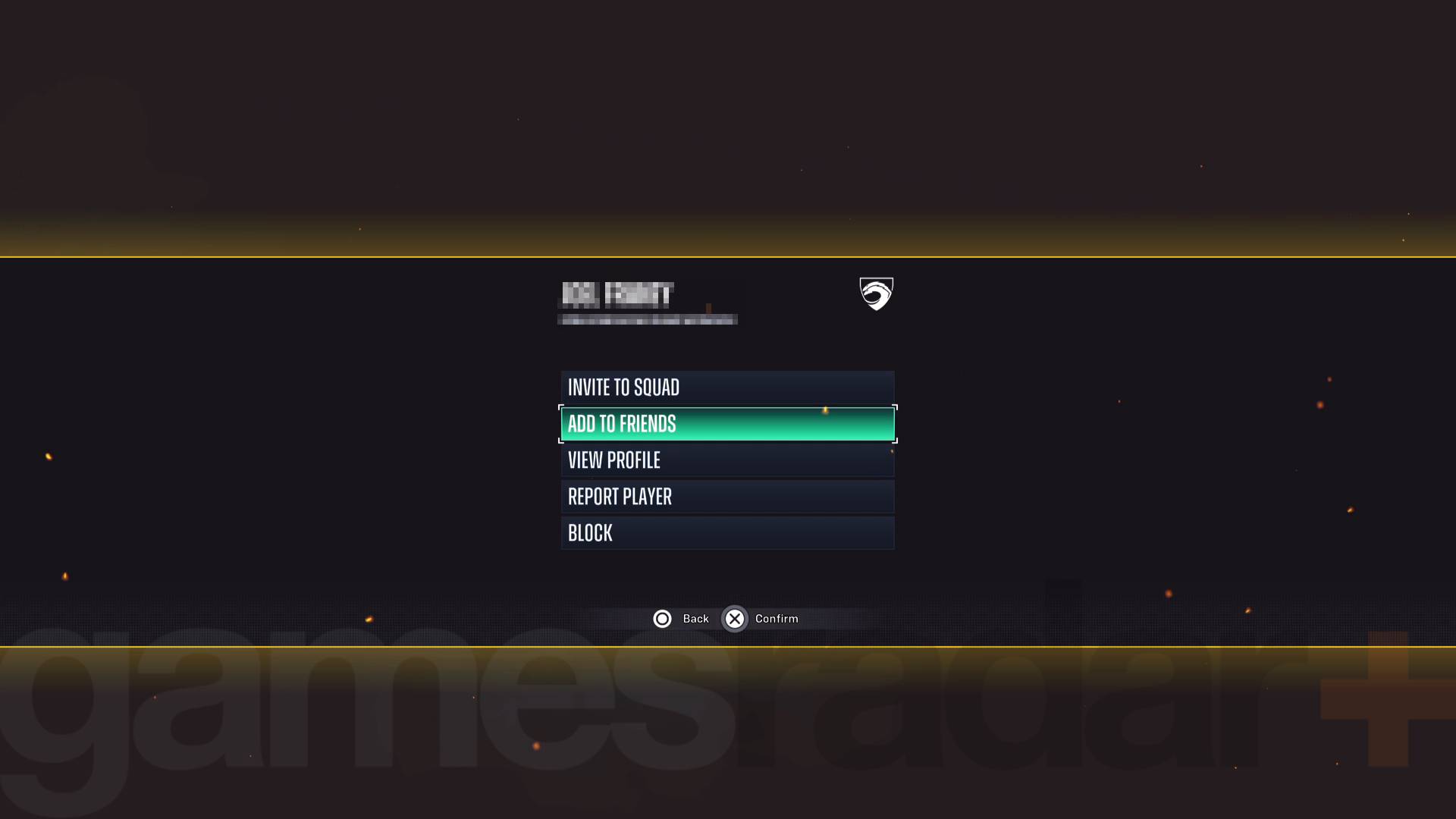
After inviting your friend, you’ll get a notification about switching your session to a multiplayer server. If you’re currently engaged in a mission, you will lose that progress and will need to start it over, but you will retain any character development you achieved before the switch.
Understanding Crossplay Progression in *Suicide Squad: Kill the Justice League*
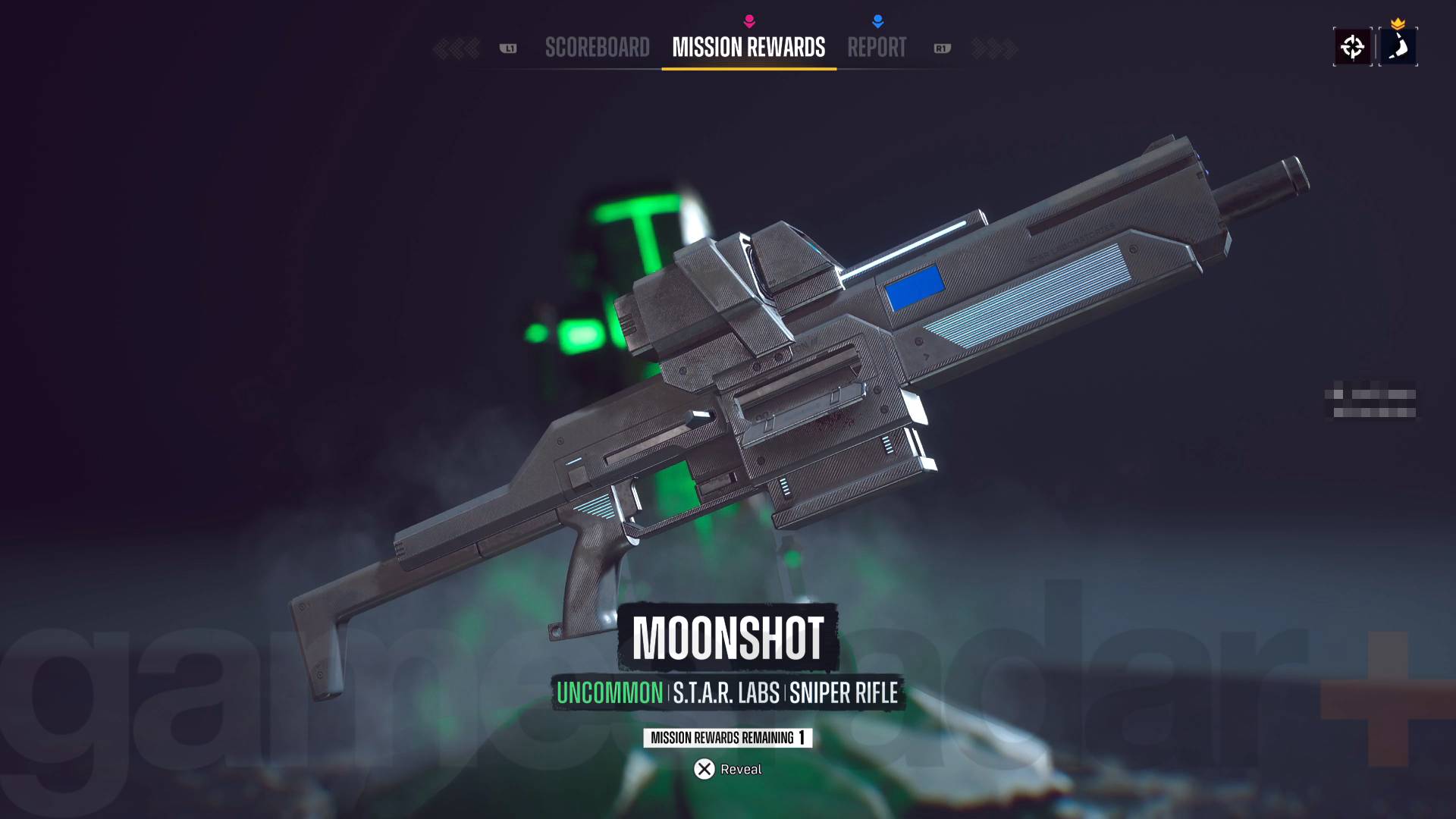
When it comes to crossplay progression in *Suicide Squad: Kill the Justice League*, you will retain any rewards or character progress made while playing with friends, but not the story progress. This means that if you finish a mission by joining a more advanced game, you will still need to complete that mission in your own game once you get to that point.
Communicating in *Suicide Squad: Kill the Justice League*
Voice chat is disabled by default in *Suicide Squad: Kill the Justice League*. To communicate with your friends, go to Options and enable the Voice Chat feature, which can be found at the bottom of the option list.
Assuming everyone has a working headset and microphone, you should be able to chat freely throughout the game without any issues.
 ChatGPT
 Perplexity
 Gemini AI
 Grok AI