Select Language:
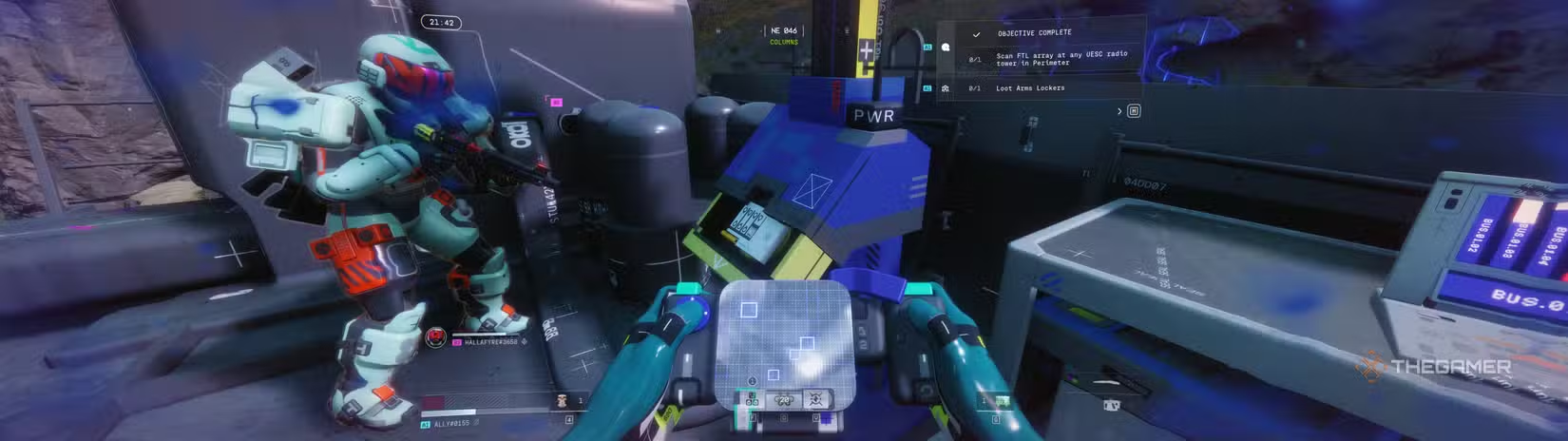
Playing Marathon isn’t the place for your PC to lag or stutter. This is a high-stakes extraction shooter where every second counts. If your game drops frames just when someone spots you, it can be frustrating and even feel disheartening.
Luckily, you don’t need a super expensive computer to run it smoothly. Small adjustments to your settings can improve your FPS and make the game feel sharper and more responsive. Proper tuning can reduce input delay and set up your game to work better with your system instead of against it. If you want your gunfights to be clear and your gameplay stable, it’s worth taking the time to optimize. Your future self—and your loot—will thank you.
Best PC Settings for Marathon
Here are recommended settings to get the best performance and visual quality:
| Setting | Ideal Setting | What This Setting Does |
|---|---|---|
| Window Mode | Fullscreen | Runs the game in exclusive fullscreen, improving performance and reducing input lag. |
| Resolution | Native (1920×1080, 1440p, etc.) | Controls how many pixels are rendered; lower resolutions boost FPS but lower image clarity. |
| VSync | Off | Synchronizes FPS with monitor’s refresh rate; turning off reduces input lag but may cause screen tearing. |
| Frame Rate Cap Enabled | On | Limits your maximum FPS to keep performance steady. |
| Frame Rate Cap | Match your monitor (60/120/144/165 fps) | Sets the maximum FPS to match your display for smoother gameplay and less GPU strain. |
| Field Of View (FOV) | 95 to 105 | Expands what you see on screen; higher FOV increases awareness but may slightly reduce performance. |
| Brightness | Adjust to preference | Sets overall image brightness; aim for visibility without washing out contrast. |
| Screen Bounds | Adjust to fit your display | Ensures UI elements are aligned within your screen. |
| Graphics Quality (Custom) | Custom (Mix of Medium/Low) | Allows fine-tuning of graphics to optimize performance. |
| Anti-Aliasing | DLSS (NVIDIA), FSR (AMD), XeSS (Intel) or CMAA (low-end) | Smoothed jagged edges; DLSS, FSR, and XeSS use AI for better quality and FPS. Off gives max FPS but jagged edges are visible. |
| Resolution Scaling | Balanced | Lowers internal resolution for better FPS, then upscales the image; balanced offers good performance and clarity. |
| Render Resolution | 100% | Controls internal rendering resolution; lower boosts FPS but blurs the image. |
| Target Frame Rate | 200 | Guides system processes to maintain your preferred FPS. |
| Screen Space Ambient Occlusion | Low or Off | Adds realism to shadows in corners; turning off boosts performance. |
| Anisotropic Filtering | 8x | Improves texture clarity at angles with minimal performance cost. |
| Texture Quality | Medium | Adjusts texture detail; higher uses more video memory. |
| Shadow Quality | Low or Medium | Controls shadow detail; a demanding setting for performance. |
| Environment Detail Distance | Medium | Sets how far environmental details stay visible. |
| Character Detail Distance | Medium | Controls how far detailed character models render from you. |
| Foliage Detail Distance | Low or Medium | Affects how far grass and plants are rendered; lowering boosts performance. |
| Light Shafts | Medium | Adds volumetric light beams; high settings impact performance. |
| Motion Blur | Off | Blurs movements; disabling sharpens game clarity. |
| HDR (if you have HDR display) | Off (unless your monitor supports it) | Improves color and brightness range. |
| Chromatic Aberration | Off | Adds subtle color fringing; purely visual, best turned off. |
| NVIDIA Reflex | On (if supported) | Reduces system latency for more responsive input. |
| UI Refresh Rate | High | Controls how often UI updates, making menus and elements appear smoother. |
Adjusting these settings can significantly improve your game experience, giving you higher FPS and sharper visuals while reducing lag and input delay.
 ChatGPT
 Perplexity
 Gemini AI
 Grok AI