Select Language:
Marvel Rivals has quickly become one of the standout games of 2024. It’s visually stunning, engaging to play, and draws in a massive player base. Unfortunately, some players are experiencing stuttering issues that disrupt gameplay.
But don’t worry—this is a technical glitch that can be resolved with a few adjustments. While NetEase Games may improve optimization in future updates, there are current workarounds. This guide will help you boost your frame rate, so stay tuned.
How Can You Increase Frames Without Upgrading Hardware?
While upgrading your system is often a go-to solution for low performance in newer games, the issue with Marvel Rivals stems from optimization rather than hardware.
If you’re experiencing frame drops when Doctor Strange appears on the screen, don’t panic. This is an in-game issue, not related to your hardware.
For example, Doctor Strange causes numerous systems to struggle with frame rates. His character increases the rendering load when he opens a portal, affecting many players. While a patch may address this in the future, here are some tips to improve your frame rate now:
In-Game Optimizations For Best FPS
To get started, launch Marvel Rivals and head to the settings menu by clicking the gear icon in the top-right corner. Go to Display settings and follow the configurations below:
Display Settings
Setting the correct display options can enhance your in-game experience. While it may not produce a significant boost, you’ll likely see some improvement.
| Display Mode | Full Screen |
|---|---|
| Aspect Ratio | Based on your display, 16:9 is recommended. |
| Resolution | 1920×1080 |
| Anti-Aliasing and Super Resolution | Use AMD FSR for AMD GPUs and Nvidia DLSS for Nvidia GPUs. |
| Super Resolution Mode | Quality |
| Super Resolution Sharpening | 80 |
| Frame Generation Mode | Off |
| Low Latency Mode | Nvidia Reflex if using an Nvidia GPU; otherwise, keep it off. |
| Limit FPS | Off |
| V-Sync | Off |
Graphics Settings
Click on the Optimize button to let the game auto-set the graphics settings for your computer. However, adjust the following parameters for better performance:
| Global Illumination | SSGI – Low Quality |
|---|---|
| Reflection Quality | Screen Space Reflections |
| Post-Processing | Low |
| Shadow Detail | Low |
| Effects Detail | Low |
| Foliage Quality | Low |
Windows Optimizations To Improve Performance
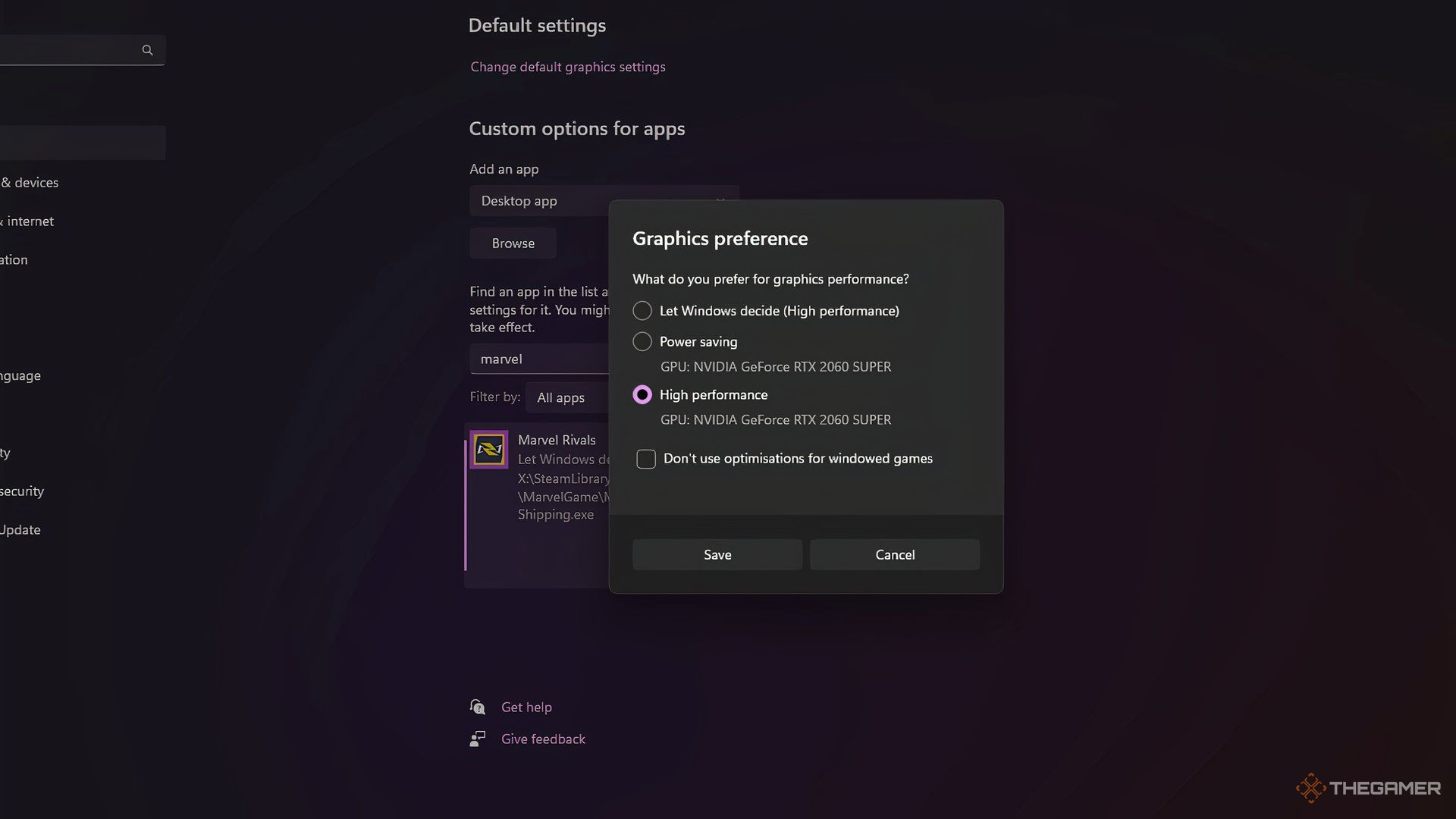
In addition to adjusting graphics settings, you should modify some Windows Settings for optimal performance while playing Marvel Rivals. Follow these steps:
Windows Graphics Settings
- Open Windows Settings, then go to the System menu and select Display.
- Scroll down to find the Graphics tab. Locate Marvel Rivals in the list and click on it.
- Click the Options button, choose High Performance, and then hit Save.
Disabling Game Bar and Enabling Game Mode
- Open Windows Settings and select the Gaming submenu.
- In Gaming settings, click on Game Bar and disable it.
- In Gaming settings again, click on Game Mode and turn it on if it’s off.
The Game Bar consumes significant system resources, so it’s advisable to keep it disabled. If you usually use Game Bar for recording, consider using OBS Studio instead.
Also, ensure your Graphics Card Drivers are up to date:
- For Nvidia cards, open Nvidia GeForce Experience and check for updates there.
- For AMD cards, use the AMD Software: Adrenaline Edition.
 ChatGPT
 Perplexity
 Gemini AI
 Grok AI