

Select Language:
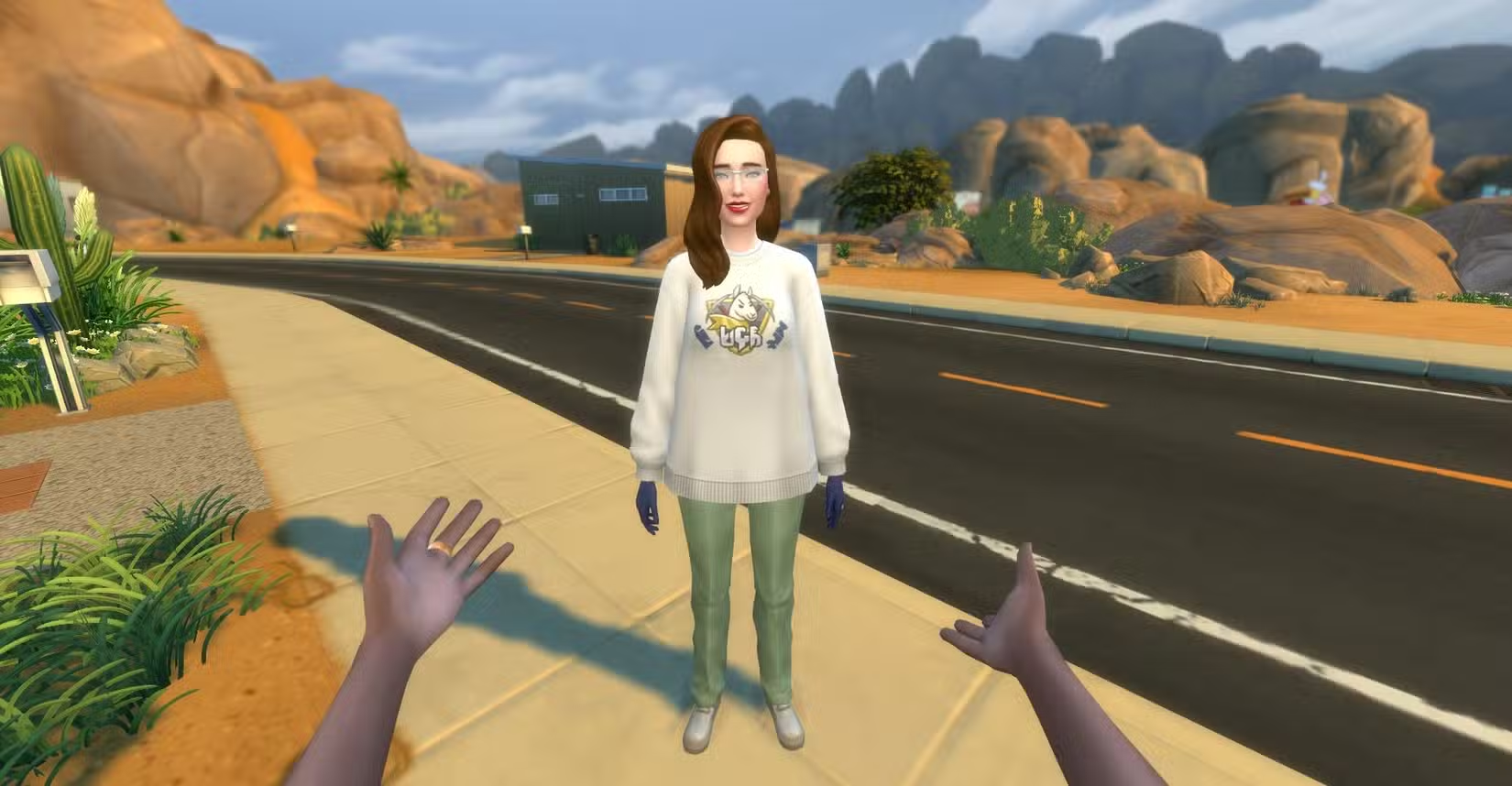
Playing The Sims 4 from a top-down view is fun, but there’s a way to make it even more immersive—you can experience the game from your Sim’s point of view, as if you’re inside their head.
Have you ever wanted to see what your Sim’s pet is up to or check out what they’re watching on that fancy new plasma TV? Keep reading to learn how to switch into first-person mode and view the world through your Sim’s eyes.
Updated October 13, 2025: We’ve added new tips and a troubleshooting guide to help you enjoy first-person mode smoothly, without frustrating glitches.
How to Turn on First-Person Mode
Getting into first-person view is quick and simple. Just press a specific button depending on your gaming platform:
| Console | Button to Press |
|---|---|
| PC | Hold Shift and Tab at the same time |
| PlayStation | Hold R3 (press the right stick) |
| Xbox | Hold RS (press the right stick) |
To exit first-person mode, press the same buttons you used to activate it. For example, on PC, press Shift and Tab together again.
Using First-Person Mode
Once you’re in first-person, you can look around by moving your mouse or, on consoles, maneuvering the right analog stick. This gives you a dynamic view of your household. If you’re controlling multiple Sims, you can switch perspectives instantly by pressing the Spacebar.
You can also access the game’s menu and options by pressing Shift or the touchpad. Moving your Sim around is straightforward: just click where you want them to go and select “Move Here” from the options that appear. To leave a room, right-click the door to choose “Go Here” on PC, or press ‘O’ on PlayStation and ‘B’ on Xbox.
Interacting in First-Person Mode
Interacting with objects is simple: point at anything in your view and click to perform actions — like cooking, sitting, or using items. This makes the gameplay more personal and immersive.
Tips to Make the Most of First-Person Mode
- Expect minor glitches: Since the game’s animations are made for third-person, you might see floating hands or objects clipping through furniture. These are harmless, but if they break the immersion, switching out of first-person briefly can reset things.
- Be cautious with romantic or close interactions: Activities like woohoo or cuddling might cause camera glitches or clipping through walls. It’s better to switch back to normal view during these moments.
- Adjust for motion sickness: The narrow field of view can be disorienting or cause dizziness over long play sessions. Take breaks or switch back to regular camera controls if needed. Moving the camera slowly helps reduce this effect.
- Watch for texture issues: Sometimes textures can get warped or go missing depending on the angle. Slightly changing your view or exiting and re-entering first-person can help.
Troubleshooting First-Person Mode
If first-person mode isn’t working, check the following:
- Make sure you’re holding down the correct control button long enough.
- Keep your game fully updated; some patches are essential for this feature.
- Disable any mods or custom content, as they can interfere.
- Restart your game to fix temporary glitches.
- On Steam, change the overlay hotkey in the settings if Shift + Tab conflicts.
First-person mode in The Sims 4 offers a whole new way to experience the game. Just remember that minor bugs and glitches are normal, and adjusting your playstyle can help make it more enjoyable.
 ChatGPT
 Perplexity
 Gemini AI
 Grok AI

