Select Language:
Playing multiplayer in StarRupture makes sci-fi survival a shared adventure where teamwork equals as much importance as technology. Although the tutorial is designed for solo play, you can work together with up to four players on the same hostile planet, managing exploration, base building, and defenses as a team.
Feel free to take on ambitious goals while sharing roles to keep things running smoothly, and fight enemies together. It can make surviving on this alien world a little easier. Here’s how to join StarRupture as a team.
### How to Set Up a Multiplayer Server
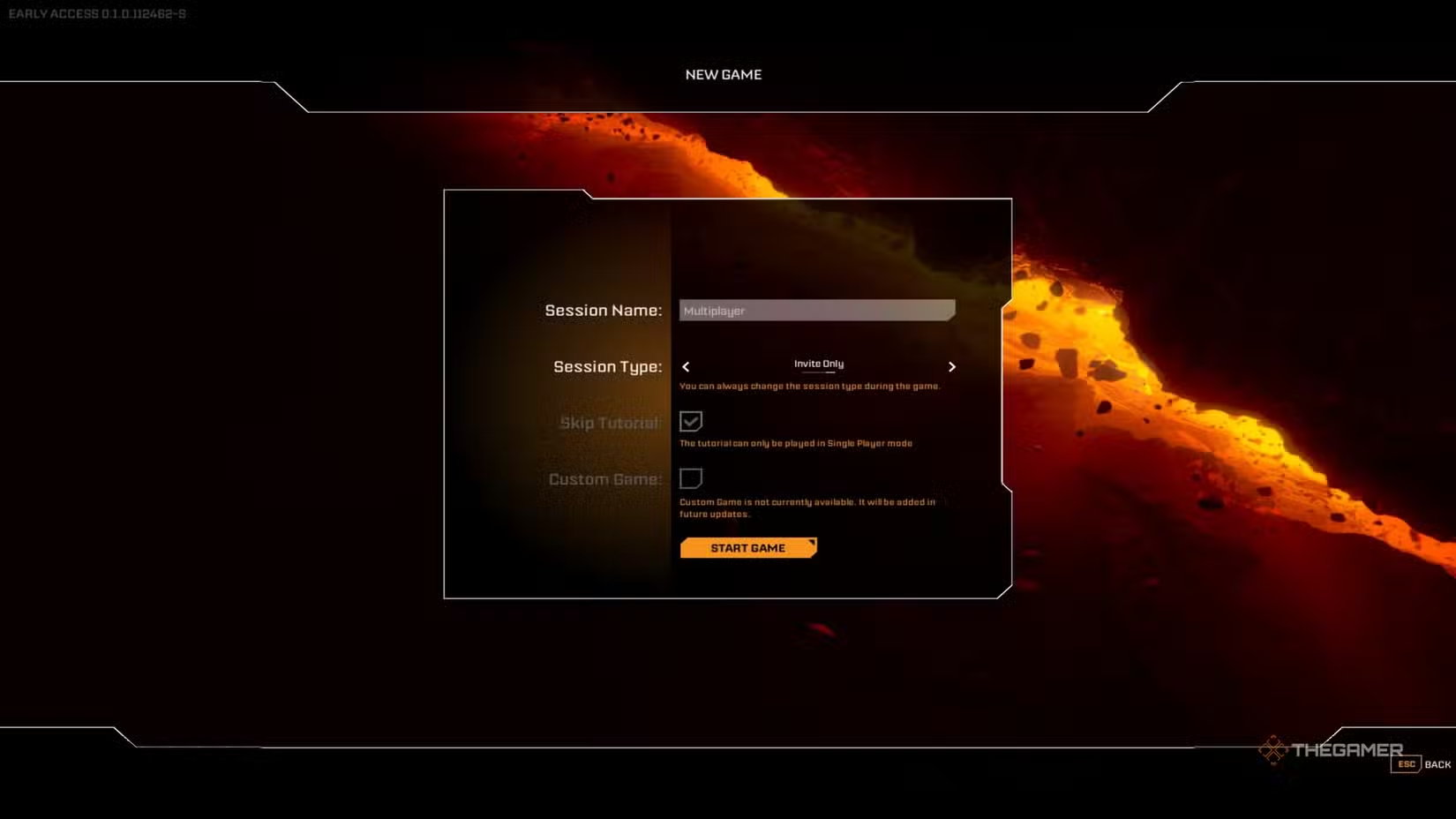
When playing co-op, you first need to decide who will be the host. The host sets up and starts the game and invites others to join. When creating the game, they can pick between ‘Invite Only’ or ‘Friends Only.’ The main difference is that with ‘Invite Only,’ the host has to send an invite for each player, and other Steam friends cannot join on their own.
To invite players, the host must enter the game and press the ‘Esc’ key to open the menu. On the right side, they will see their username and three empty slots. They need to select a slot and choose the option to invite someone via Steam. The invited player will get a notification with a link to join the game.
The game session will be saved on the host’s computer. Usually, others can only join when the host allows it, but there is an option called SaveSync that keeps the server open for everyone at all times.
> Multiplayer games are limited to four players: the host and three others. Currently, this limit cannot be increased.
### How to Use SaveSync as Host to Play Offline
SaveSync is a tool available on Steam that helps keep co-op worlds alive even when the host is offline. It lets you join and play the same game world without the host being online. To use it, you need to install SaveSync and save your game.
After setting up your save, exit StarRupture and launch SaveSync from your Steam Library. Select StarRupture from the list, then click ‘New Save.’ Your saved sessions will appear—pick the one you want and click ‘Create Save.’
The save file will start syncing, and you’ll see a green check once it’s complete. Use the share icon (six options next to the check) to find your teammates’ Steam usernames. Click on their names to share the save with them.
### How to Use SaveSync as a Teammate
Once the host has synced and shared the save file, open SaveSync from your Steam Library. If everything was done correctly, you’ll see the shared save in your game list when you click on StarRupture in SaveSync. Select ‘Activate’ on the shared save, and you’ll be able to use that world without the host being online.
> Everyone on your team who wants to use the same world offline must purchase and install SaveSync.
 ChatGPT
 Perplexity
 Gemini AI
 Grok AI