Select Language:
Setting up your PS5 is usually pretty simple, but some parts can be tricky if it’s your first time with Sony’s latest console. That’s why we’re here to guide you through the process. Whether you’re new to PlayStation and need help getting started, or you’re upgrading from a PS4 and want tips on how to transfer your games and use old accessories, we’ve got you covered. Here’s everything you need to know to get your PS5 ready so you can start gaming right away.
How to set up your PS5
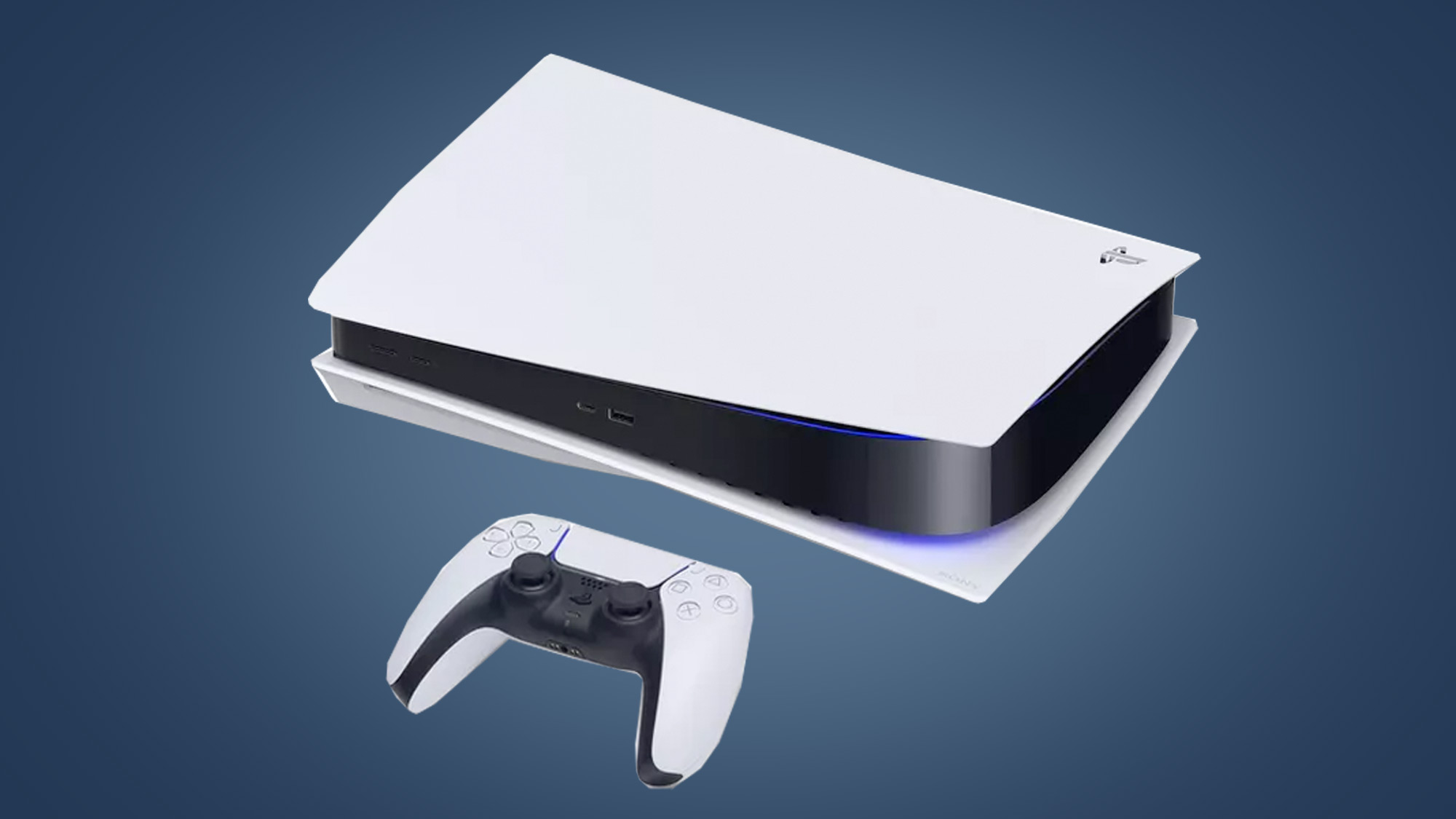
Once you take your PS5 out of the box, your first choice is how to position it—either sideways or upright. The console works in both orientations. For vertical placement, attach the stand at the bottom to keep it stable. If you prefer to lay it flat, just clip on the stand on the side. Many people opt for the horizontal setup because it takes up less vertical space. When placing the console, make sure the buttons and disc drive (if you have a disc version) are on the left; otherwise, it’ll be upside down!
After choosing your orientation, connect the power cable and HDMI. Turning on the console might be a little confusing at first. The front of the PS5 has two buttons: one is the power button, and the other is for ejecting discs (if you have a disc version). The power button is larger and closer to the edge—look for the small, unlabeled button, which can be hard to see in low light. Once powered on, use the on-screen instructions to complete the setup, including internet connection, account sign-in, and system preferences. Remember to set your console to Rest Mode if you want it to download updates or charge controllers while “sleeping.”
How to set up your controller
Your PS5 comes with a DualSense controller that you need to connect first with a USB-C cable to sync with your system. After the initial setup, firmware updates can be sent wirelessly, so you don’t need the cable anymore. The DualSense has a built-in microphone—handy for quick chat, but keep in mind it streams your voice unless muted. To avoid broadcasting unwanted sounds, learn how to mute it through the settings. If other players bother you, you can also disable voice chat entirely.
If you like to customize your experience, you can invert the camera controls at the system level, which is helpful for some players. The controller’s haptic feedback and adaptive triggers can be a lot at first — you can turn them off or reduce their intensity in the settings if they feel overwhelming. Also, old DualShock 4 controllers work for playing PS4 games on your new console, which is useful for local multiplayer. Additionally, you can connect a keyboard and mouse for certain titles for a different way to play.
How to play games on your PS5
There are two main ways to enjoy games: insert a disc into the console or download digital copies from the PlayStation Store. To browse the store, select the Store icon from the main menu. After choosing your game, you can check its download progress and, if you have multiple accounts, set up game sharing to share your library.
The PS5 allows you to take screenshots and recordings of your gameplay instantly. These files are saved in the Media Gallery, where you can view, edit, and share them. You can also change the capture settings to customize how your videos and screenshots are saved.
Remember, you can still play PS4 games on the PS5 by inserting discs, downloading from the store, or transferring files from your previous console. If your PS4 games are on an external hard drive, just plug it into the PS5 to access them. Make sure to download your saved data to continue progress seamlessly. The PS5 also plays Blu-ray movies, including Ultra HD 4K Blu-rays, so you can enjoy high-quality movies too.
How to fix PS5 issues
While issues are rare, sometimes problems happen. The system’s UI often guides you through troubleshooting steps, but if you need more help, the PlayStation Support website offers extensive guides categorized by issue type. For simple fixes, like your controller not charging, make sure you’re using an appropriate cable and a power source that supplies enough power. We also provide tips for fixing common error codes and warnings that might pop up.
With these basics, your PS5 should be ready for action. If you’re unsure which games to try first, check out our top-rated PS5 game list. Want to see what’s coming next? We’ve got a rundown of upcoming titles you’ll want to watch for.
(All rights reserved. Do not reproduce without permission.)
 ChatGPT
 Perplexity
 Gemini AI
 Grok AI