• About Us
  • Contact Us
  • Advertise
  • Privacy Policy
  • Guest Post
No Result
View All Result
Digital Phablet
  • Home
  • NewsLatest
  • Technology
    • Education Tech
    • Home Tech
    • Office Tech
    • Fintech
    • Digital Marketing
  • Social Media
  • Gaming
  • Smartphones
  • AI
  • Reviews
  • Interesting
  • How To
  • Home
  • NewsLatest
  • Technology
    • Education Tech
    • Home Tech
    • Office Tech
    • Fintech
    • Digital Marketing
  • Social Media
  • Gaming
  • Smartphones
  • AI
  • Reviews
  • Interesting
  • How To
No Result
View All Result
Digital Phablet
No Result
View All Result

Home » Enabling Item Filters in Path of Exile II: A Step-by-Step Guide

Enabling Item Filters in Path of Exile II: A Step-by-Step Guide

Emily Smith by Emily Smith
January 31, 2025
in Gaming
Reading Time: 5 mins read
A A
Enabling Item Filters in Path of Exile II: A Step-by-Step Guide
ADVERTISEMENT

Select Language:

Quick Links

  • How to Link Your Path of Exile 2 Account
  • How to Enable Console Loot Filters

Finding valuable loot drops in Path of Exile 2 can be quite the challenge. Even in the later stages of the game where you encounter plenty of items, it’s tough to find something that really improves your build, especially without an effective loot filter.

ADVERTISEMENT

Fortunately, there are community solutions available for both PC and console players. Various player-made item filters can guide you in identifying worthwhile items while you explore Wraeclast. Below, we’ll discuss how to set up loot filters on console, which involves one extra step compared to PC.

How to Link Your Path of Exile 2 Account

To begin, you’ll need to link your console to your Path of Exile 2 account. Visit the Path of Exile website and click on the login option in the top left corner.

After logging in, choose “manage account” from the list on the right. Under the Secondary Login section, connect to Sony or Microsoft, depending on your console.

ADVERTISEMENT

This will prompt you to sign in with your Xbox or PlayStation account. Once completed, your Path of Exile and console accounts will be successfully linked.

How to Enable Console Loot Filters

Next, to set up loot filters, return to your account page and select the “Item Filters” option on the right side.

In the Followed Item Filters section, click on Item Filter Ladder to see a list of community-created loot filters suitable for various play styles and classes.

Make sure to select PoE2 from the Game Type drop-down menu to view item filters specifically for Path of Exile 2.

Once you find a loot filter that fits your needs, click the Follow button to add it to your list of followed filters. These filters will then automatically appear in the game.


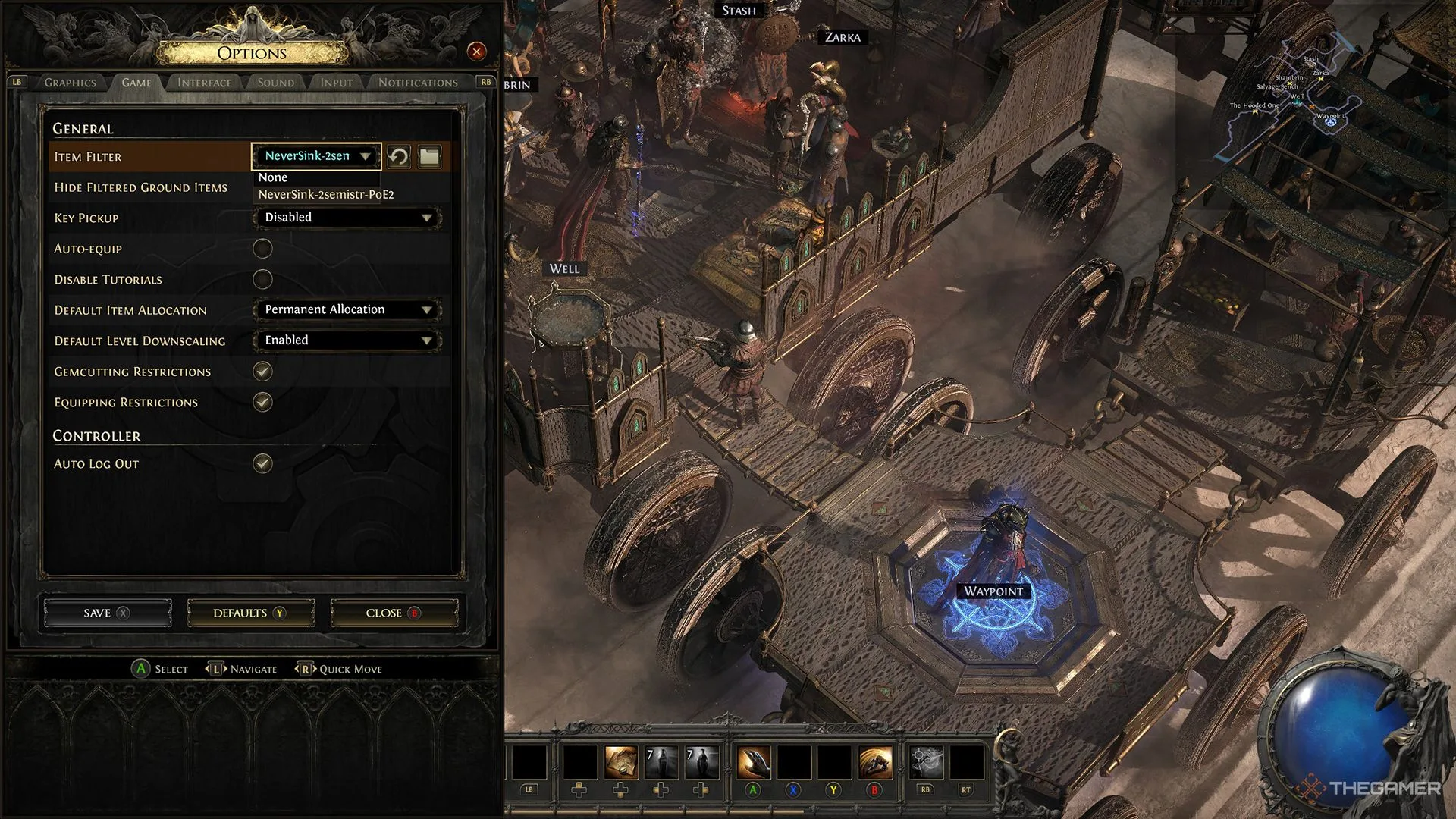
To access them, return to the game, open the options menu, and navigate to the Game tab. The first option under General is Item Filter. Clicking the drop-down menu will display a list of all the item filters you’ve followed on the website. Choose the one you want, and it will be activated in the game!

It might take a few moments for the item filter to show up in-game after you follow it. If you don’t see it right away, try waiting a bit or restarting the game.

ChatGPT ChatGPT Perplexity AI Perplexity Gemini AI Logo Gemini AI Grok AI Logo Grok AI
Google Banner
Tags: enableHow Toitem filtersLive-Service GamesPath of Exile 2Path of Exile II
ADVERTISEMENT
Emily Smith

Emily Smith

Emily is a digital marketer in Austin, Texas. She enjoys gaming, playing guitar, and dreams of traveling to Japan with her golden retriever, Max.

Related Posts

How to Get Paper in Pokemon Pokopia: Completing and Solving
Gaming

How to Get Paper in Pokemon Pokopia: Completing and Solving

March 16, 2026
How to Complete Robin’s Quest for Her Lost Axe in Stardew Valley
Gaming

How to Complete Robin’s Quest for Her Lost Axe in Stardew Valley

March 14, 2026
How to shut down the mine in GreedFall 2: The Dying World by completing the quest
Gaming

How to shut down the mine in GreedFall 2: The Dying World by completing the quest

March 11, 2026
How to Complete the Tanoby Key Puzzle in Pokémon FireRed & LeafGreen
Gaming

How to Complete the Tanoby Key Puzzle in Pokémon FireRed & LeafGreen

March 11, 2026
Next Post
Unlocking Cross-Platform Play in Fortnite Across All Devices

Unlocking Cross-Platform Play in Fortnite Across All Devices

  • About Us
  • Contact Us
  • Advertise
  • Privacy Policy
  • Guest Post

© 2026 Digital Phablet

No Result
View All Result
  • Home
  • News
  • Technology
    • Education Tech
    • Home Tech
    • Office Tech
    • Fintech
    • Digital Marketing
  • Social Media
  • Gaming
  • Smartphones

© 2026 Digital Phablet