Select Language:
SCUM offers players the chance to survive in any way they choose, whether it’s exploring alone in the wilderness or collaborating with friends on a server. For those interested in enhancing their gameplay, console commands provide powerful tools for customization and administration.
These commands are valuable for both server admins and those who prefer sandbox-style gameplay. We’ll explain how to utilize console commands in SCUM, including how to enable them, what they do, and provide a list of item IDs at the end.
How to Use Console Commands
SCUM features a user-friendly admin console that allows for easy item spawning, player teleportation, stat adjustments, and server management. To use these commands, you need to have administrator permissions—you can gain this by hosting a server or playing solo.
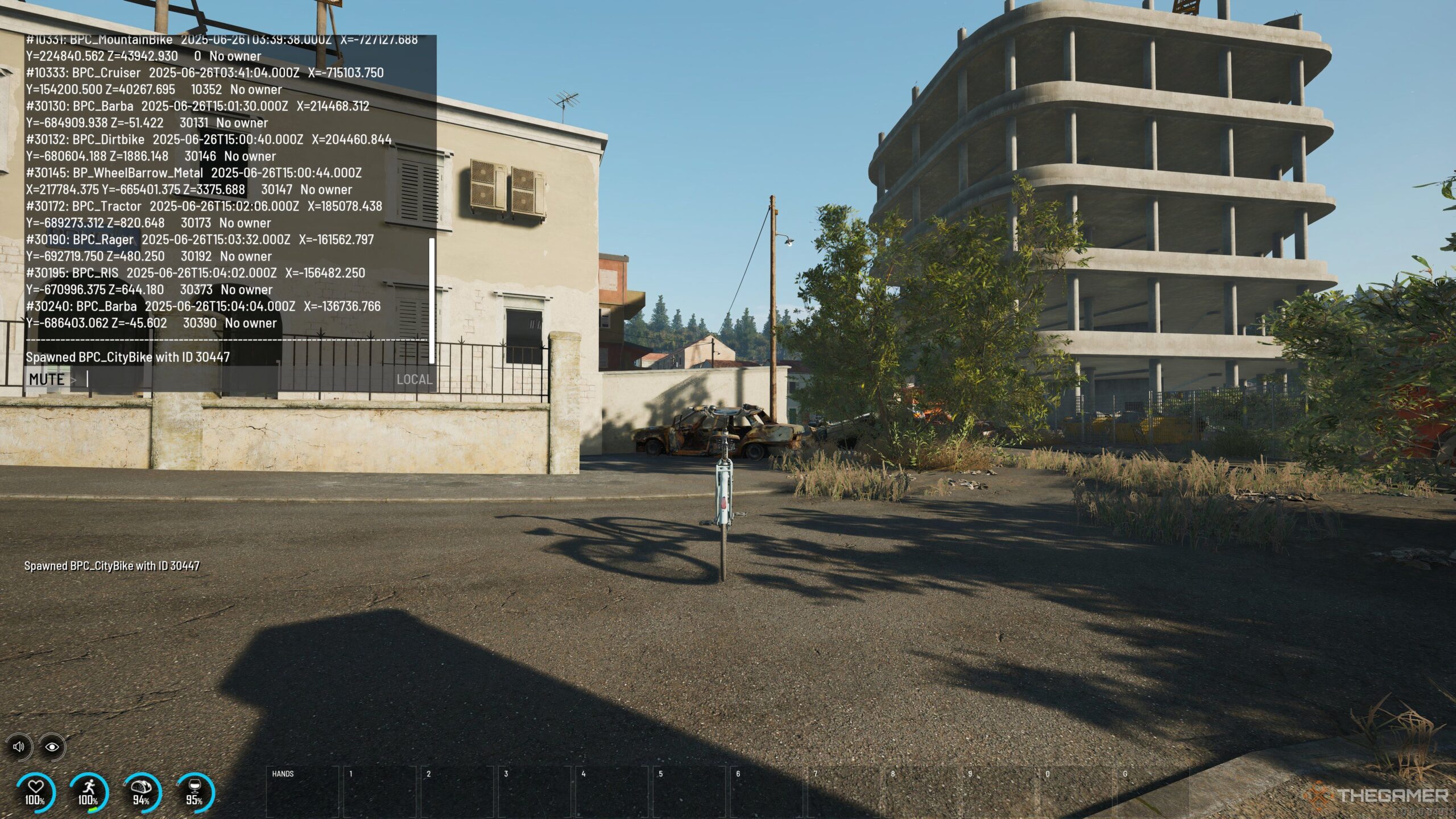
To open the chat box, simply press T and enter any command preceded by #, like #List to see all available commands, then hit Enter. Familiarizing yourself with a few key commands enables you to tailor your gameplay, manage disruptive players, or experiment with gear and setups in both single-player and hosted environments.
All Console Commands
The console commands in SCUM empower admins and solo players alike, granting control over the game world, from spawning gear to managing the weather and teleporting. Below is a comprehensive list of available commands and their effects.
Basic Commands
| Command | Effect |
|---|---|
| #Announce |
Broadcasts a custom message to all online players. |
| #Location |
Displays the location of a specific player on the map. If no name is given, it shows your own position. |
| #ListAnimals | Provides a list of animals that can be spawned in the game. |
| #ListItems |
Shows all items matching the given keyword; leave empty to view all items. |
| #ListMutedPlayers | Displays usernames of players who are currently muted. |
| #ListPlayers | Lists all players currently connected to the server. |
| #ListSpawnedVehicles | Shows every vehicle on the server, including their locations. |
| #ListSquadMembers |
Displays members of a specific squad; adding “true” copies the list to your clipboard. |
| #ListSquads | Lists all active squads on the server. |
| #ListZombies | Lists all zombie NPCs that can be spawned. |
| #VisualizeBulletTrajectories |
Toggles a visual effect showing bullet paths when firing. |
| #VisualizePlayerAiming |
Turns on or off a visual marker indicating where a player is aiming. |
| #SetTime |
Changes the in-game time to the specified hour. |
| #SetWeather |
Adjusts the current weather from clear to stormy conditions. |
Note: The visualization commands only apply to the player who inputs them.
Character Commands
| Command | Effect |
|---|---|
| #Ban |
Removes a player and blocks their access until unbanned. |
| #Kick |
Removes a selected player but allows them to return later. |
| #Mute |
Prevents a player from using in-game chat. |
| #ResetSquadInfo |
Clears the name and details of a squad, resetting its identity. |
| #SetFacialHairLength |
Adjusts the length of a character’s beard (0=clean-shaven, 1=full beard). |
| #SetFamePoints |
Set a player’s Fame Points to a specific number. |
| #SetGodMode |
Toggles invincibility for a player. Use “[godmode]” after their Steam ID. |
| #Teleport |
Moves a player to specified coordinates. |
| #Unban |
Lifts a ban so the player can reconnect. |
| #UnMute |
Allows a previously muted player to chat again. |
Item Commands
| Command | Effect |
|---|---|
| #DestroyAllVehicles |
Deletes every vehicle from the map (must say “please”). |
| #DestroyVehicle |
Deletes a specific vehicle using its unique ID. |
| #SpawnAnimal |
Spawns a specified number of the selected animal. |
| #SpawnItem |
Places a specific item right at your feet. |
| #SpawnRandomAnimal | Summons a random animal in front of you. |
| #SpawnRandomZombie | Brings a random puppet (zombie) near your location. |
| #SpawnVehicle |
Creates a specific vehicle using its ID. |
| #SpawnZombie |
Spawns a set number of the chosen zombie type. |
Tip: If you’re unsure of the exact name of an item, use #ListAssets
All Item IDs
Below is a complete list of item IDs, including weapons, clothing, food (both raw and cooked), tools, and more. Proceed with caution, as some items might disrupt game balance or performance.
This information should help you make the most of your SCUM gameplay experience, allowing for greater customization and control as you navigate the challenges of survival.
 ChatGPT
 Perplexity
 Gemini AI
 Grok AI