
Select Language:
OpenAI has officially launched ChatGPT Tasks after a month-long wait. This feature enables ChatGPT to execute tasks on behalf of users, bringing us closer to a new era where AI systems can take action autonomously. In this guide, we will provide you with comprehensive instructions on how to schedule and run tasks in ChatGPT. You will also learn how to set reminders and manage your tasks effectively. Let’s get started!
How to Schedule and Run ChatGPT Tasks
First and foremost, ensure you are subscribed to one of the paid plans: ChatGPT Plus, Pro, or Team. The ChatGPT Tasks feature is solely available to paying customers. Additionally, please note that ChatGPT Tasks can be accessed via the app on Android, iOS, and macOS, as well as on the web. However, it is not currently available on the Windows app. Here are the steps to follow:
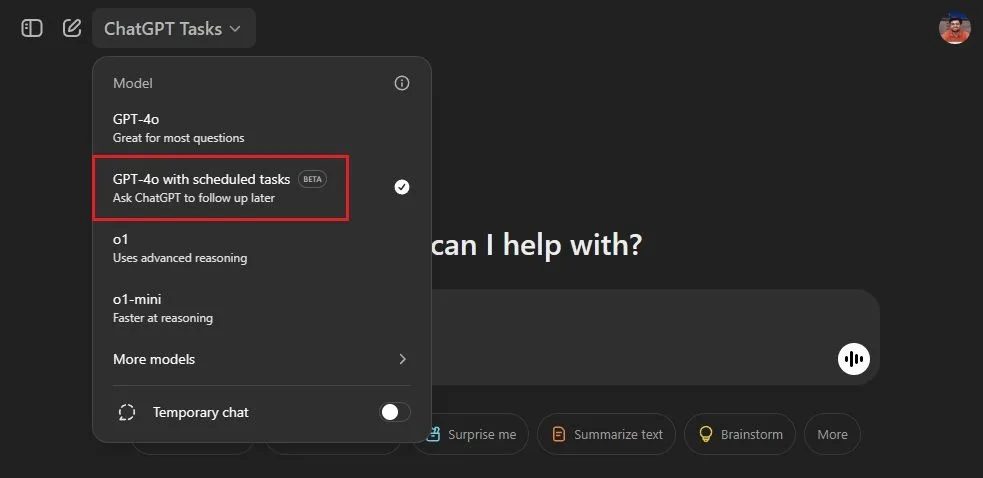
- Open ChatGPT and select “GPT-4o with scheduled tasks” from the menu dropdown at the top.
- Next, type in the task you want to create. You can initiate your prompt with “create a task …” for custom tasks.
- For instance, I requested ChatGPT to compare stock prices of Apple and Nvidia and to send me a report daily at 1 PM.

- The task will be created immediately, and ChatGPT will acknowledge it.
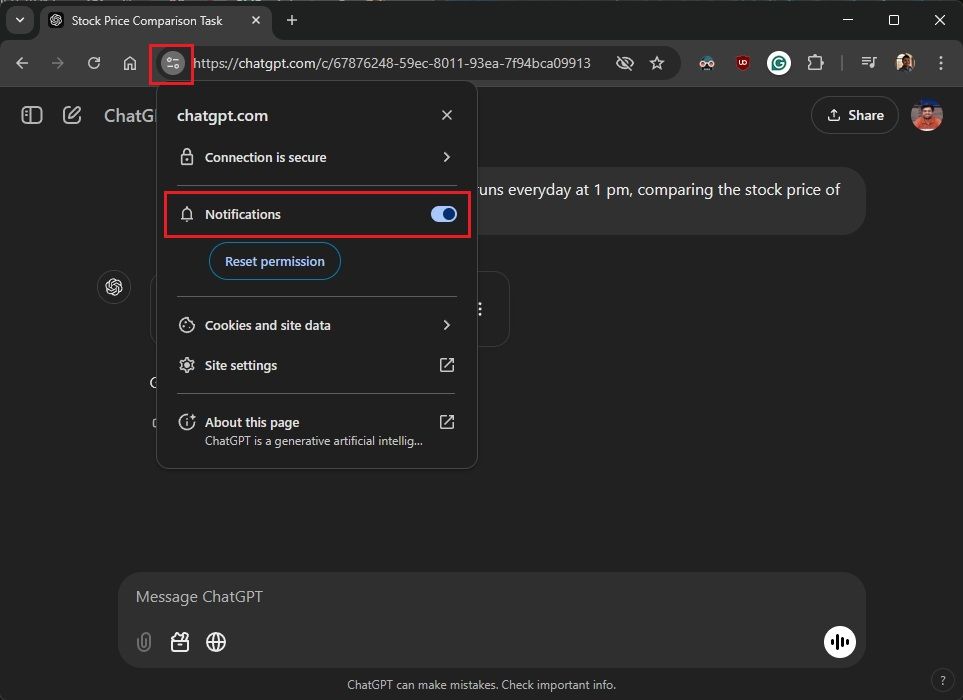
- To receive notifications for your tasks, click “Allow” to enable desktop notifications.

If you’re using ChatGPT in a web browser, go to Site control next to the URL in the address bar and enable “Notifications.”
For the ChatGPT mobile app, navigate to Settings -> Notifications -> Tasks. Make sure to enable both notification toggles to receive task alerts.
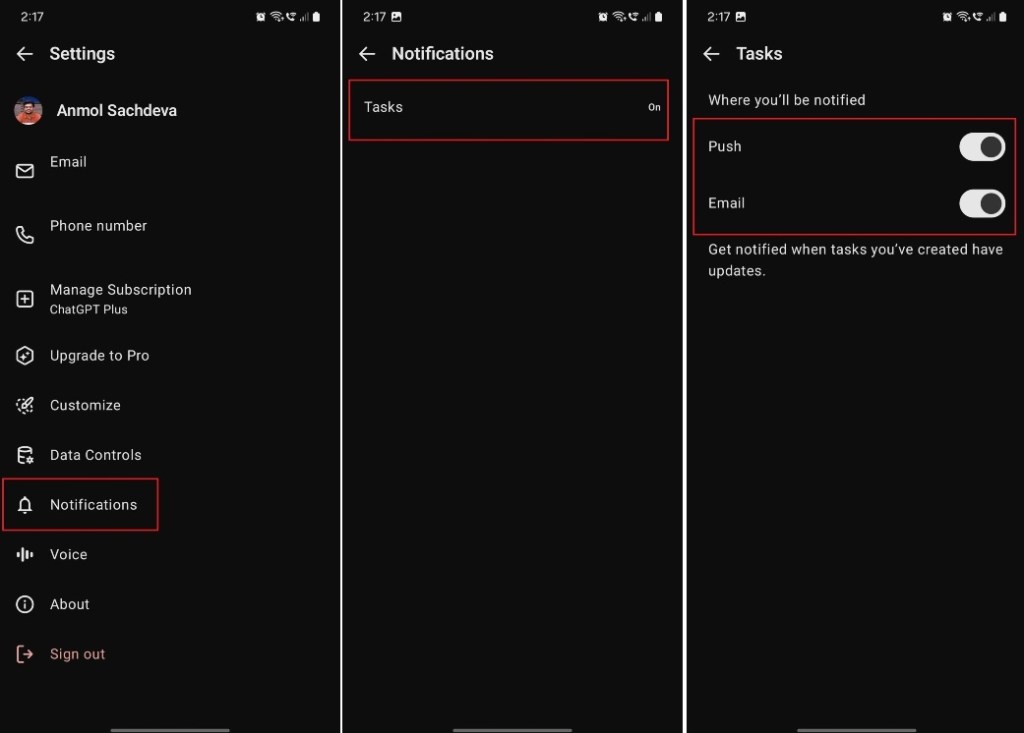
Once set up, you’ll receive notifications from ChatGPT through your web browser or mobile app when your tasks run. During my trials, I noticed some delays in task execution, so please keep that in mind.
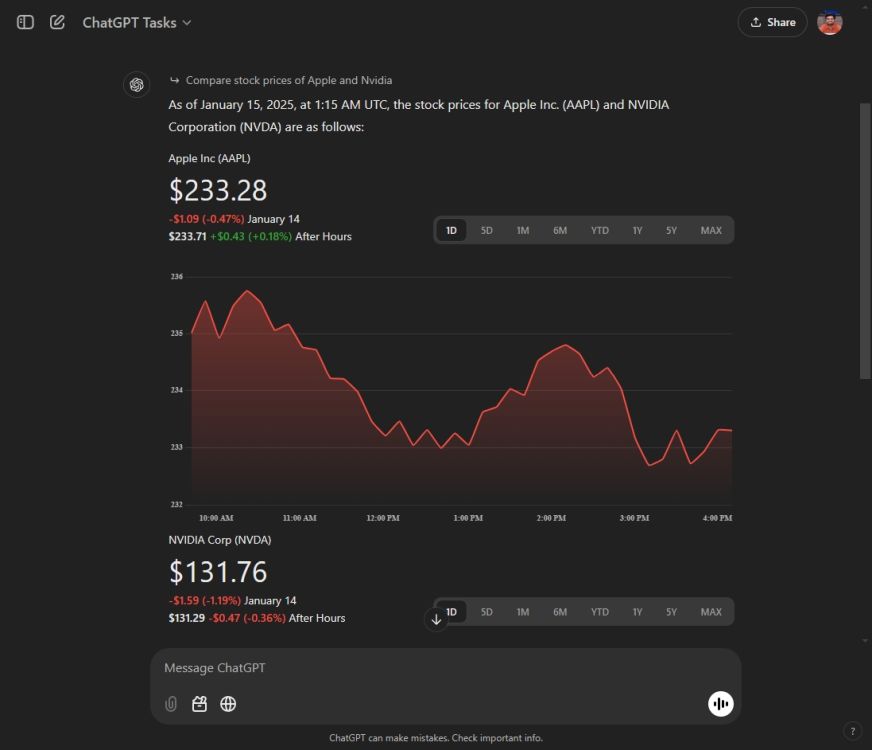
When you access the notification, you’ll see that ChatGPT has completed the scheduled task. For example, ChatGPT successfully generated an interactive line chart for my request.
How to Set Reminders in ChatGPT
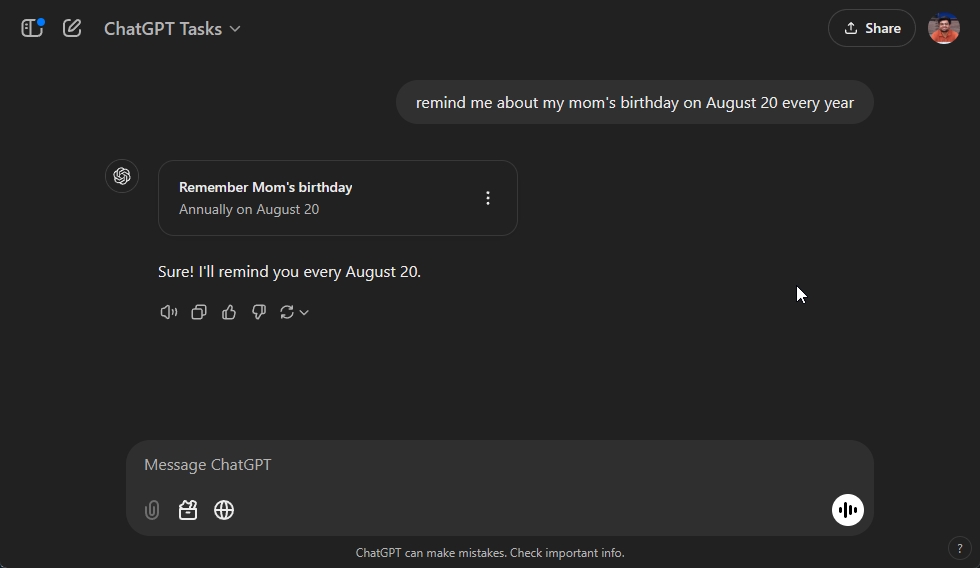
You can also set reminders in ChatGPT, similar to tasks. Under the “GPT-4o with scheduled tasks” section, start your prompt with “remind me about ….”
For instance, I asked ChatGPT to remind me about my mother’s birthday on a specific date. That’s all there is to it!
How to Manage Tasks in ChatGPT
Managing and editing tasks in ChatGPT is straightforward. Keep in mind that task management functionality is exclusive to the ChatGPT Web version, and up to 10 active tasks can be processed simultaneously.
To manage your tasks, click on your profile in the top-right corner, then select “Tasks” from the dropdown menu. Alternatively, you can navigate directly to chatgpt.com/tasks.
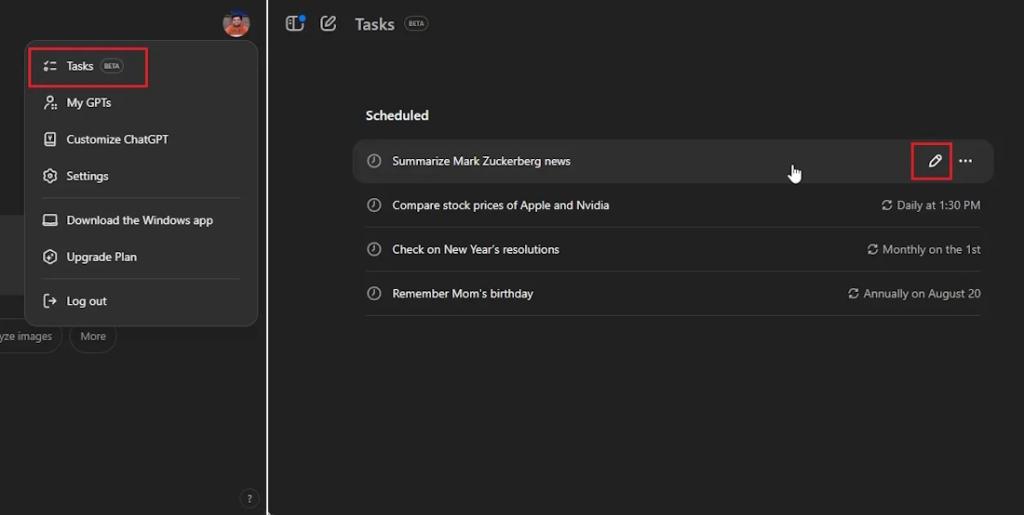
Here, you can edit or delete your tasks. Click the “pen” icon to modify a task. You can adjust the schedule (whether it’s daily, weekly, monthly, annually, or on a custom cycle) for the selected task. You can also choose to delete or pause it.

This is how you can effortlessly create, set reminders, and manage tasks within ChatGPT. This is just the beginning, as OpenAI plans to roll out its “Operator” agent in the coming weeks, which will allow you to perform actions for you within a web browser, opening up even more exciting possibilities.

 ChatGPT
 Perplexity
 Gemini AI
 Grok AI