


Select Language:
Recent surges in RAM prices, especially for DDR5 modules, are impacting many PC users. A 32GB RAM kit is projected to cost approximately $400 by 2026, with higher prices likely for premium brands and faster speeds.
If you’ve just upgraded or operate a well-optimized system, there’s no immediate need to spend more. By adjusting settings and adopting certain habits, you can effectively utilize 16GB or 32GB of RAM for work and gaming. The starting point is Windows 11:
Launch the Task Manager with Ctrl-Shift-Esc and review which apps are consuming RAM when your system is idle. Numerous applications continue to run in the background even if they’re not actively needed.
Messenger apps, music streamers, game platforms like Steam, or RGB control tools often occupy several hundred megabytes of RAM unnecessarily. Develop the habit of closing these before launching resource-heavy games or apps. For greater efficiency, consider managing startup programs so these processes don’t start automatically with Windows.
Clearing the Windows startup list can free up RAM and generally accelerate system boot times.
Jon Martindale / Foundry
Access this by clicking on ‘Startup apps’ in Task Manager, then disable unnecessary programs that aren’t needed immediately after startup. Usage habits also influence RAM consumption: long-running applications or games with memory leaks can gradually consume increasing amounts of RAM without releasing it.
If you plan to work or game for extended periods, consider restarting the affected application or Windows itself periodically. This resets memory allocations and can help prevent micro-stutters or brief freezes without needing new hardware. Additionally, managing Windows’ virtual memory can enhance system stability:
The OS offloads data from RAM to your storage device when physical RAM is nearly full. With a rapid NVMe SSD, this approach can boost performance, though it’s not a substitute for actual RAM. Adjust the paging file size via Windows system settings:
Open the Run dialog with Windows-R, type sysdm.cpl, and hit Enter. Navigate to ‘Advanced’ in the ‘System Properties’ window. Under ‘Performance,’ click ‘Settings,’ then switch to the ‘Advanced’ tab. Next, click ‘Change’ under ‘Virtual memory’ to modify its size.
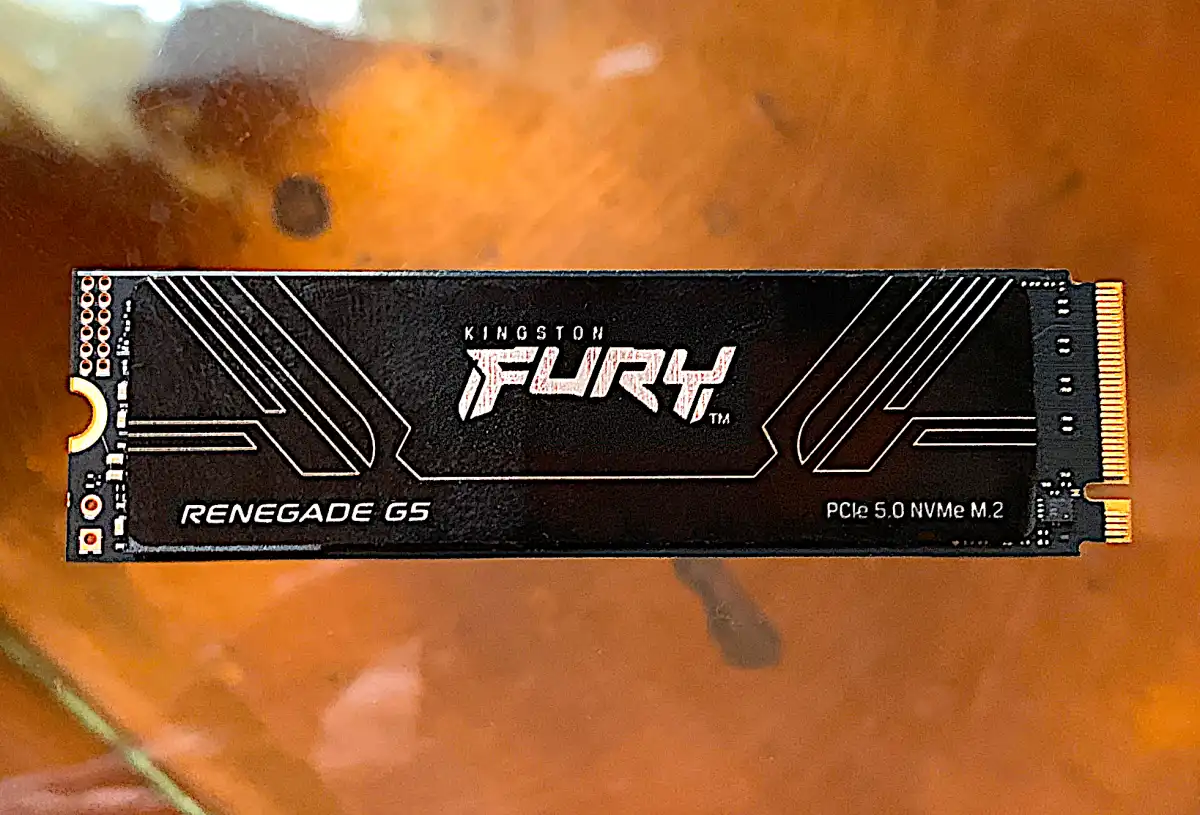
If you own a high-speed NVMe SSD, leveraging virtual memory is a smart move to mitigate RAM limitations.
Jon L. Jacobi
It’s advisable to set the virtual memory to approximately 150-300% of your installed RAM if you frequently run out of memory. Ensure your system SSD has ample available space. While third-party tools claiming to clean RAM often have questionable reputations, they can sometimes help if a program isn’t releasing memory properly. For such purposes, reputable options like CCleaner or BleachBit can be used, but results vary, and expectations should be realistic.
When gaming, it’s beneficial to close applications like web browsers, which can use multiple gigabytes of RAM with several tabs open. Use only essential windows, or create separate profiles to limit RAM consumption. Overlays from platforms or device drivers also contribute significantly to RAM use.
Ultimately, RAM remains a costly component, making careful management vital. Through disciplined handling of background processes, virtual memory adjustments, and periodic system restarts, you can prolong the usability of your current setup significantly.
Following these practices consistently allows you to defer purchasing additional RAM without noticeable performance sacrifices in everyday tasks.
Related articles
 ChatGPT
 Perplexity
 Gemini AI
 Grok AI